The lab workflow runs from Clinic → Diagnostics. It is where a clinic manages everything from ordering an investigation to signing off on the result: providers order tests from a patient's visit, the care team collects samples and records what comes back, and the ordering clinician reviews the findings on the record. Set up your catalogue and partner labs once, then order tests and record results as they arrive. Diagnostics is a clinical module, so the section is available only where the diagnostics feature is enabled and the person has diagnostics permissions.
Test types
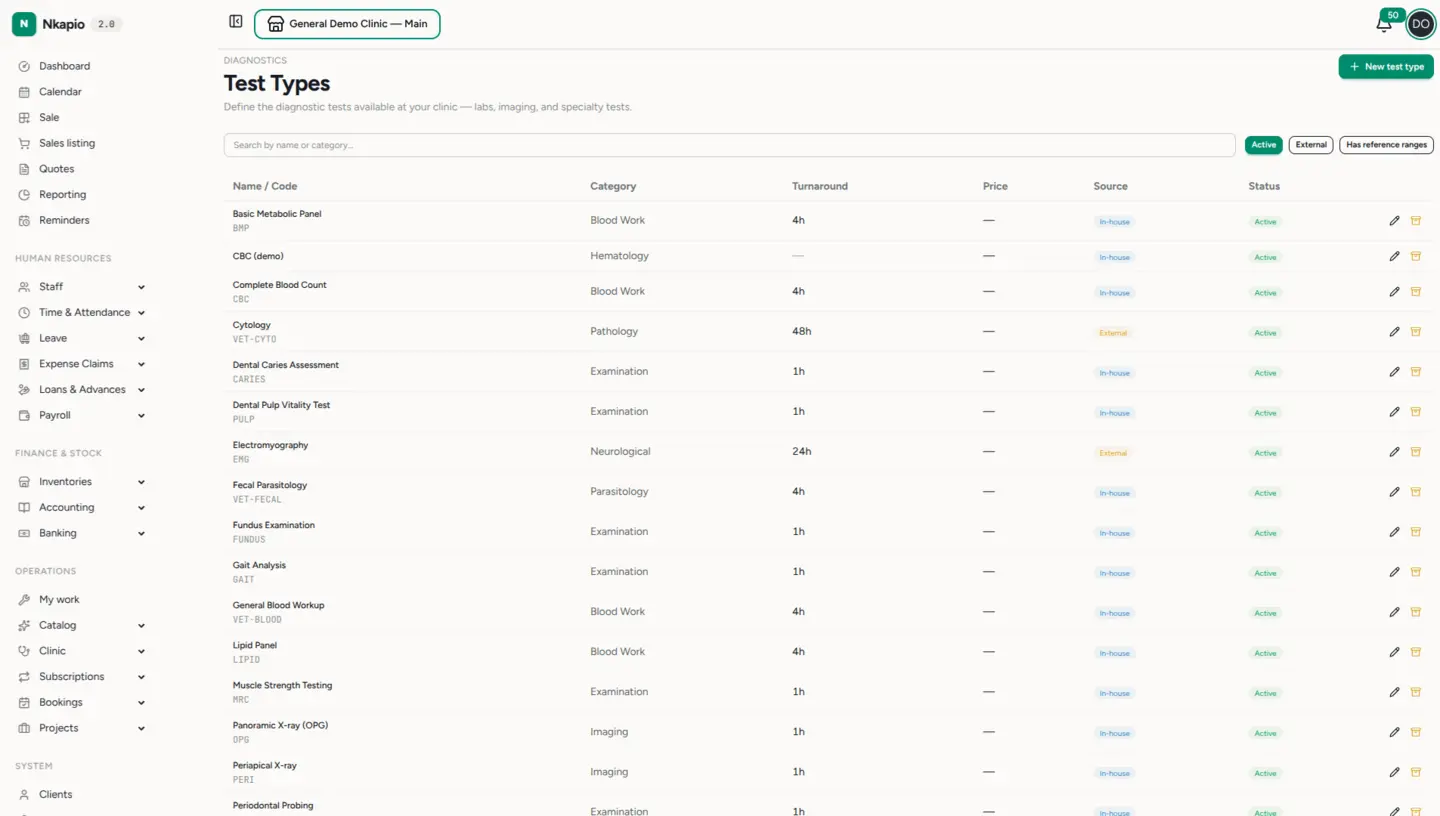
Diagnostics → Test types is your catalogue of orderable tests — each with its analytes, units, and reference ranges. Every test type carries a name and optional code and category, an estimated turnaround, a price, and a flag for whether it requires a sample. Its result fields define what gets measured: each field has a name and a value type — numeric, text, yes/no, or an image or file attachment — and numeric fields can carry a reference minimum and maximum (or a free-text reference note). Add a test type once and it's available on every patient's order form, and its fields become the rows you fill in when results come back.
External labs
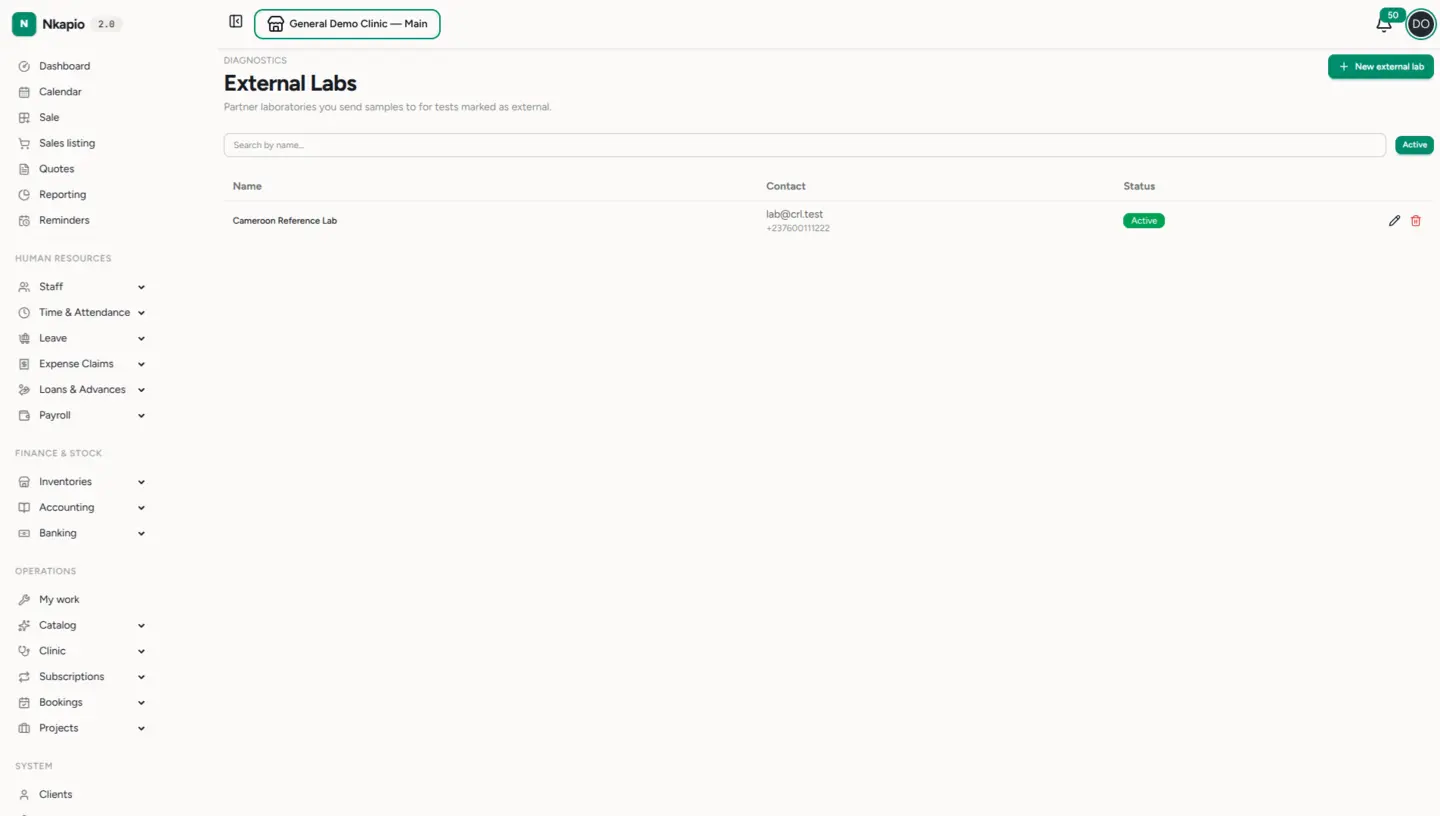
If you send samples out, register your partners under Diagnostics → External labs. Each lab record holds contact details — email, phone, address — and the list of test types it supports, so you can steer the right work to the right partner. Mark a test type as external and ordered tests can then be attributed to the lab that runs them, keeping turnaround and provenance clear. External labs are a vendor directory only — they hold no patient data, so access is governed by your diagnostics permissions rather than the care-team wall that protects clinical records.
How an order moves
Ordering a test from a visit creates a diagnostic order — one order can group several tests — with a priority of routine, urgent, or stat. Each test on it then moves through its own lifecycle: Ordered → Sample collected → Sent to lab → Results received → Reviewed, or Cancelled at any point. You don't have to touch every step — recording a result advances a test to Results received automatically. Once every test on an order has been reviewed or cancelled, the order closes on its own. Behind the scenes each transition is written to an append-only event trail, so who did what and when stays auditable on the record.
Entering results
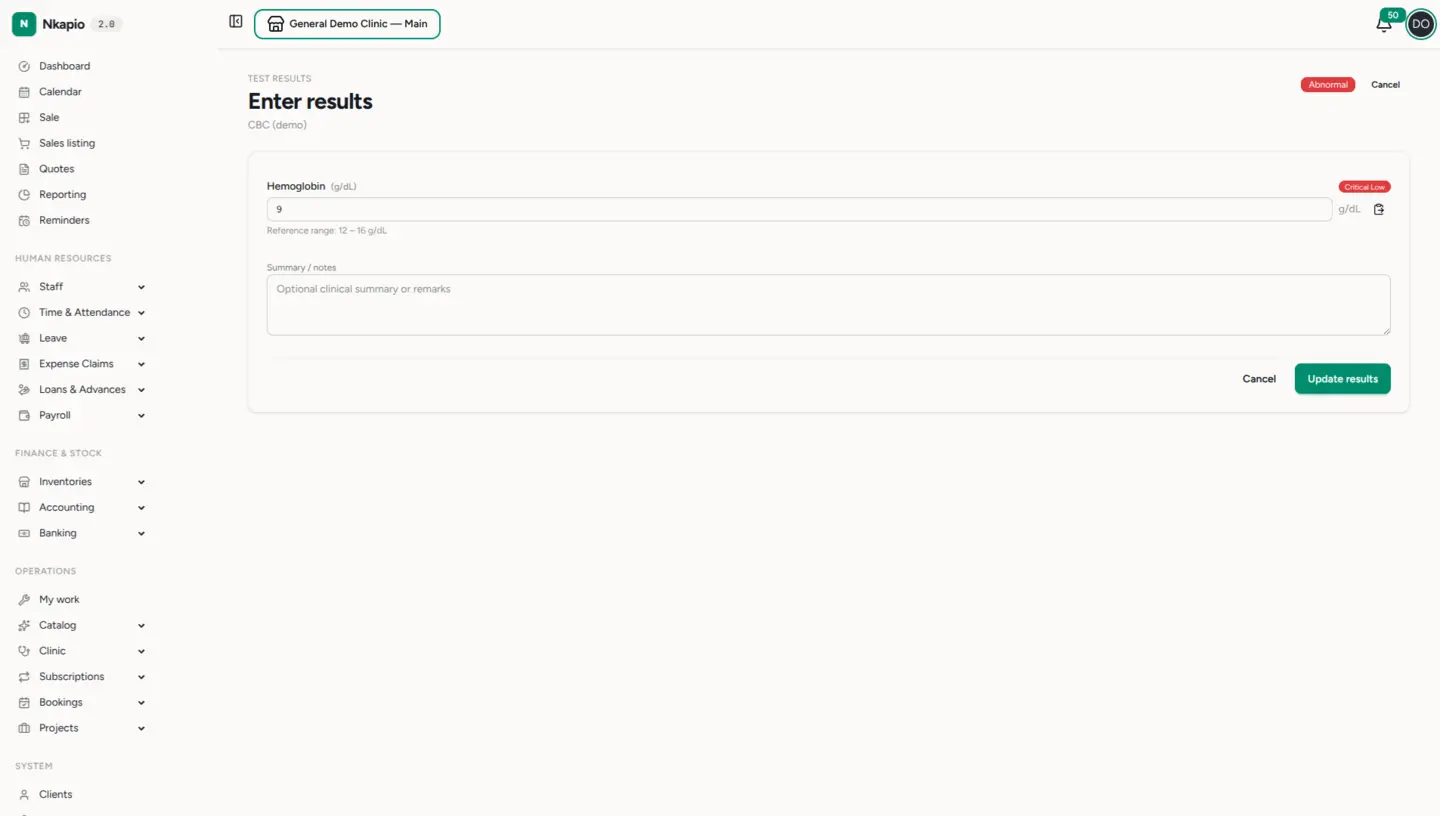
When results arrive, open the test and use Enter results. Each analyte shows its reference range, and numeric values outside it are flagged automatically: a value below the range is marked Low and one above it High, while a value that falls well beyond the range — more than half the reference span past either bound — is escalated to Critical Low or Critical High. Any abnormal value tags the whole test Abnormal; when everything is within range the test reads Normal. Add a clinical summary, attach a scan or report file if you have one (images or PDF), then Save results — or Update results if you are correcting an earlier entry — to post them to the record.
Critical results
A critical value is more than an on-screen badge. Whenever a saved result contains a value flagged Critical Low or Critical High, Nkapio raises a critical-result notification to the clinician who ordered the test, so an out-of-range finding isn't left waiting for someone to notice. This fires on both the first save and any later correction, so a value that only becomes critical on a re-entry still alerts the ordering provider.
Tips
- Set reference ranges on your numeric fields — abnormal, Low/High, and critical flagging all depend on a minimum and maximum being defined. Fields without a range are simply recorded as entered.
- Use the priority on an order (urgent or stat) to signal turnaround expectations rather than reordering the test.
- Keep test types active to keep them on the order form; archive ones you no longer offer instead of deleting the history behind them.
- Attach the lab's own report to the result when you have one — it lives alongside the structured values on the patient's record.