A complete patient record is the foundation of safe, coordinated care. It gives everyone who treats a patient the same picture: what they are allergic to, which problems are still active, what they are taking, and everything that happened at each past visit. Clinicians rely on it before prescribing or operating, front desk uses it to open the right encounter, and the whole care team reads from it so nothing is lost between appointments.
In Nkapio, every patient has a single clinical workspace that gathers their history, vitals, diagnoses, prescriptions and notes in one place. This guide shows how to find a patient, read their workspace, and keep the record complete.
Before you start
The clinical workspace is part of the Diagnostics module, so it only appears once that module is enabled for your clinic. Access is also walled by the care team: you see a patient's clinical detail when you are on their care team, or when your role can view all patients. Colleagues with clinical access who are not yet on the team can add themselves from the patient's page — more on that below.
Step 1 — Find a patient
Open Clinic → Patients. The list has two tabs. My patients shows only the patients whose care team you are on — your working caseload. All patients (search) searches the full register by name, phone or email so you can open anyone. Click Open on a patient to enter their workspace.
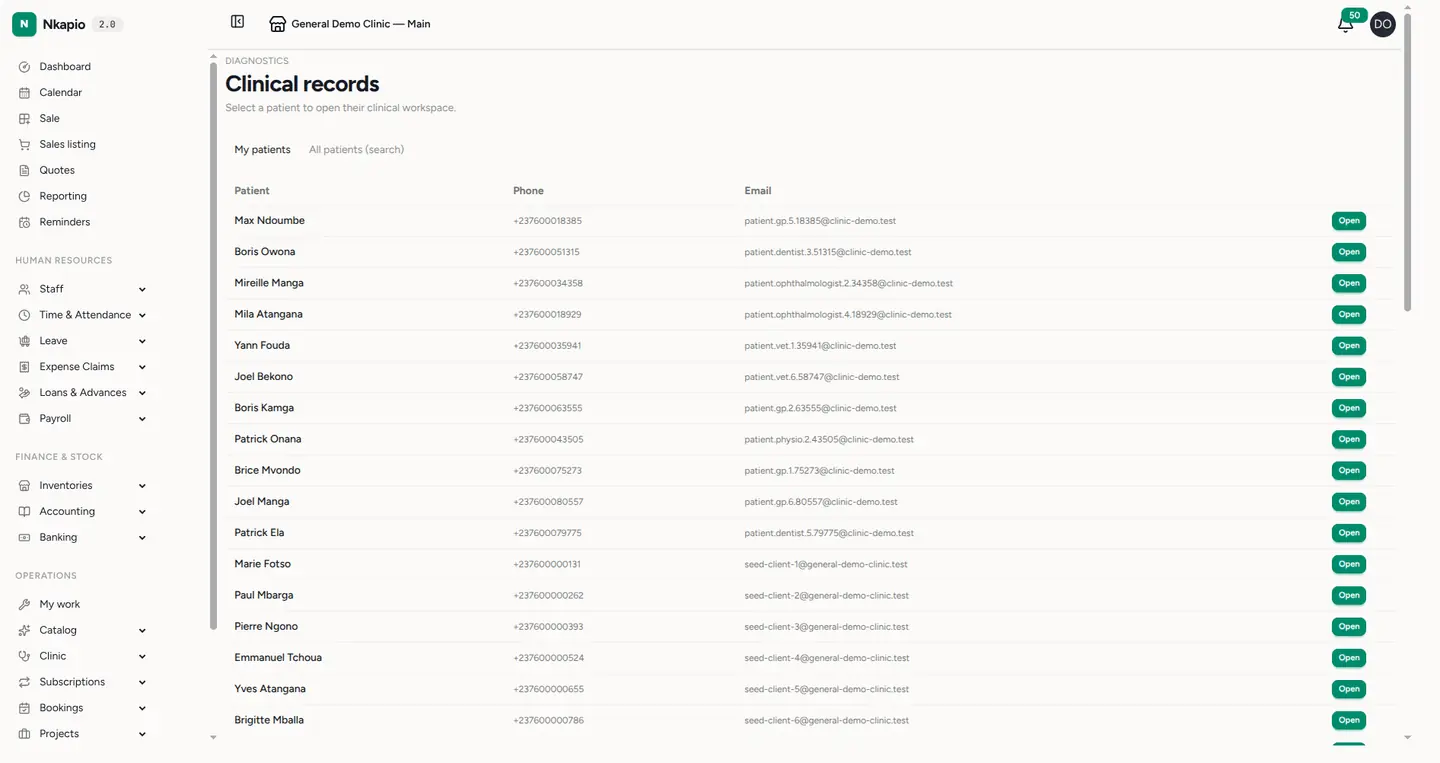
If My patients is empty, it simply means you haven't been added to anyone's care team yet — switch to the search tab to find a patient and open them.
Step 2 — Read the clinical workspace
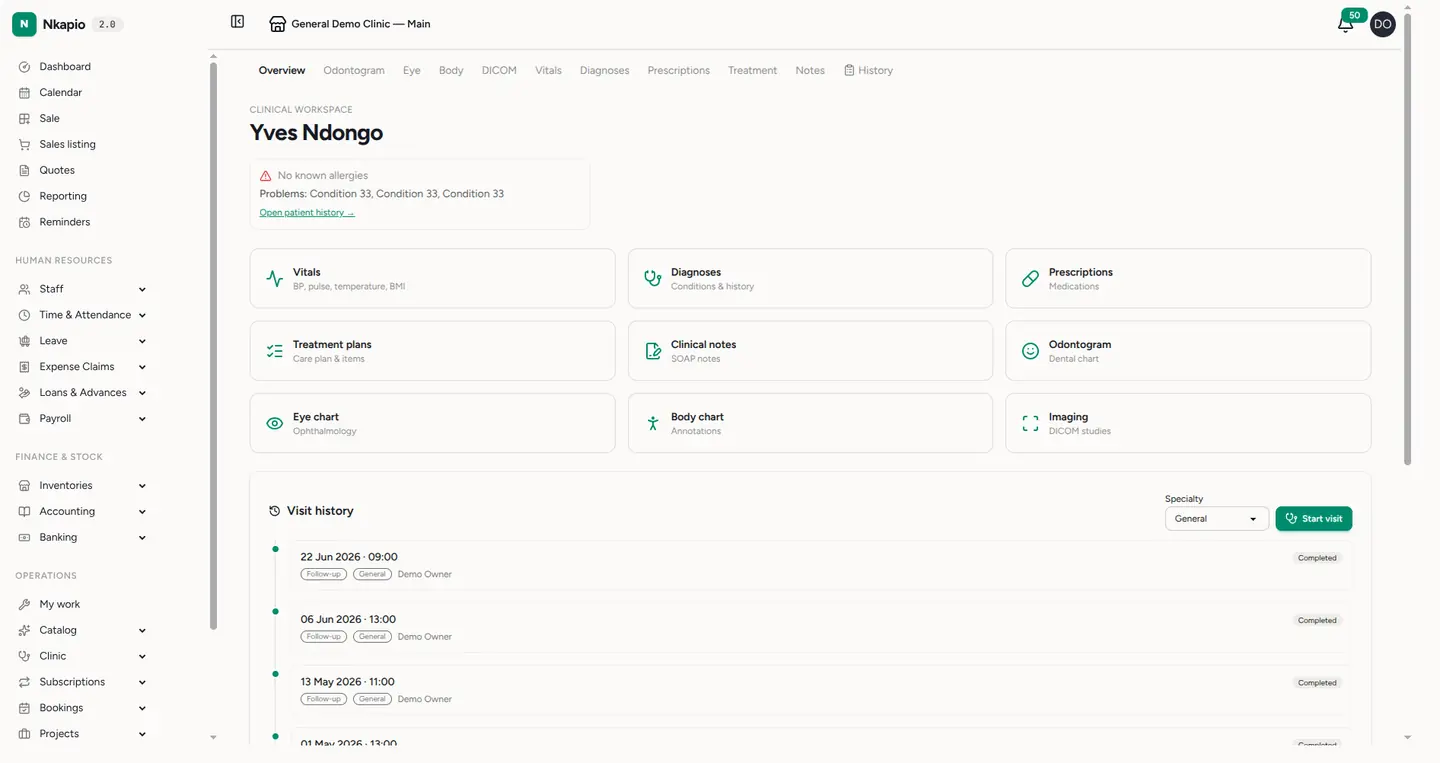
The workspace opens on Overview. The header shows the patient's name and, if available, their latest vitals snapshot. Directly below it, a compact safety summary pins the facts you must never miss: known allergies, active problems, and a count of current medications, with a link into the full history. Quick cards then give one-click access to Vitals, Diagnoses, Prescriptions, Treatment plans and Clinical notes, plus the specialty charts (Odontogram, Eye chart, Body chart, Imaging) for the specialties your clinic has enabled. Cards for areas you don't have permission to read are hidden. The visit history below lists every past visit.
How the record is organised
It helps to know the three layers behind the workspace:
- The workspace is the hub — one page per patient that always reflects their current clinical picture.
- A visit is a single encounter. Starting one creates a clinical appointment and its visit record together; every finding you record — vitals, a diagnosis, a note, a prescription — attaches to that visit.
- The history is the longitudinal record: allergies, past problems, medications, and family, surgical and social history that carry across visits.
Because each finding is tied to a visit, the workspace can always show both "what's true now" (the pinned summary) and "what happened when" (the visit history).
Step 3 — Track vital signs
Open the Vitals tab or card to record and review blood pressure, pulse, temperature and BMI captured at each visit. The most recent reading also appears in the workspace header, so the patient's latest state is visible at a glance without opening the tab.
Step 4 — Keep the history complete
Use Start visit to open a new encounter (pick the specialty first if prompted); this begins the patient's clinical record for that day and takes you into the visit. Use the History tab for the full clinical timeline, where you can maintain allergies, diagnoses, current medications, and family, surgical and social history. Diagnoses carry a status — a problem stays active or under monitoring while it counts among the pinned active problems, and you can mark it chronic or resolved as it evolves. Reports and images attach directly to diagnoses, clinical notes and lab results.
Manage the care team & insurance
The workspace also holds two records that keep care coordinated. The care team panel lists everyone treating the patient; clinicians with clinical access can add themselves, and those who manage the team can add colleagues, change the primary clinician, or remove members. Insurance on file records each payer and coverage percentage; when you start a visit, the active coverage is automatically snapshotted onto that encounter so billing reflects it.
Tips
- Always glance at the pinned safety summary — allergies and active problems — before prescribing or planning treatment.
- Keep diagnosis statuses current (chronic vs. resolved) so the active-problems list stays trustworthy.
- Can't see a patient's clinical detail? Check whether you're on their care team; if you have clinical access you can add yourself from their page.