My work (/my-work) is your personal task inbox. When a manager assigns work
off a booking — prep a room, follow up on a result, call a client — it lands here
so you always know what's next. Find it under Operations → My work.
Before you start
- My work must be enabled for your workspace. If you don't see Operations → My work, it isn't switched on for your plan yet.
- This inbox is personal. You only see tasks assigned to you, and only you can start, complete, or block them.
- Tasks come from a manager. Whoever manages a booking assigns the work — you don't create assignments here. An empty inbox just means nothing's been assigned to you yet.
The task inbox
Each assignment shows its title, the client and booking it came from, and its due date. Tasks are grouped by urgency — Overdue (in red), due today, and this week — and the header sums it up (e.g. 2 overdue · 2 due today · 4 open assignments). Anything further out, or without a due date, falls into its own group below. The Today / This week / Blocked / All tabs filter the list.
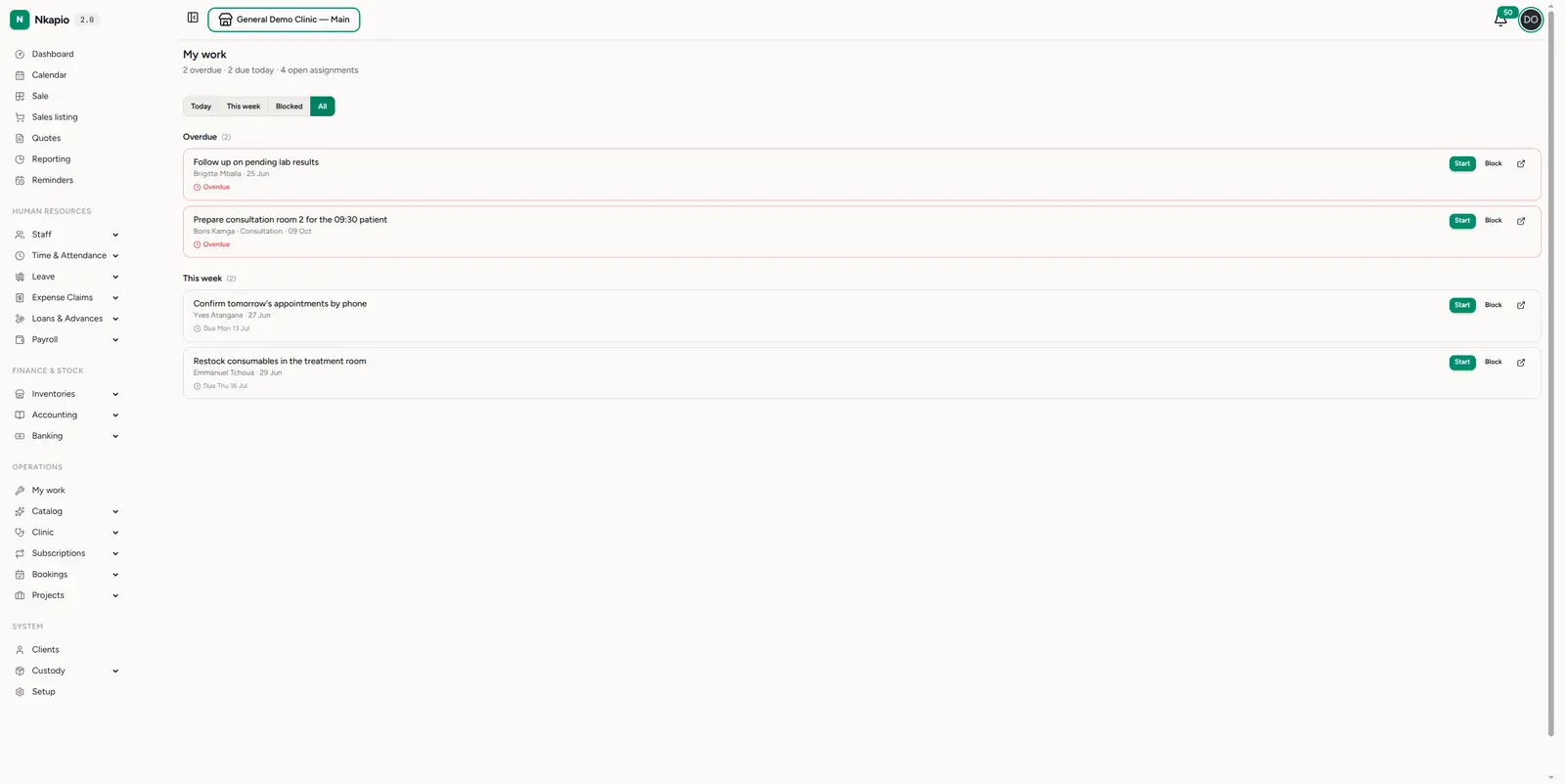
Working a task
Each task has quick actions that depend on its status:
- Start — mark a pending task in-progress so your manager can see you're on it.
- Complete — once a task is in-progress, mark it done; it then drops off your inbox.
- Block — flag a task as blocked (with a reason) when something's in the way.
- Unblock — clear the block once the obstacle is gone, returning the task to in-progress.
- Open the linked booking (the arrow icon) to see the full context.
Your inbox only lists open work — pending, in-progress, or blocked. Completed and cancelled tasks drop off automatically.
Tips
- Clear overdue first — the red group is what's already late; start there each morning.
- Use Blocked honestly — flagging a blocker early lets a manager unstick it rather than discovering it at the due date.
- Check the Today tab between clients — it's the shortest list and keeps you moving.