Your Nkapio subscription is the account behind your whole workspace: it decides which features are switched on and sets the limits on stores, staff, clients and activity that your team works within. This is your business's plan with Nkapio — separate from any memberships or plans you sell to your own clients. This guide covers the three account screens that live under Settings: your plan & usage, billing (changing plan and paying), and your company profile.
Plan and billing are typically an owner's job. The billing screen is gated by the Manage billing permission — team members without it are sent back to their account page and can't change the plan or view invoices — so make sure the person handling upgrades has it.
Plan & usage
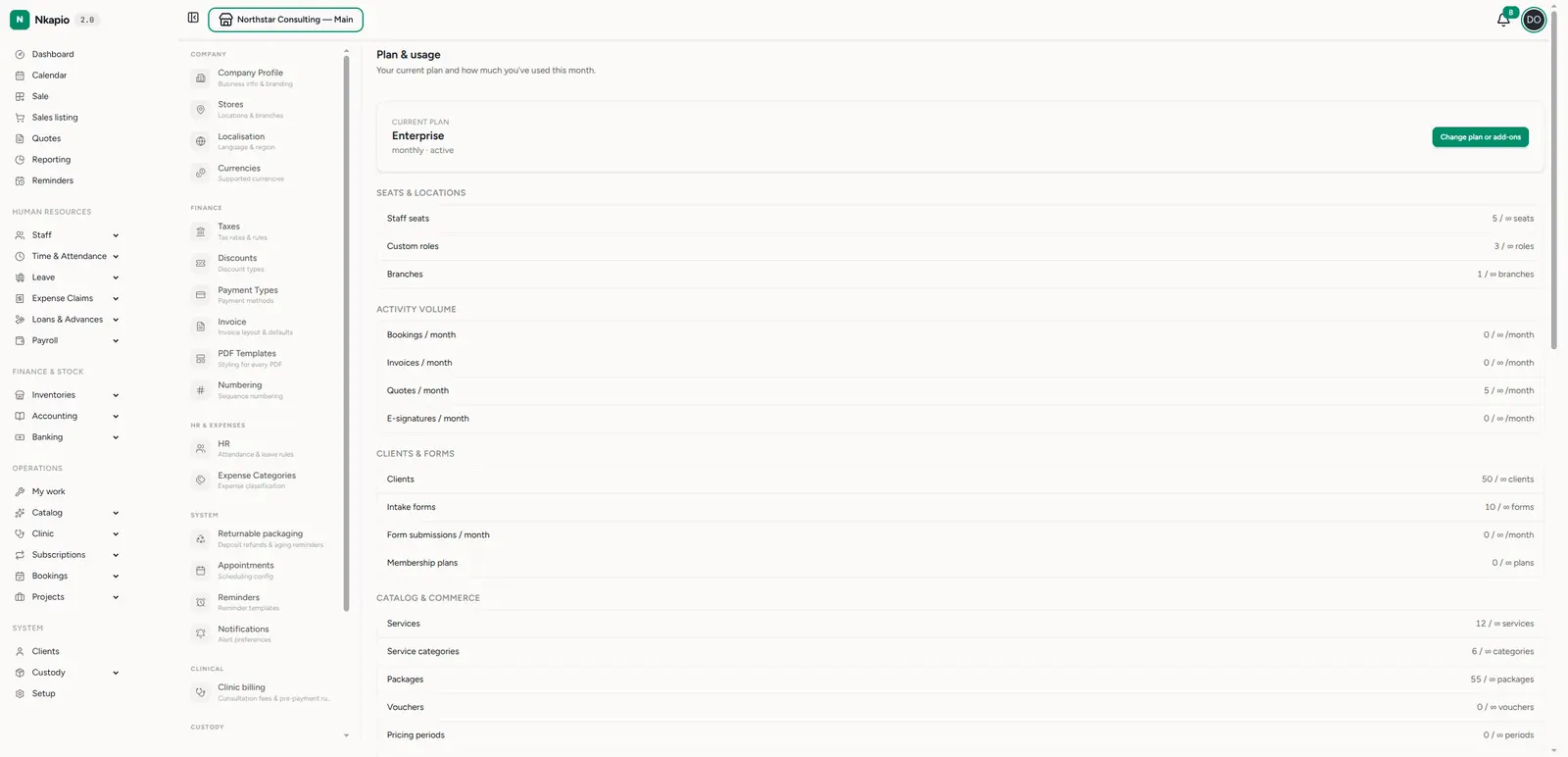
Open Settings → Plan (/settings/plan). This screen is read-only: it's where
you check what you're on and how much room you have left, not where you make
changes. The top card shows your current plan with its billing cycle and
status. If your workspace has no active subscription, it falls back to the
Free plan so the app keeps working.
Below the card, your usage this month is listed against each limit, grouped so it's easy to scan:
- Seats & locations — staff seats and store locations.
- Activity volume — bookings, invoices, quotes and e-signatures.
- Clients & forms — client records and intake forms.
- Catalog & commerce — services, products and related commerce limits.
- Inventory, Bookings & dashboards, Communications, Data & documents, Advanced modules and Diagnostics — shown only when those modules are part of your plan.
Each row shows a small progress bar with used / limit and the unit, so you can see at a glance how close you are to a cap. An unlimited allowance appears as ∞. It's the quickest way to spot a limit before it blocks you. When you're ready to grow, click Change plan or add-ons to jump to billing.
Change plan & billing
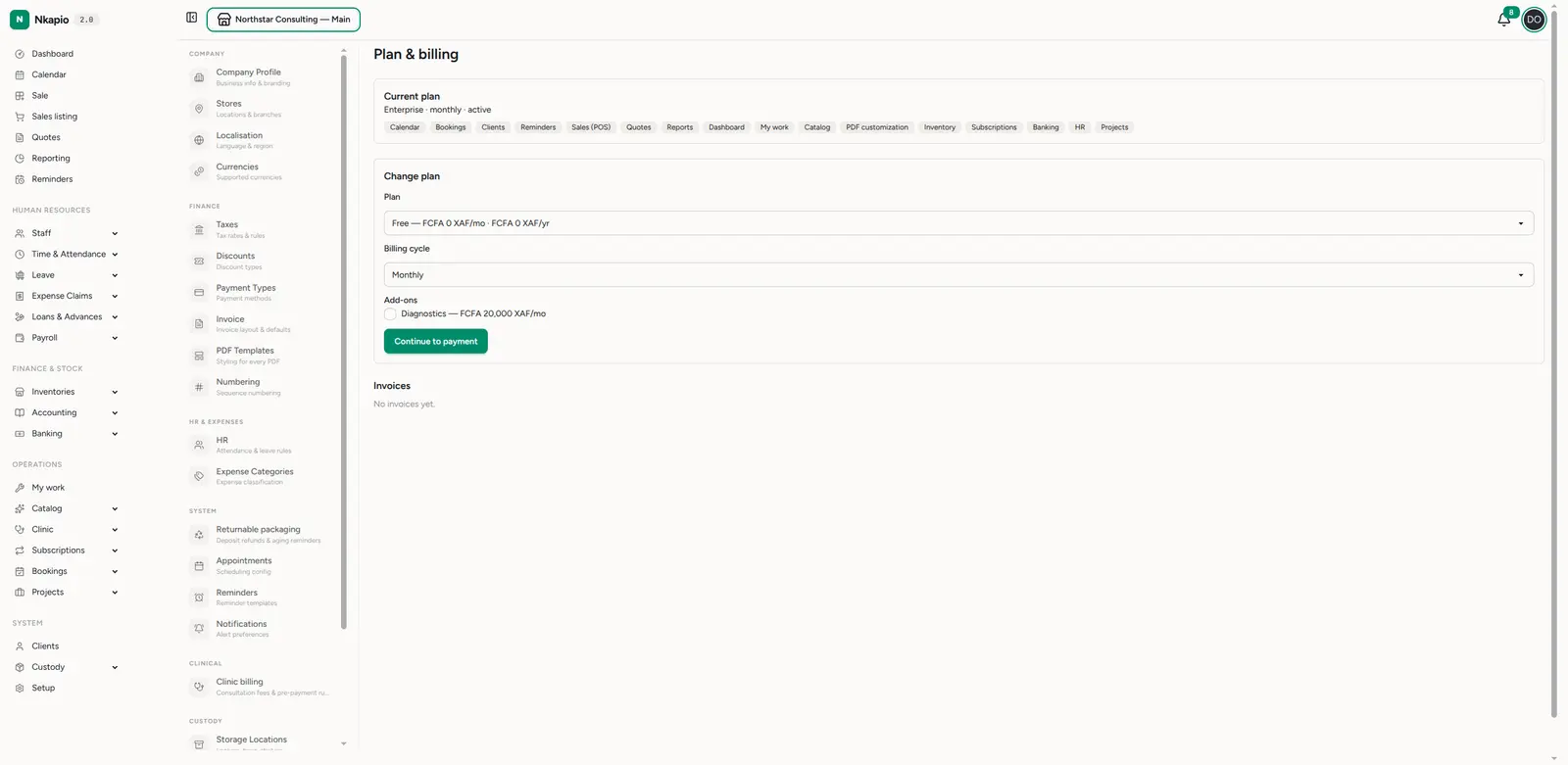
Settings → Billing (/settings/billing) is where changes actually happen. If
an invoice is overdue, a past-due notice appears at the top asking you to
settle it before service is interrupted.
The Current plan section lists your plan with badges for the features it includes. Below it, the Change plan form lets you pick a plan (each option shows its monthly and annual price in XAF), choose a billing cycle — monthly or annual — and tick any add-ons you want. When the selection fits, click Continue to payment.
Choosing a plan doesn't switch your features immediately. Nkapio records the change as pending and issues an invoice with payment instructions, shown right on the screen. The new plan and add-ons take effect only once the payment is recorded — features never flip on before you've paid. Your invoices are listed below the form (number, amount, status and date) so you always have a record of what was billed.
Company profile
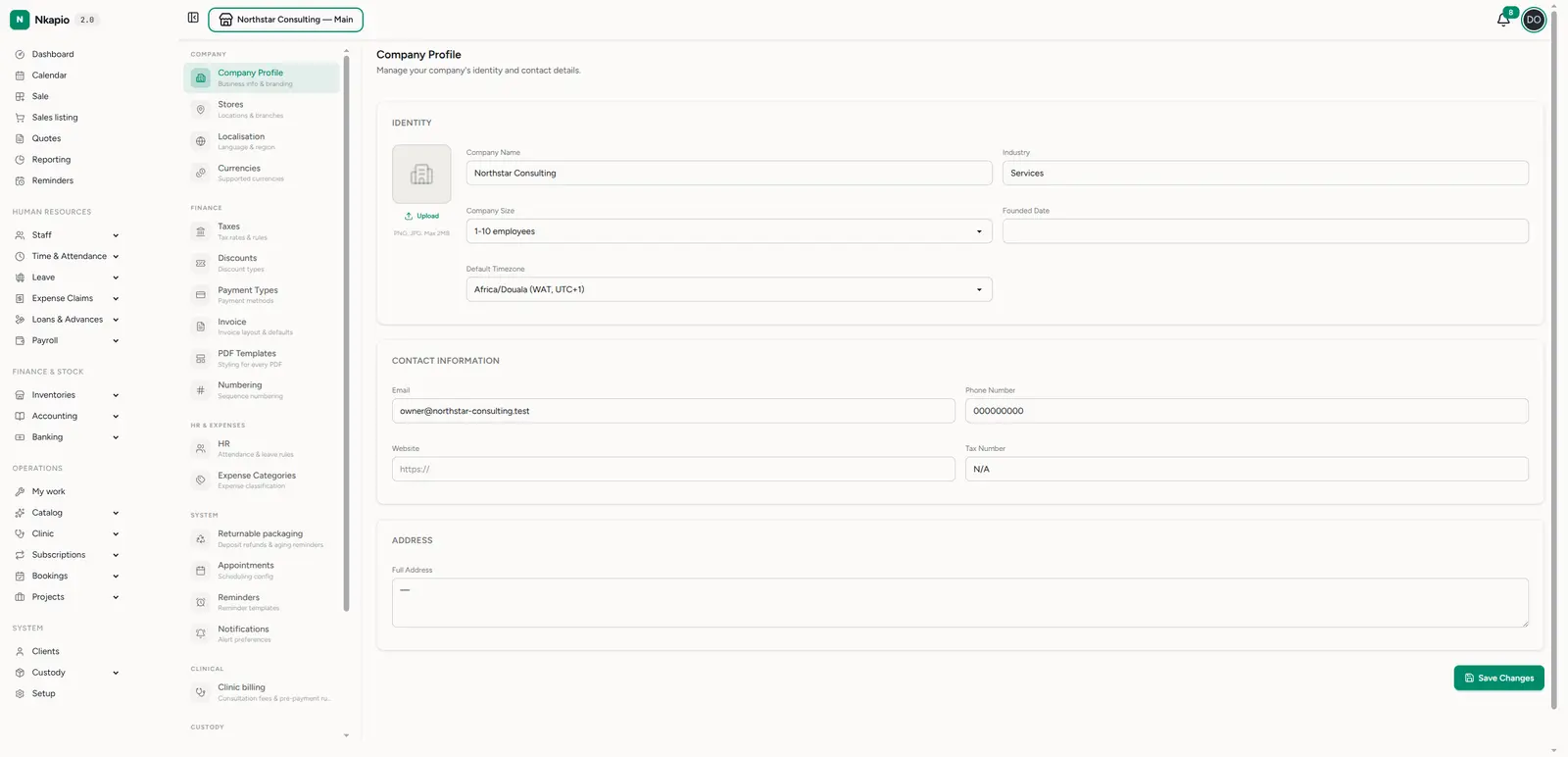
Settings → Company Profile (/settings/company) is your business identity —
the details that appear on documents and shape the app. Under Identity, set
your company name, upload a logo (PNG or JPG, up to 2 MB), and record your
industry, company size, founded date and default timezone. Under
Contact Information, add your email, phone number, website and
tax number, and under Address, your full business address. Click Save
Changes when you're done.
Tips
- Watch usage before you hit a wall. The Plan & usage screen shows how close you are to each cap; once a limit is reached, the matching Add buttons stop working until you free up space or upgrade — so plan the change ahead of time.
- Give billing access to the right person. Only team members with the Manage billing permission can change the plan or see invoices; grant it deliberately.
- Pay to activate. A plan change is only pending until the invoice is paid and recorded — don't expect new features or higher limits before then.
- Set your timezone correctly. Your default timezone affects bookings, reporting and documents across the whole app; currency and other regional settings live under localisation.
- Keep the company profile current. Its name, logo and tax number flow onto invoices, quotes and other PDFs, so a stale profile shows up on customer-facing documents.