A booking link is a public page where clients pick a service and a time slot themselves — perfect for WhatsApp, Instagram, an email signature, or a QR code taped to the front desk. Instead of fielding calls to schedule appointments, you share one link and let clients do the booking. Every booking they make lands straight on your calendar, and the link quietly counts how many people opened it and how many actually booked, so you can see which channel is pulling its weight.
Anyone on your team with permission to manage booking links can create them. The number of links you can keep active depends on your plan — if you've reached the limit, the Create link button will tell you.
Step 1 — Open Booking Links
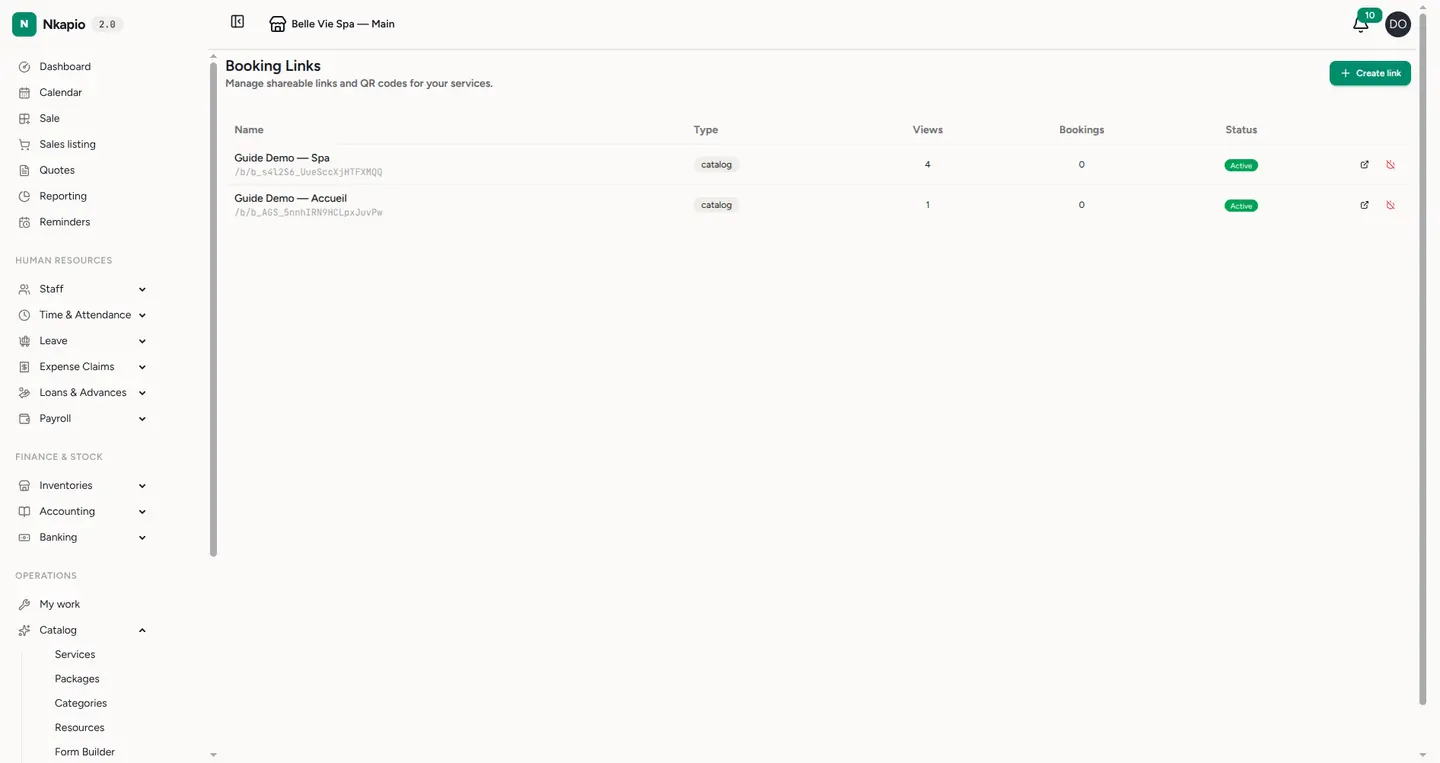
In the sidebar, expand Bookings and open Booking Links. This page lists every link you've made, each with its own public URL, view count, booking count and an active/inactive status.
Step 2 — Create the link
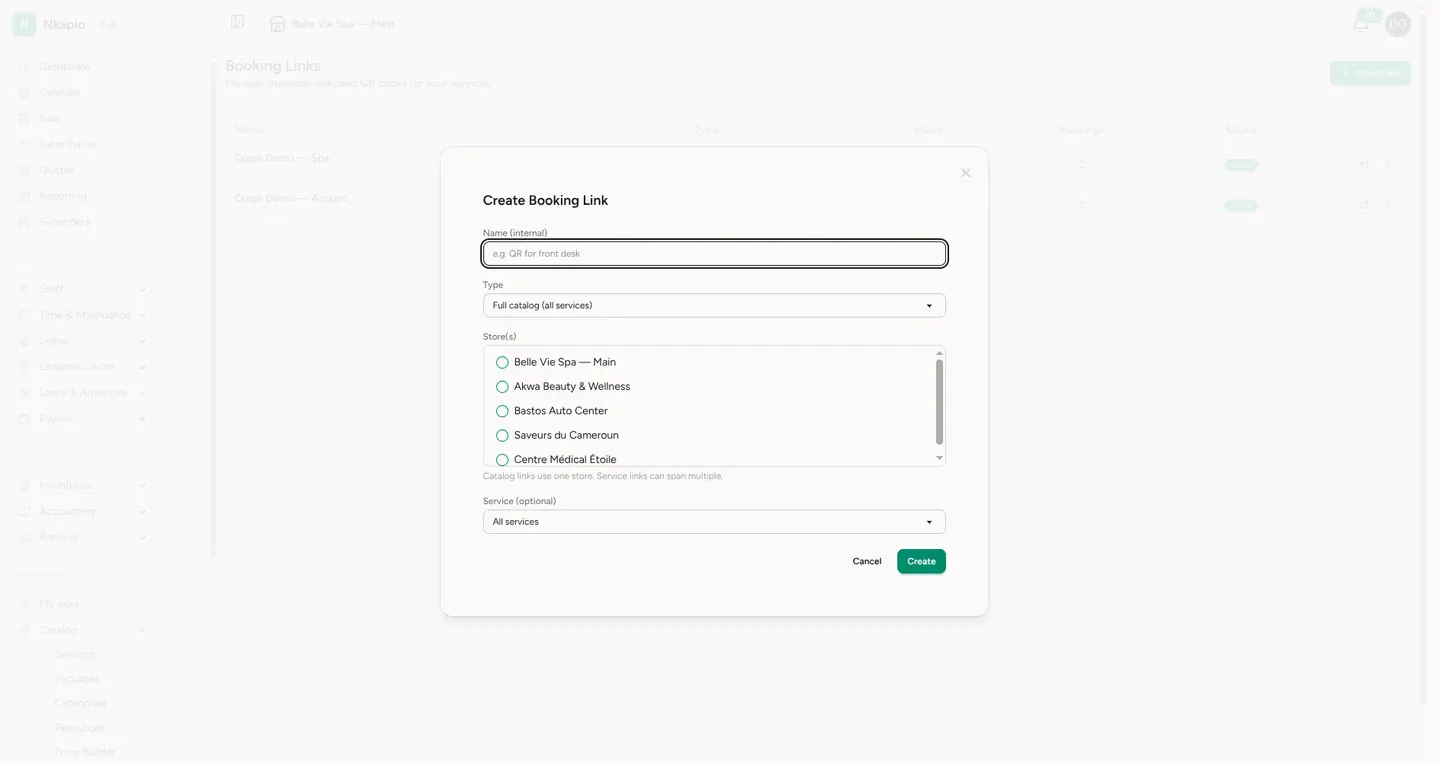
Click Create link. Give it an internal Name you'll recognise later (e.g. "QR for front desk" or "Instagram bio") — clients never see this, it's just for you. Then choose:
- Type — a full catalog link opens your whole bookable service list, a specific service link jumps a client straight into booking one service, and a category link narrows the catalog to a single group.
- Store(s) — which location(s) the link covers. Catalog links use a single store; service links can span several, and the client picks where when more than one is offered.
Step 3 — Copy and share
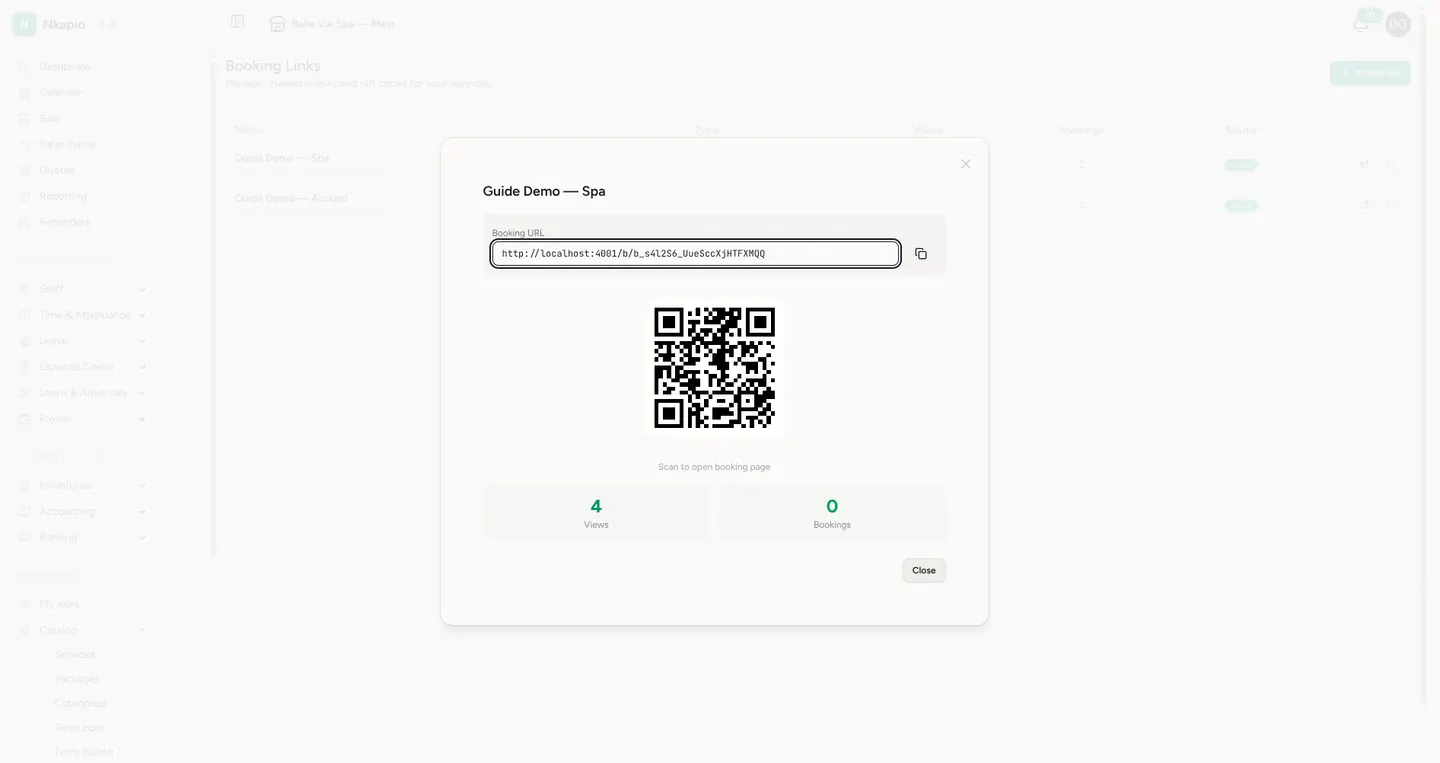
The new link appears in the list. Open it to reveal its full public URL — a
short /b/… address — alongside a ready-to-use QR code and its running
view and booking totals. Copy the URL to paste into a message or bio, or print
the QR code so clients can scan it in person. The same page is where you keep
an eye on how the link is performing over time.
Step 4 — What your clients see
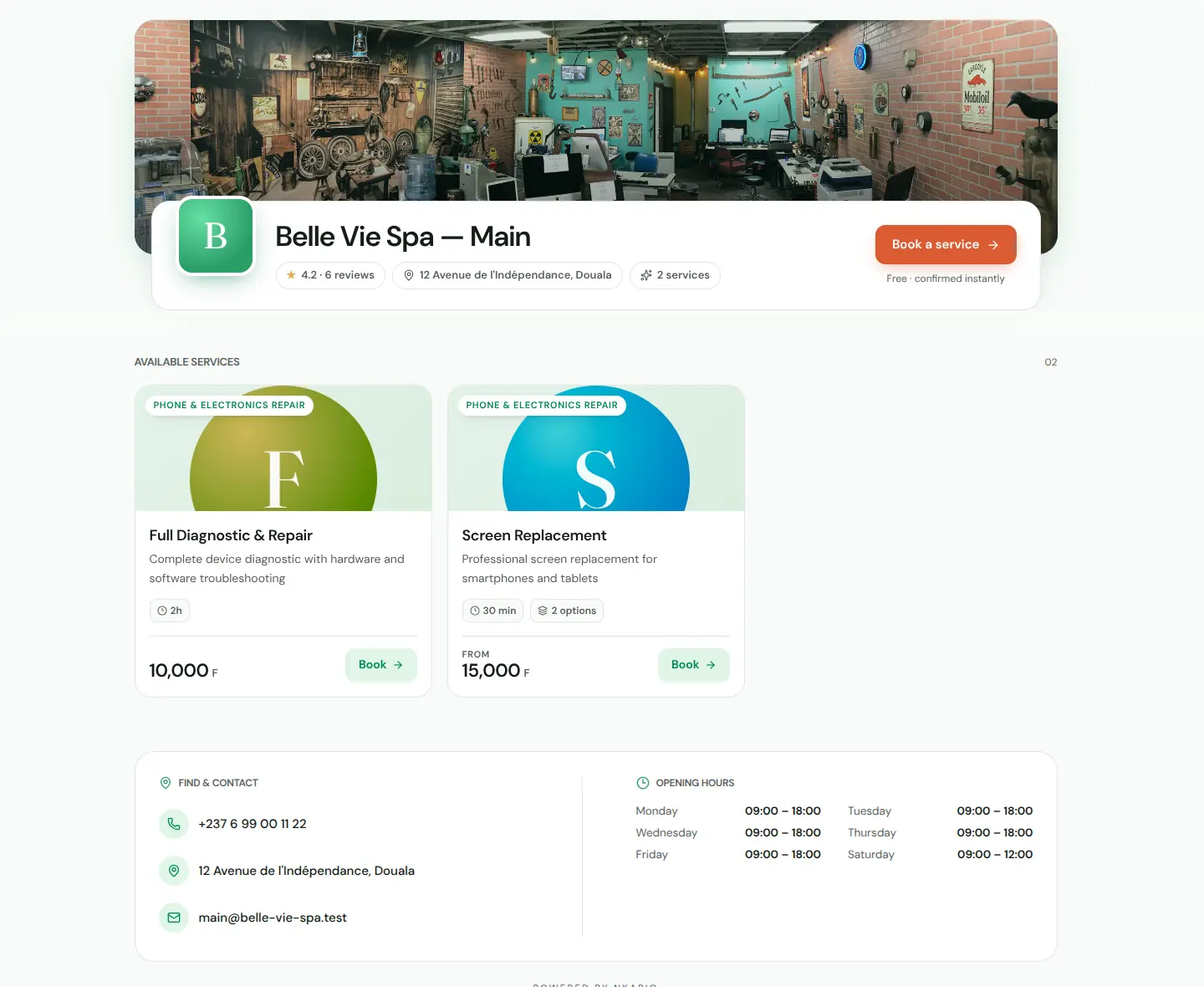
Opening the link takes clients to a clean public page showing your business, its address and your bookable services. From there the flow guides them step by step: pick a service, choose a location and specialist if there's a choice, select a date and an available time, enter their name and phone number, and confirm. They don't need an account. Availability is drawn automatically from your staff schedules and each store's opening days, so clients only ever see slots you can actually honour.
Once they confirm, the booking appears on your calendar and the client lands on a status page they can revisit — and add to their own calendar — for the details.
Tip: only services marked as bookable online show up on a link. If a service is missing from the public page, open it in your catalog and turn on online booking.
Tip: deactivate a link at any time from the list — its URL stops working immediately, without touching any bookings already made through it. Reach for this when a campaign ends or a QR poster is retired.
Frequently asked
Do clients need to log in or create an account? No. Booking is open to anyone with the link — they just enter their name and phone number to confirm.
Can I tell which link brought in a booking? Yes. Each link tracks its own views and bookings, so a link per channel (one for Instagram, one for the front-desk QR) lets you compare where your bookings come from.
What happens if I turn a link off? The URL stops resolving right away and no new bookings can come through it. Bookings already on your calendar are untouched.