Your client base is the memory of your business. Every booking, sale and invoice attaches to a client record, so the cleaner your list, the clearer your history, your revenue and your follow-ups. This page is where front-desk staff, managers and anyone who serves customers keep those records tidy.
Alongside full clients, Nkapio also keeps a lighter walk-in guest record for people you serve once without opening a full profile. This guide is about full clients; for the guest side see Walk-ins & guests.
Step 1 — Open Clients
Click Clients in the sidebar. The list shows every client with their name, email, phone and creation date, newest first. The Guests tab holds walk-ins who were served without a full record — you can promote any of them into a full client later.
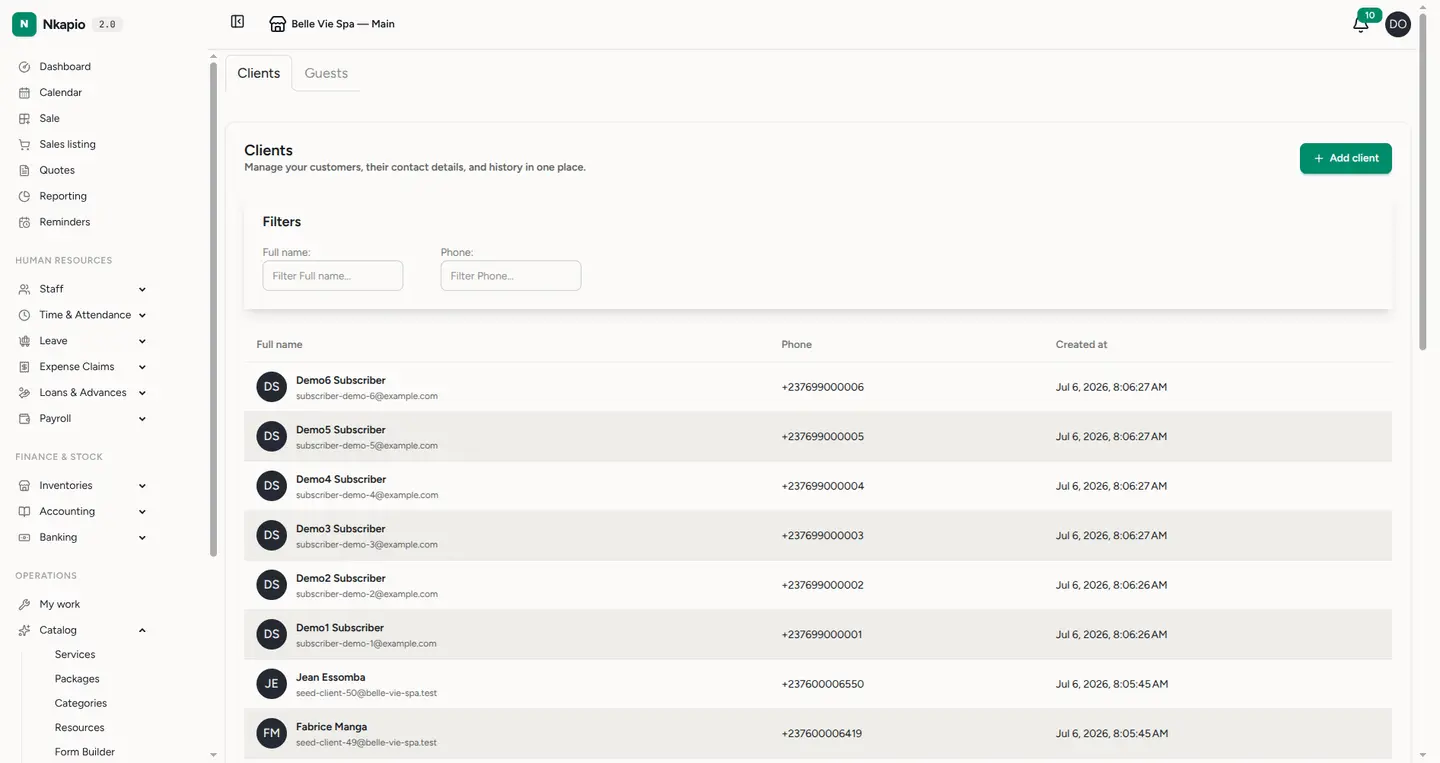
Step 2 — Add a client
Click Add client and fill in the profile — first name, last name, phone, address and email. Only the name is really required; you can complete the rest whenever the details come in. The email address matters most for billing: invoices and receipts are sent there, so keep it accurate.
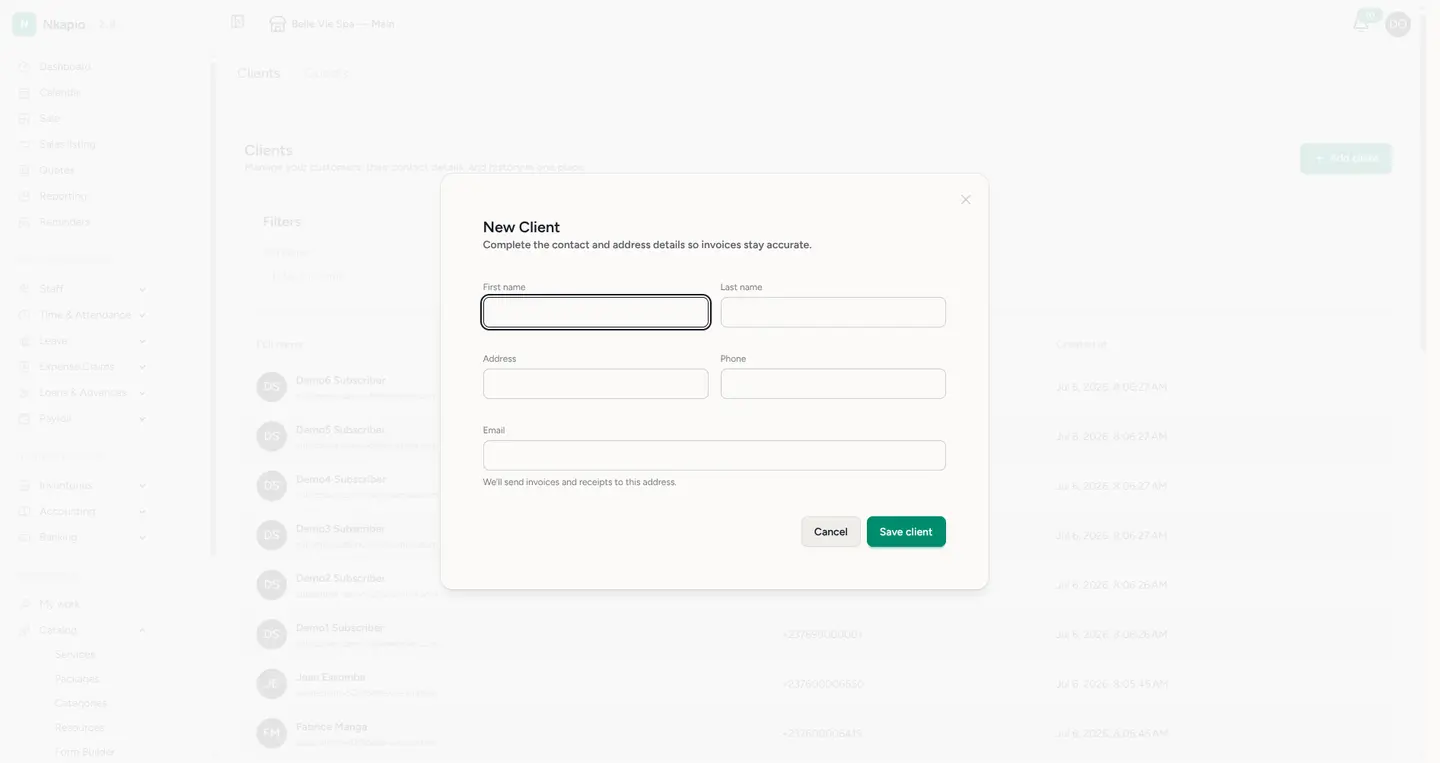
Two things to know before you start:
- You need permission to manage clients. The Add client button only appears for staff whose role allows creating clients. If you can't see it, ask an owner or manager to grant the permission.
- Your plan sets how many clients you can keep. When you reach the limit, the Add client button is disabled until you upgrade or free up space.
Step 3 — Find anyone in seconds
Use the Full name and Phone filters above the list to narrow it down, and sort by name or creation date to scan quickly. Click any row to open the full client profile, where their bookings, invoices, subscriptions and notes live together — see Client history, files & notes.
Merge duplicate clients
The same person sometimes ends up with two records — a guest that became a full client, a phone number entered twice, a name spelled differently. The merge tool consolidates them into one clean record. You search for and select the duplicates, then pick which name, email, phone and address to keep on the surviving record. Everything attached to the merged records — bookings, invoices, form submissions — is re-pointed to the one you keep.
Merging is permanent. Once you confirm, the duplicate records are removed and the consolidation cannot be undone, so double-check your selection before you finalize.
Archiving vs deleting
Removing a client from your list archives it: the record disappears from the day-to-day view but its history stays intact behind the scenes, so past invoices and bookings remain complete. Merging is the exception — the duplicates you fold in are deleted for good once their data has moved to the surviving record. When in doubt, archive rather than merge; you can always reopen an archived client, but you can't un-merge one.
Tips & FAQ
- A guest keeps coming back? Open the guest record and complete it into a full client — their history follows them across.
- Two records for one person? Use merge rather than deleting one by hand, so no bookings or invoices are orphaned.
- Missing details are fine. Save with just a name and add the phone, email or address later; the record is always editable.
- Can't add or edit clients? It's almost always a permission or plan-limit issue — check with your owner or manager.