Two settings pages decide how Nkapio reaches out — one for the automated alerts your team receives about the business, and one for the rules that govern how client bookings behave. Both live under Setup and are normally managed by an owner or manager who has access to Setup; the choices you make here apply to the whole workspace, so it is worth setting them once and revisiting them as your routines change.
Notifications
Setup → Notifications (/settings/notifications) controls the automated
alerts your team receives. It has two parts.
Recipients. Choose which team members are notified when an invoice falls due. This list decides who receives the invoice-due alert; anyone not listed simply won't get it.
Scheduled notifications. These are recurring digests that Nkapio sends on a timetable rather than in reaction to a single action. They are grouped into finance events — invoice due today, overdue invoices, and contracts expiring soon — and human-resources events — pending leave approvals, pending expense claims, timesheet submissions due, the leave-balance summary, the weekly attendance summary, and upcoming holidays. For each event you set three things: a frequency (daily, weekly or monthly), the time of day it runs, and which channels deliver it. The available channels are a personal Telegram message, a Telegram group, and email — toggle on whichever you want for each event. The "contracts expiring soon" alert also takes a lead time in days, so you can be warned, say, 14 days before a contract ends.
An event only fires when at least one channel is turned on for it, so a row with every channel switched off is effectively muted. Turn a channel back on to resume that alert.
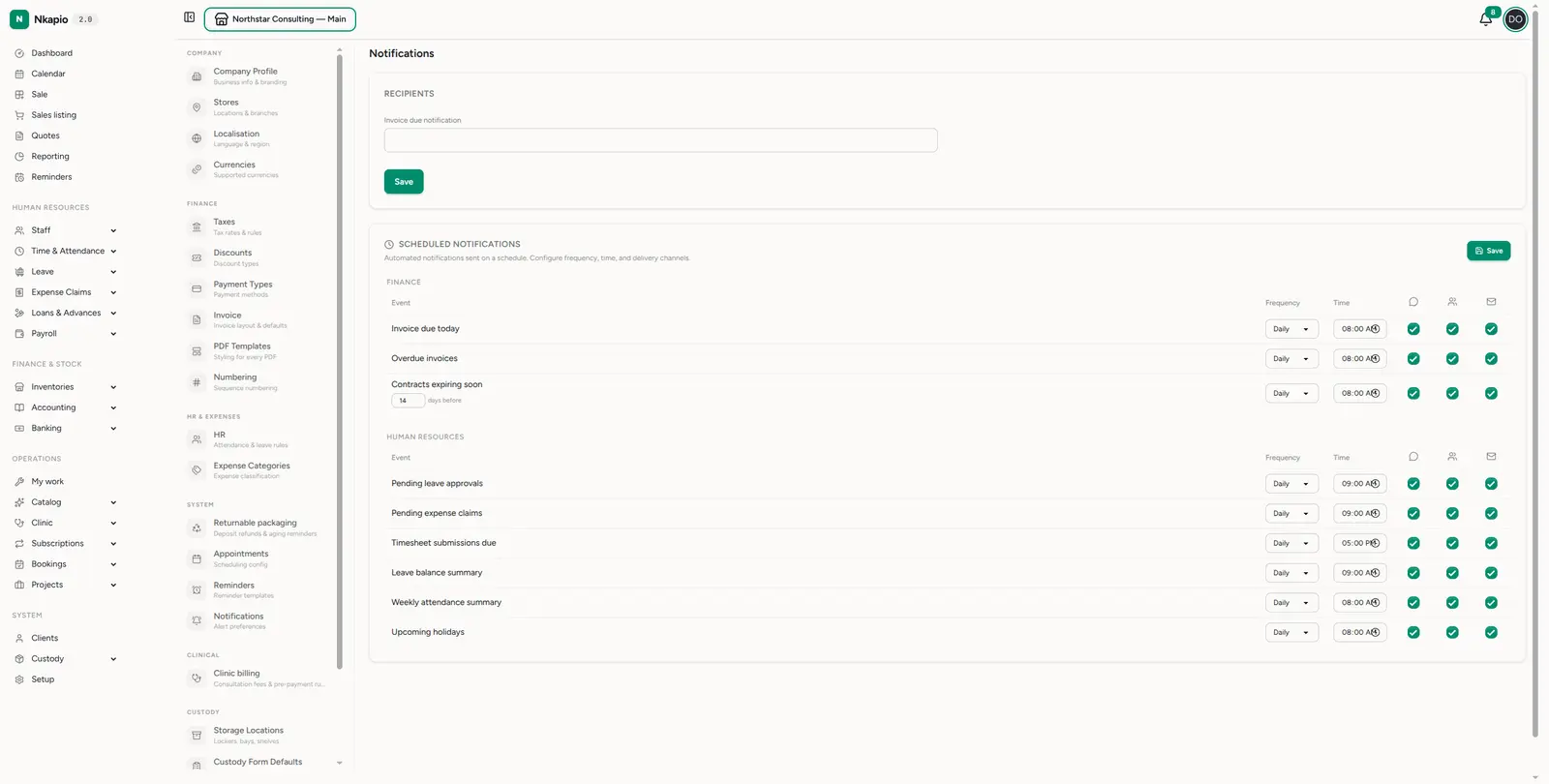
A few things to keep in mind. The Telegram channels only deliver once the recipient's Telegram account has been connected to Nkapio — until then, only the email channel will reach them. The HR events are only meaningful if your workspace uses the HR features that produce them (leave requests, timesheets, expense claims); if you don't run those workflows, you can leave those rows off. Remember to save each section — recipients and scheduled notifications are saved with their own buttons.
Appointment settings
Setup → Appointments (/settings/appointment) sets the rules that shape every
booking and the calendar around it:
- Booking defaults — the default status a new appointment starts in (Pending, which needs confirmation, or Confirmed, which auto-confirms), the default duration used when no service is selected, a buffer applied between consecutive appointments to give staff prep time, and whether the same staff member may be booked into overlapping slots.
- Reminders — send an automated email reminder 24 hours and/or 2 hours before the appointment, plus an optional custom message appended to the standard reminder email. Reminders are sent to the client's email, so a client without an email address won't receive one.
- Client experience — the minimum notice a client must give to cancel (0 means anytime), the auto no-show timeout that marks a client absent if they haven't arrived that many minutes after the start time, whether clients may book online themselves, and whether a phone number is required to book.
- Recurring bookings — whether repeats are allowed at all, and how many months ahead recurring appointments are generated.
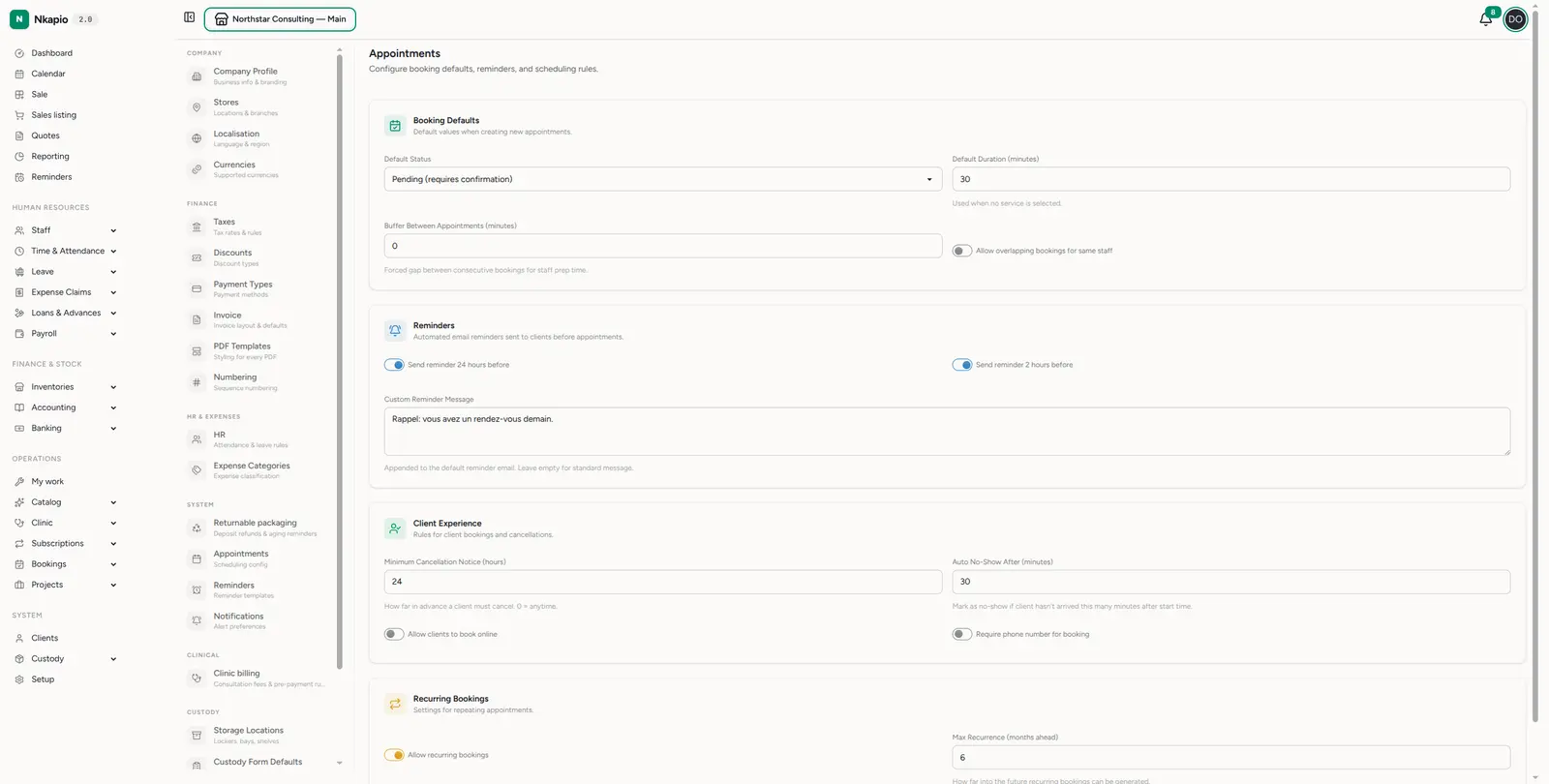
These defaults flow through the calendar and booking flow: the buffer and the double-booking rule guard against clashes, the default status decides whether a new booking needs confirming, and the reminder toggles drive the messages clients receive before their visit.
Tips
- Match reminder timing to your no-show pattern — a 24h + 2h combo catches both the forgetful and the last-minute.
- Use the buffer — a few minutes between appointments protects against overruns and gives staff prep time.
- Set a real cancellation notice — it protects your schedule while staying fair to clients.
- Connect Telegram before relying on it — a Telegram channel that hasn't been linked won't deliver, so keep email on for anything important until the connection is confirmed.
Common questions
- Why isn't a scheduled alert arriving? Check that at least one channel is enabled for that event, that its frequency and time are set, and — for Telegram — that the recipient's account is connected.
- Who gets the invoice-due alert? Only the team members listed under Recipients on the Notifications page.
- Will clients get reminders by Telegram? No — appointment reminders go to the client's email address.