Whether you retail products over the counter or consume them during a service, Nkapio keeps a running count of every unit — per variant, per store. This is the foundation the point of sale, purchasing and your stock reports all read from, so it is worth setting up carefully once.
Products are managed by anyone with inventory permissions — usually a manager or storekeeper. Some figures are guarded on their own: a role can be allowed to see and sell products while the supply price, unit cost and stock quantity stay hidden, so front-desk staff need not see your margins.
How the model fits together
A product is the thing you sell or use — "Whitening Gel", say. Each product carries a name, a brand, a category, a description and two base prices: a retail price (what the customer pays) and a supply price (what it costs you). It also has a usage setting — sellable, service-only, or both — and a tracking mode that decides how units are counted at receipt: none (quantity only), serial, lot, or perishable.
Every product has one or more variants — the actual sellable units. Sizes, colours or formats become variants, each with its own barcode and its own price. Stock lives on the variant, not the product, and it is counted separately in every store. A 250 ml gel in the downtown shop and the same gel in the airport shop are two independent stock lines.
Step 1 — Open Products
In the sidebar, expand Inventories and open Products. The list shows each product with its brand, category, tracking mode, variant count and a combined stock figure across your stores. You can filter by brand, category or tracking, and sort by name.
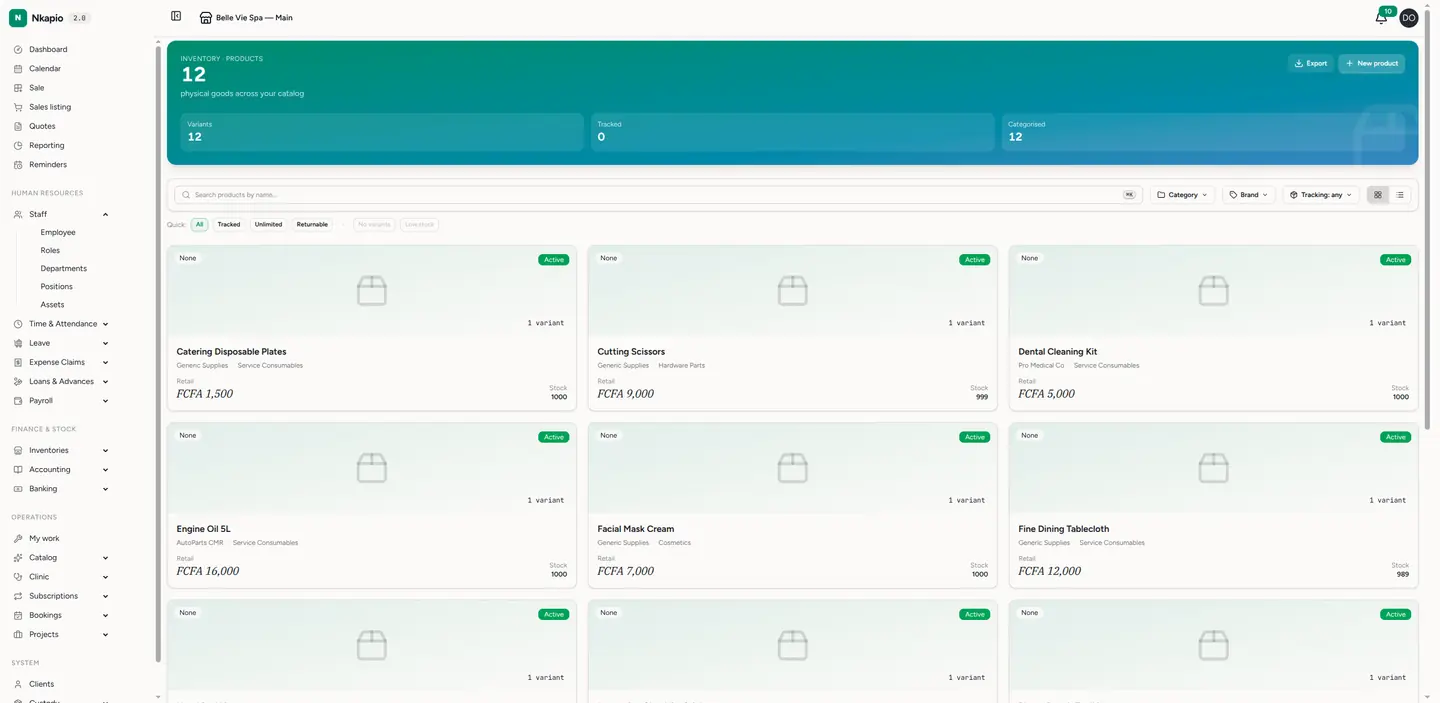
Step 2 — Create a product and its variants
Give the product a name, pick a brand and category, and set the retail and supply prices. If the product comes in several forms, add options on the Variants tab — each option (Size, Colour…) is a dimension, and Nkapio multiplies them together to generate the full variant list for you. A per-value price nudge (say, +500 for the large size) cascades into that variant's final price, and the Generated variants tab previews the whole grid before you save.
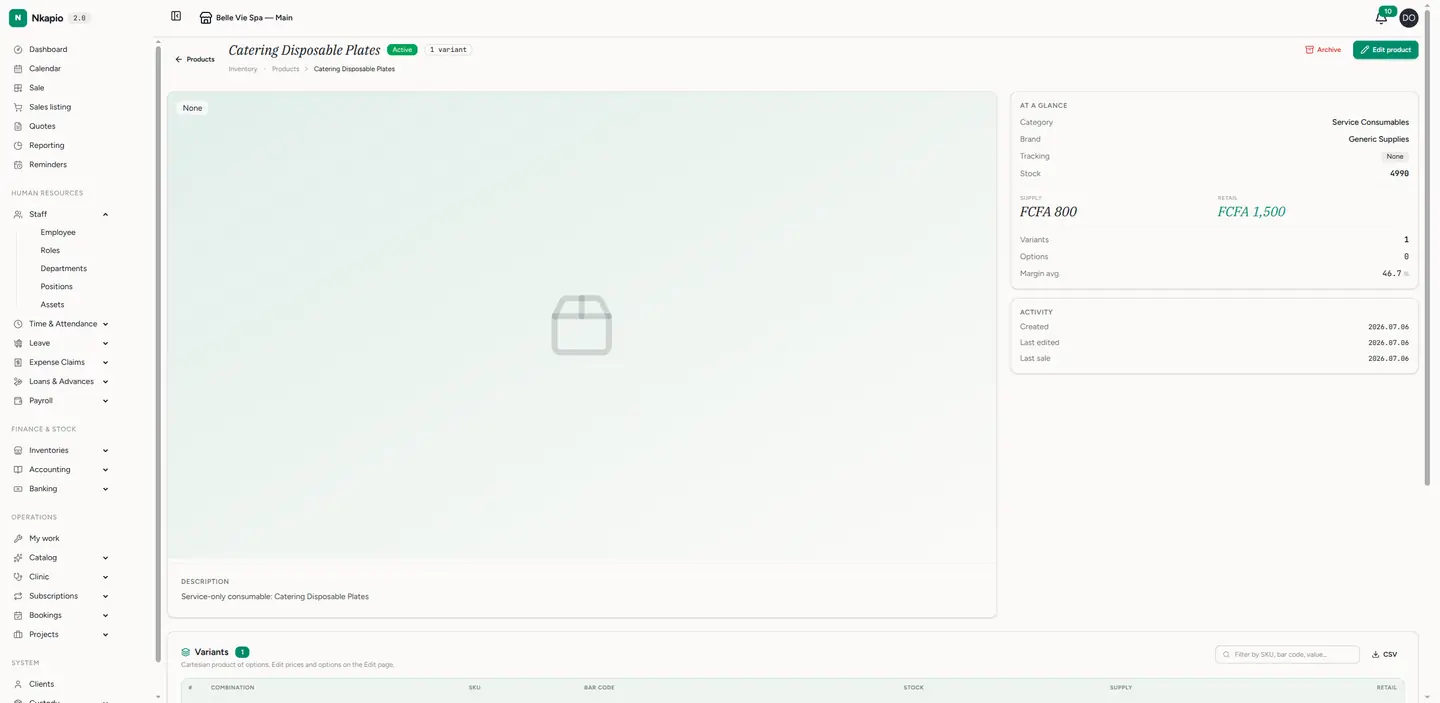
The supply price you type here is only a starting figure — it is used until the first purchase order is received. From then on the real cost comes from what you actually paid: each receipt folds into a weighted moving average (CMUP) unit cost, so your valuation stays honest even as supplier prices move.
Step 3 — Watch your variants
Products Variants lists every sellable unit with its live stock level. This is the screen your stock-take starts from, and the one the point of sale checks before it lets a unit leave.
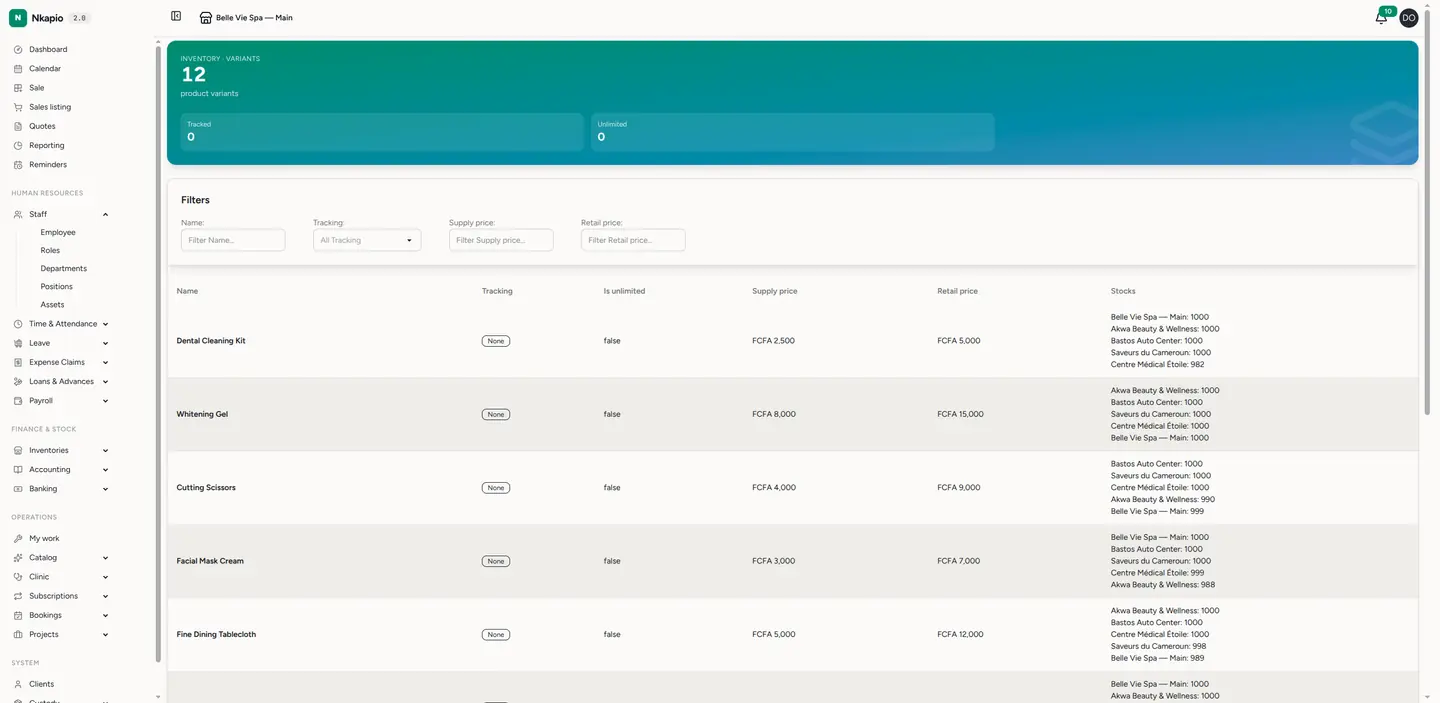
How stock goes up and down
You rarely edit a stock number by hand. Instead the count moves on its own as you work:
- A sale decrements it. When an invoice is created at the point of sale, the sold quantity leaves that store's stock line.
- A receipt increases it. When you receive a purchase order, the ordered units land in the destination store and refresh the average unit cost.
- A service consumes it. A product marked service-only (or "both") set as a consumable is drawn down automatically when the service is sold.
- An adjustment corrects it. Stock-takes, breakage and losses are booked through stock adjustments so the trail stays complete.
Every one of these leaves a stock-movement record, so you can always trace why a number changed.
Tip: a product marked unlimited is never counted — good for made-to-order or virtual items. And a variant can only be switched off once its stock is empty, which keeps your history clean.
Good to know
- Products are not services. Services are configured under the catalog; products are physical (or virtual) stock. A product can feed a service as a consumable, but the two are set up separately.
- Stock is per store. Always check you are looking at the right store — a variant can be plentiful in one and empty in another.
- Plan limits apply. Your subscription caps how many products and variants you can hold; you will be told when you reach the ceiling.
- Set reorder points on each stock line so low-stock alerts fire before you run out.