Recurring bookings turn a standing arrangement into a schedule that runs itself. Instead of re-entering the same appointment week after week, you describe the pattern once — who, what, when, and how often — and Nkapio creates each occurrence on the calendar ahead of time. It suits any commitment that repeats on a fixed rhythm: a weekly maintenance visit, a monthly check-in, a standing table reservation, or a physiotherapy course spread over several weeks.
Anyone on your team who can create bookings can set one up, and each recurring booking lives in its own list so you can see every active arrangement at a glance rather than hunting for it across the calendar.
Step 1 — Create a recurring booking
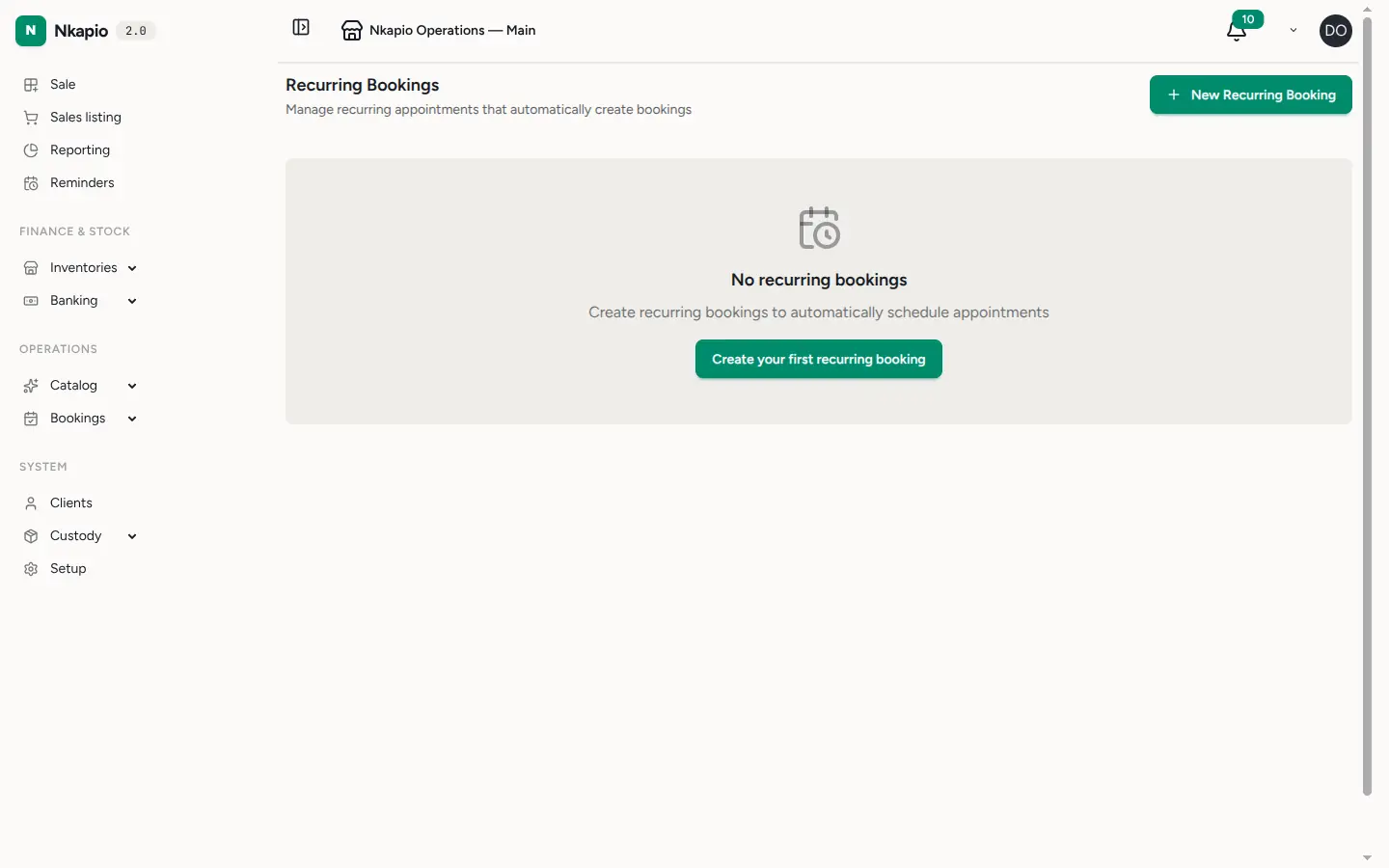
Open the Recurring Bookings page under Calendar and choose New Recurring Booking. A recurring booking is a template, not a single appointment: you fill in the client, one or more services (each with its own duration and price), the store, and an optional staff member. Leave staff as Any if it doesn't matter who takes the appointment, or name a person to keep the whole series with the same provider.
Step 2 — Set the schedule and end date
Next, define the rhythm. Pick a pattern — Weekly, Every 2 weeks, Monthly, or Daily — and set an interval to stretch it further (interval 3 with a weekly pattern means every three weeks). You can also tick specific days of the week if the appointment should land on, say, Monday and Thursday; leave that empty and Nkapio simply follows the weekday of your start date.
Then set a start time and start date. An end date is optional: leave it blank for an open-ended arrangement, or set one when the contract has a fixed term. From there, Nkapio rolls the schedule forward automatically — a background job runs each week and generates the next four weeks of occurrences, so the calendar always shows what's coming without you regenerating anything by hand. If you'd rather fill the calendar immediately, the Generate next 4 weeks action on the list does it on the spot. Generation is safe to repeat: an occurrence that already exists for the same date and time is never duplicated.
Step 3 — Track occurrences and handle conflicts
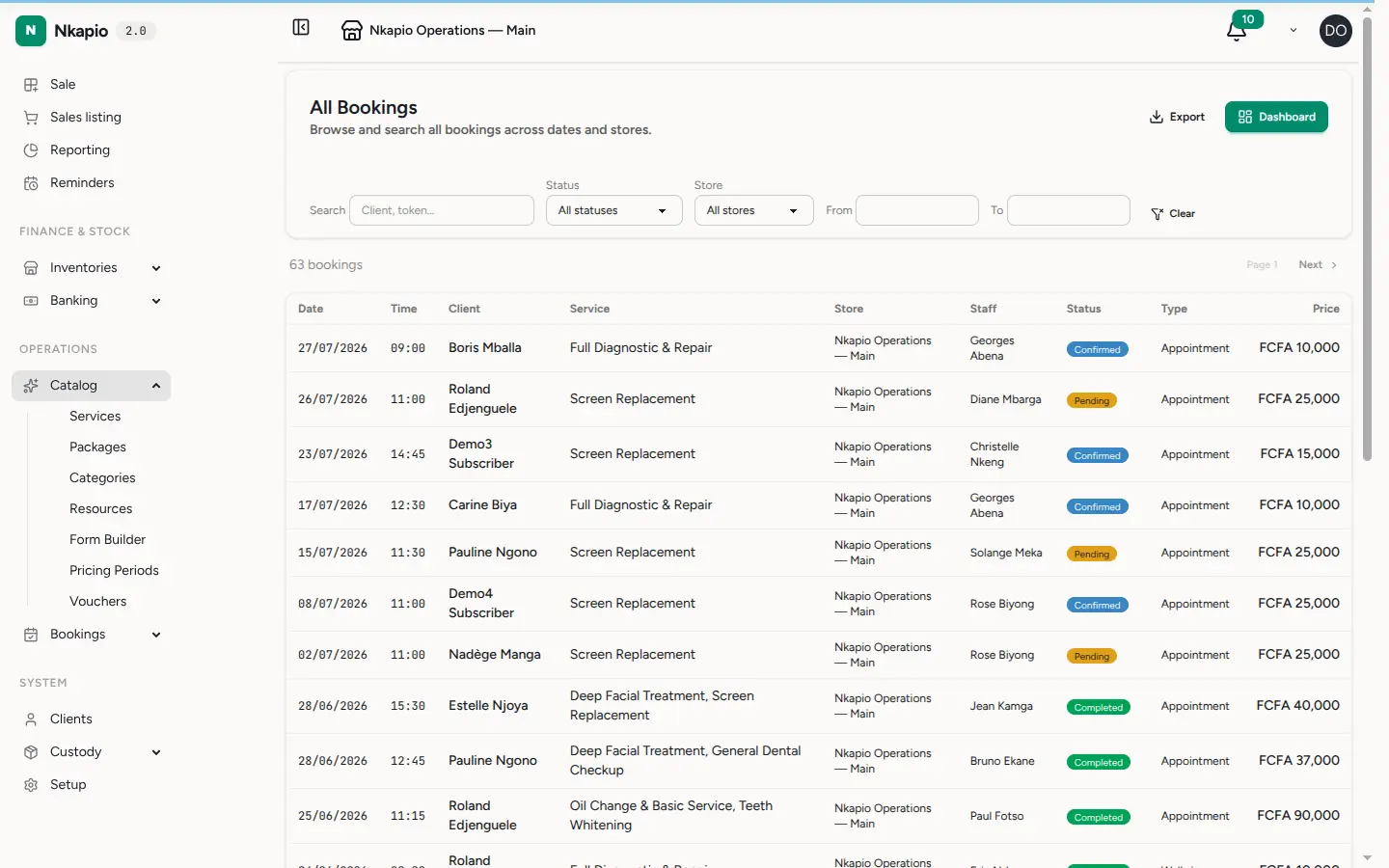
The list shows every active recurring booking with its pattern, time, end date, and status. Each generated occurrence becomes a normal booking on the calendar, so you can open, reschedule, or cancel a single one exactly like any other appointment.
When Nkapio can't cleanly place an occurrence — the staff member is already busy, or the slot clashes with something else — it doesn't drop the appointment silently. It creates the booking in a pending state with a note explaining the clash, raises a notification, and counts it against the Conflicts column so you can review and resolve it. A warning badge on a row is your cue to open that occurrence and sort out the overlap.
Editing, pausing, and stopping a series
A recurring booking and the bookings it creates are separate things, which is what makes it flexible:
- Change one occurrence — edit or cancel that single booking on the calendar. The series is untouched and future occurrences keep coming.
- Change the whole series — edit the recurring booking itself. New details apply to occurrences generated from then on; appointments already on the calendar aren't rewritten retroactively.
- Pause — temporarily stops new occurrences from being generated. Resume when you're ready and generation picks up again.
- Cancel — permanently ends the arrangement (you can note a reason, such as a client moving away). Cancelling stops future generation but leaves bookings already on the calendar in place.
Tips
- Cancelling or deleting a single appointment on the calendar never stops the series — only pausing or cancelling the recurring booking itself does.
- Name a specific staff member if continuity matters to the client; leave it as Any to give yourself flexibility when assigning the day-to-day work.
- Check the Conflicts column after a busy period. Pending occurrences sit there waiting rather than disappearing, so nothing is lost.
- Your plan may cap how many active recurring bookings you can run at once. If the New button is unavailable, you've reached that limit — pause or cancel one you no longer need.
FAQ
How far ahead are appointments created? Four weeks at a time, refreshed automatically every week, so there's always about a month of occurrences on the calendar. Use Generate next 4 weeks if you want them sooner.
Will editing the pattern move appointments already on the calendar? No. Existing occurrences stay as they are; your changes shape the ones generated afterwards. Adjust an individual appointment on the calendar if you need to move just that one.
What happens to occurrences that clash? They're still created, but as pending bookings flagged with a conflict note and counted in the Conflicts column, so you can decide what to do rather than losing the appointment.