Physical counts rarely match the system to the last unit. Bottles break, items expire, a recount turns up more or fewer than expected. A stock adjustment is how you bring the recorded on-hand quantity back in line with reality — and, just as importantly, record why it changed.
Adjustments are for corrections, not for everyday movement. Sales already lower stock when you invoice, and purchases raise it when you receive an order. Reach for an adjustment only when something happened outside those flows: a breakage, a loss, a write-off, or a physical count that disagrees with the books. Because every adjustment is signed and logged, it stays a deliberate, traceable act rather than a silent edit. Anyone with the Manage inventory permission can make one.
Step 1 — Open Stock Adjustments
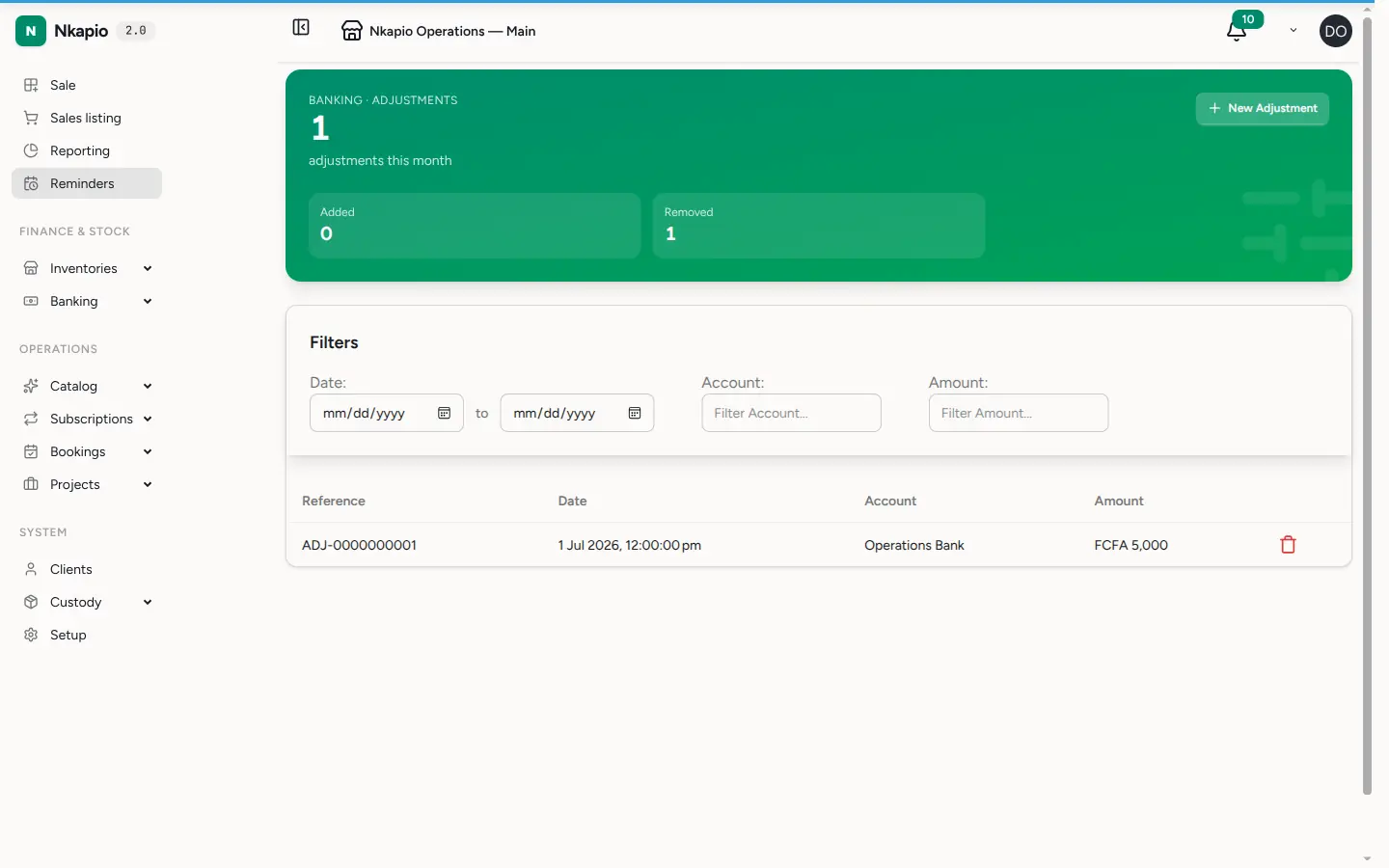
In the sidebar, expand Operations and open Stock Adjustments. The list shows every past adjustment with its quantity change, its motive, the store it applied to, and the staff member who made it — so the history of every manual correction is in one place.
Step 2 — Create an adjustment
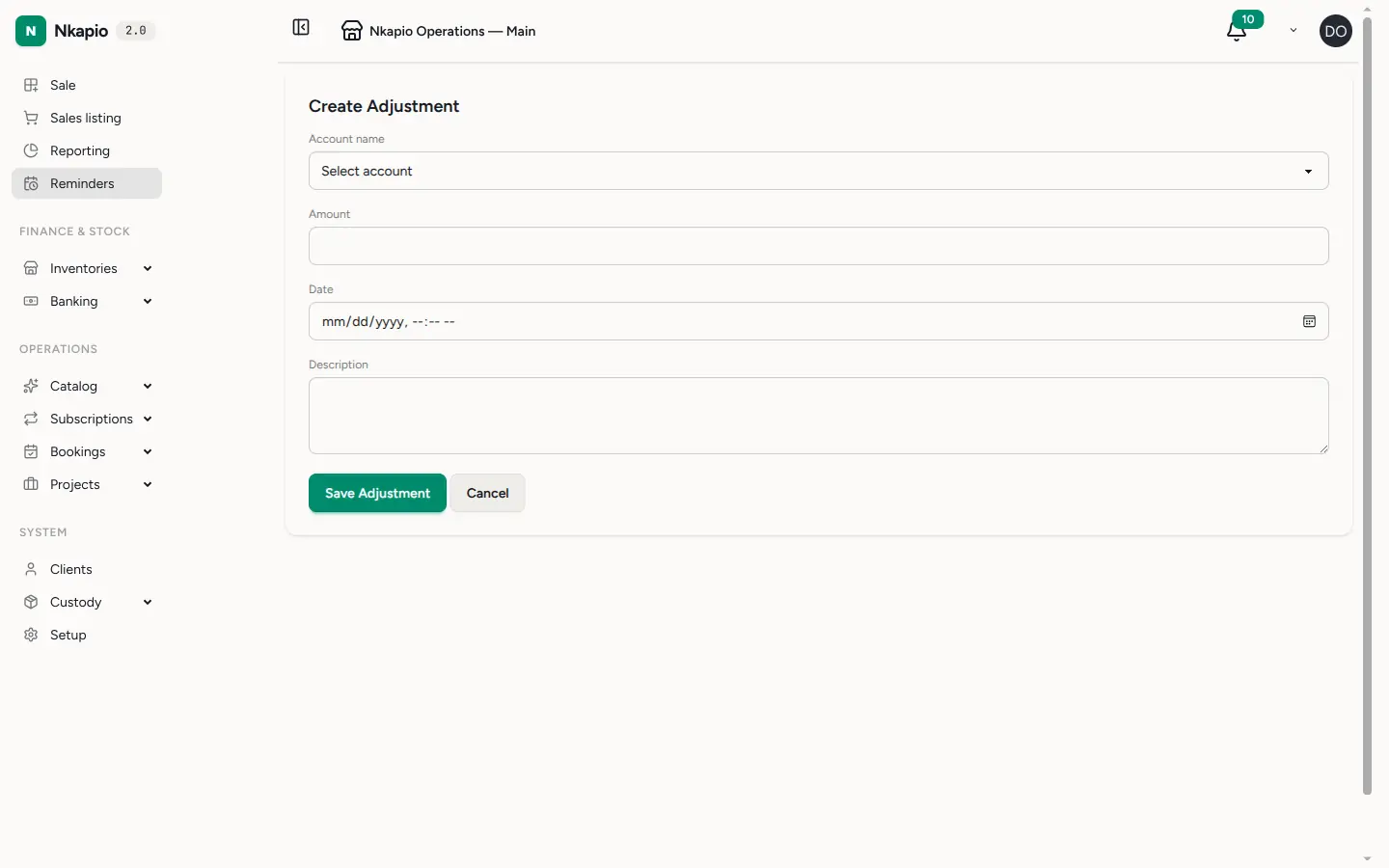
Click New Adjustment, then choose the variant you are correcting and the store it lives in. Stock is tracked per store, so an adjustment always applies to one location — correct each store separately if a count is off in more than one.
Enter the quantity change: a positive number adds units to the on-hand balance, a negative number removes them. The figure is applied on top of the current quantity rather than replacing it, so you are recording the difference you found, not retyping the whole count. Pick a motive that explains the change, and add a short note with any detail worth keeping — a lot number, who reported the breakage, or which count sheet it came from.
Choosing the right motive
The motive is what makes the log readable months later, so pick the closest match:
- Damaged — units broken or spoiled and no longer sellable.
- Out of date — stock written off because it passed its expiry.
- Lost — units missing, stolen, or otherwise unaccounted for.
- Adjustment — a plain recount correction with no other cause.
- Internal — units consumed for internal use rather than sold.
Returnable-packaging operations have their own dedicated motives (broken empties, wrong brand disposed, lost at customer, supplier buyback, and expiry write-offs or recoveries); those corrections flow into the packaging breakage view rather than this general list.
Step 3 — Review the adjustment log
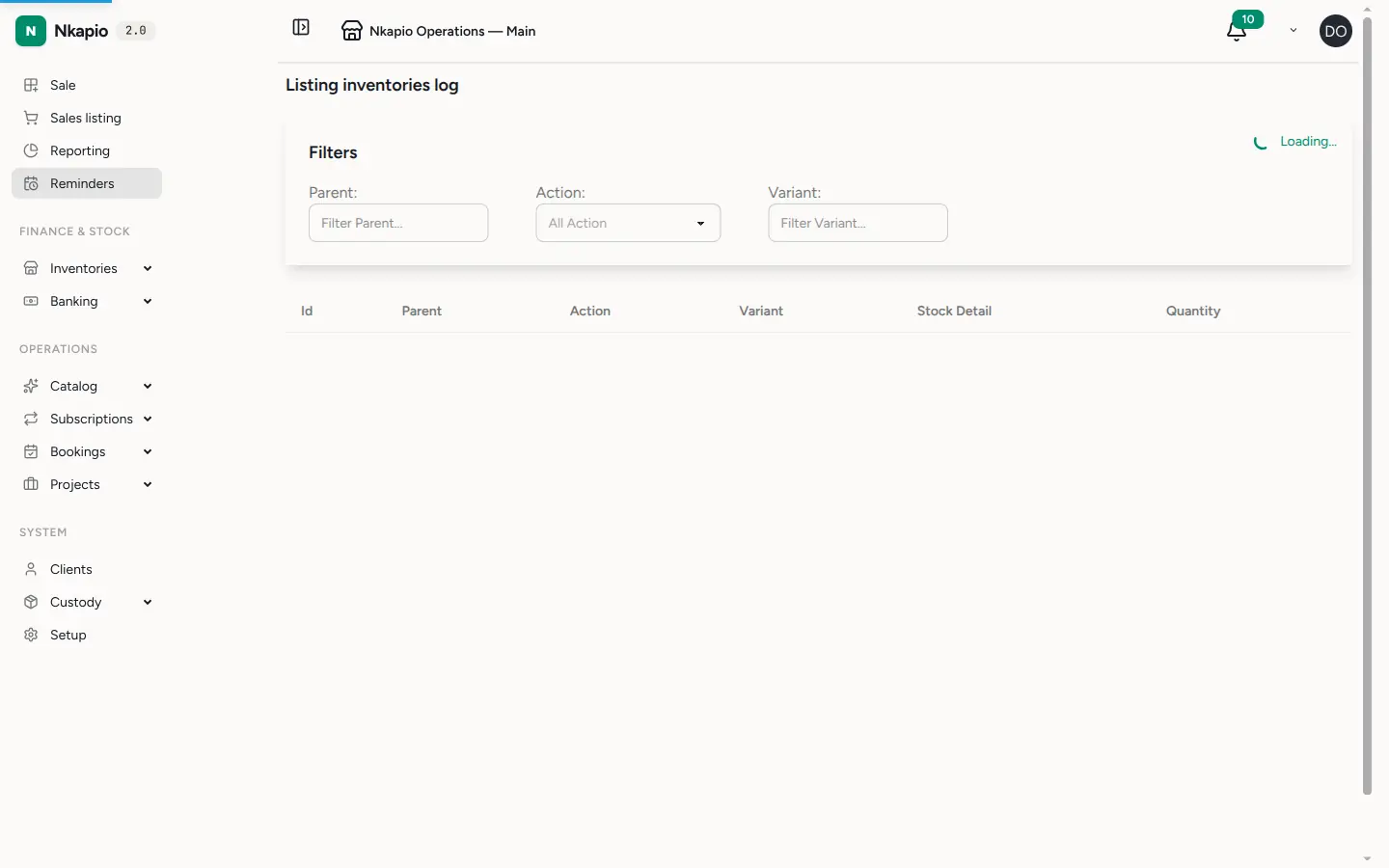
Every adjustment posts a stock movement and updates the variant's on-hand balance immediately. It then appears in the inventory log alongside sales and restocks, so you always have a full audit trail of why a quantity is what it is. Nothing is overwritten — the correction is added as its own dated, attributed entry.
Tips
- Count store by store. An adjustment only touches the store you select. If a variant is off in two locations, make one adjustment in each.
- Prefer the specific motive. "Damaged" or "Out of date" tells you far more later than a generic "Adjustment" — your reports and audits are only as clear as the motives you choose.
- Write the note while it's fresh. The one line you add now is what turns a number into an explanation when someone reviews the log weeks later.
- Don't use adjustments for sales or purchases. Invoice the sale or receive the purchase order instead — those keep your revenue and cost figures correct in a way an adjustment cannot.
FAQ
Does an adjustment change my average cost? Adding stock with a known unit cost folds into the running average; removing stock draws down at the current average and leaves it unchanged.
Can I set the quantity directly instead of a difference? No — you enter the change to apply. To land on a target figure, subtract the current on-hand from your counted total and enter that difference (positive or negative).
Who can make adjustments? Any user whose role includes the Manage inventory permission. The maker's name is recorded on every entry.