Suppliers and purchase orders let you track who you buy from and what's on order, so restocking is predictable instead of reactive. A supplier is a business you buy stock from; a purchase order (PO) is the request you raise to bring that stock in. When you receive an order, Servixo adds the goods to your inventory and updates their cost — so the two features together keep both your on-hand quantities and your cost figures honest.
Purchasing usually sits with whoever manages inventory — an owner, a manager, or a stock keeper. You need the matching permission to create suppliers, raise orders, and receive them; if the buttons below don't appear, ask an administrator to grant it.
Step 1 — Open Suppliers
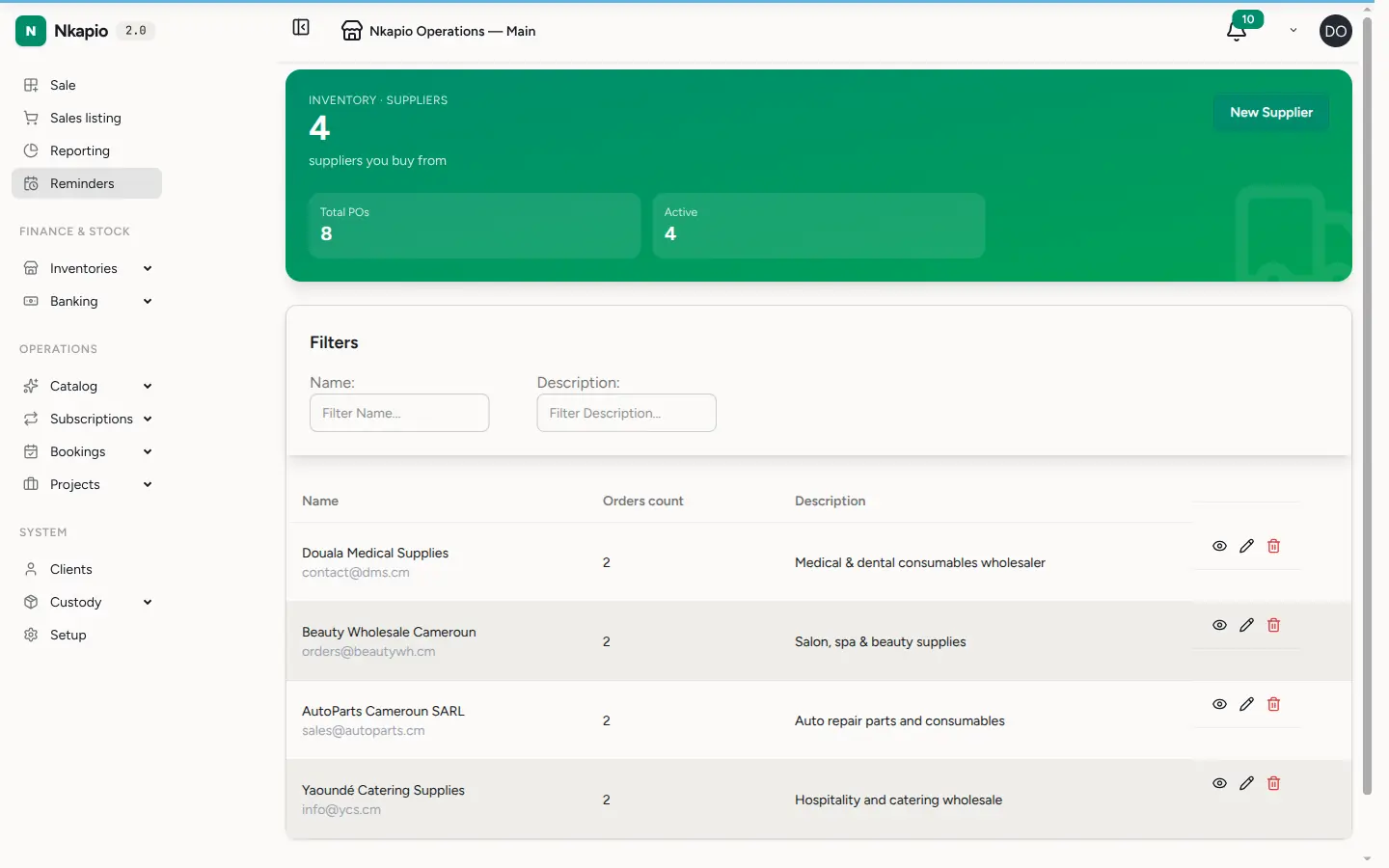
In the sidebar, expand Operations and open Suppliers. The list shows every supplier with their contact details and outstanding orders. The header tiles summarise how many suppliers you keep, how many purchase orders you've raised, and how many suppliers are currently active (have at least one order).
Step 2 — Add a supplier
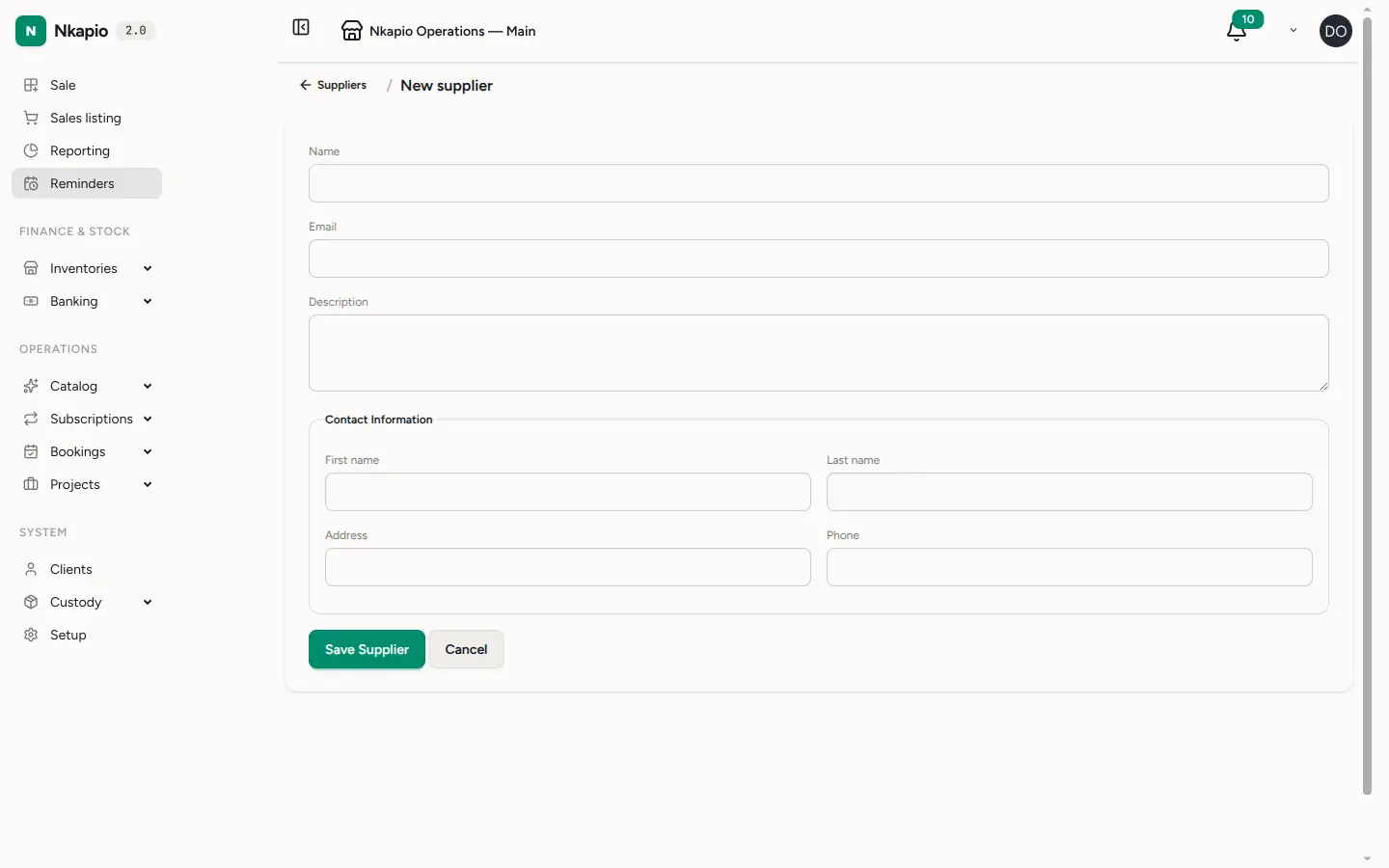
Click New Supplier and fill in their name, email, phone, and a short description of what they typically supply. The name is the only required field — you can add contact details as you get them. Suppliers count towards your plan's supplier limit, so if the New Supplier button is greyed out you've reached the cap and can free a slot by removing one you no longer use, or move to a larger plan.
Step 3 — Create a purchase order
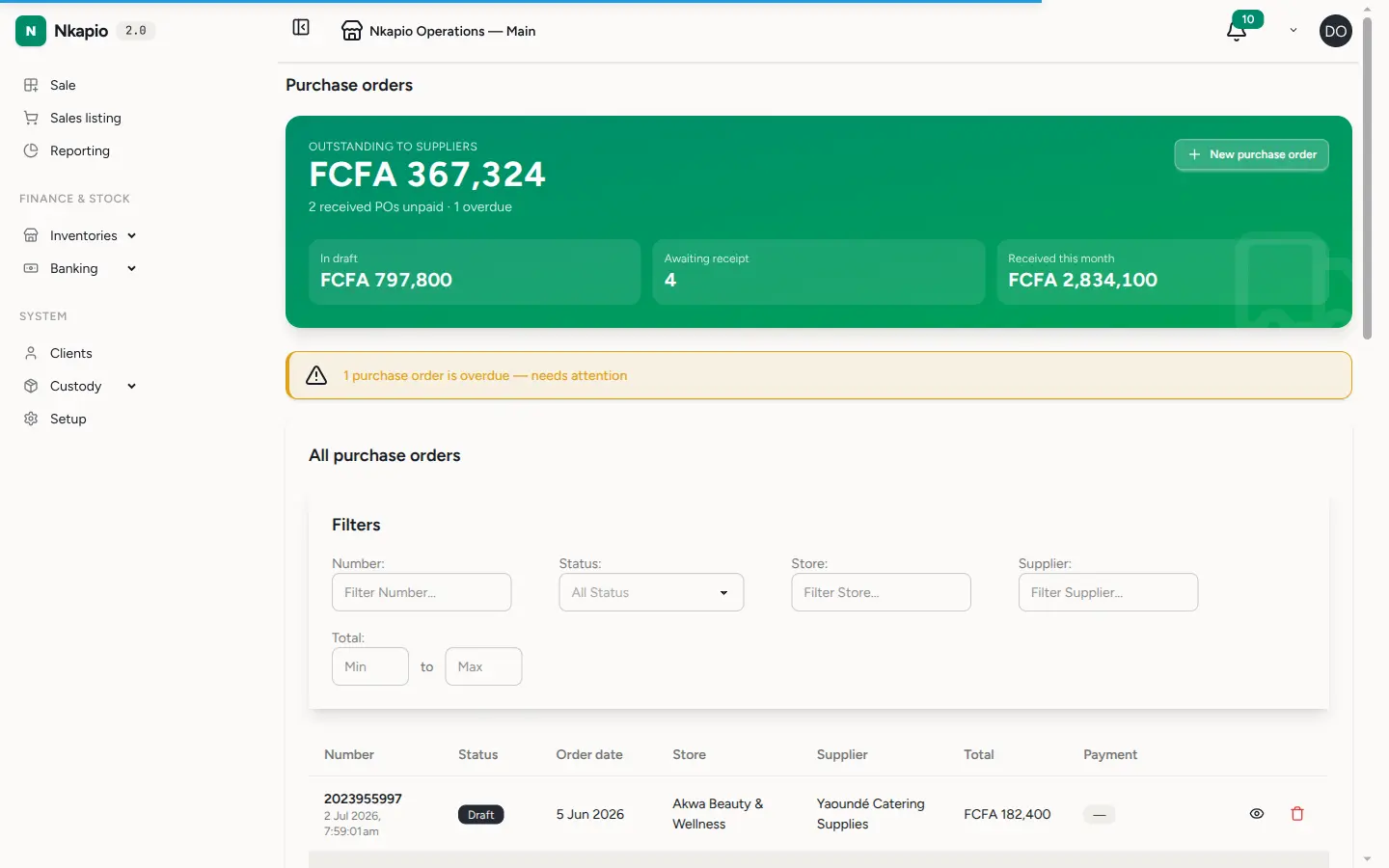
Open Purchase Orders to request stock from a supplier. Pick the supplier and the store the goods are destined for, set the order and due dates, then add the products and quantities you need. Products must already exist in your inventory before you can add them to an order — see Add products and track stock if a product is missing. Each line carries a quantity and a unit price; Servixo suggests the last price you paid (or the product's supply price) and works out the line total, the order subtotal, and the final total after any discount.
A purchase order starts life as a draft — freely editable while you build it — and stays a draft until you receive it. Only drafts can be edited; once an order is received it becomes read-only. Each order belongs to a single store, so raise a separate order per store you're restocking.
Step 4 — Receive the order
When the goods arrive, open the order and click Receive. This is the step that changes your inventory: Servixo adds each ordered quantity to on-hand stock at the order's store, and refreshes the product's cost basis using the weighted moving average (CMUP) — the received quantity and price are blended with what you already held, so your average unit cost stays realistic. Receiving happens once; after it, the order is marked Received and dated.
If a product is tracked by serial, lot, or expiry, you'll be asked to enter the individual codes (or lot quantities) first — the Receive button stays disabled until every tracked line is complete, and a checklist shows what's still outstanding. See Add products and track stock for how tracking works.
If the price you actually paid drifts noticeably from the product's recorded supply price, Servixo shows a supply-price drift warning after receiving so you can open the product and adjust its supply or retail price. This is a heads-up, not a block — the receipt still goes through.
Step 5 — Record payments
Once an order is received you can log payments against it from the order page. Each payment is recorded as an expense tied to a bank or cash account, and the order tracks how much has been paid versus the total due. You can cancel an order while it's unpaid, but a fully paid order can't be cancelled — settle or reverse the payment first.
Tips
- Raise the order before the goods arrive. A draft PO is a shopping list you can keep editing; receiving it later is a single click.
- One store per order. Stock lands in the order's store, so split a delivery that fans out to several stores into one order each.
- Let the suggested price stand unless it changed. Servixo pre-fills the last price paid; only override it when the supplier's price actually moved, and expect a drift warning if it moved a lot.
- Enter codes as you unpack. For serial-, lot-, or expiry-tracked items, capturing codes at receiving is what makes later stock logs and expiry alerts accurate.
FAQ
Can I edit an order after receiving it? No. Only draft orders are editable. If you received an order in error, cancel it (while unpaid) and raise a new one.
Does receiving change my stock levels? Yes — that's its whole purpose. Receiving increases on-hand quantity at the order's store and recalculates the weighted-average unit cost. Simply creating a draft does not.
Why did my average cost change after receiving? Servixo uses CMUP (weighted moving average): the new receipt is blended with your existing quantity and cost, so the average moves toward whatever you just paid. Buying at a higher price nudges the average up; buying cheaper nudges it down.
Do I have to add a supplier before ordering? It's strongly recommended so payments and history stay attributable, and the supplier's last prices can be suggested on future orders.