Services are what your clients book and pay for. Everything downstream — the calendar, the point of sale, your public booking pages and your reports — reads from this one list, so a clean, well-organized catalog makes the rest of Nkapio effortless. Building and maintaining it is usually the job of an owner or manager; the form is permission-gated, so only team members whose role can manage the catalog will see the create and edit actions.
What a service is made of
At its simplest, a service is a name, a price, and a duration, filed under a category. From there you can enrich it as much as your business needs:
- Who can perform it — assign staff members, with optional per-staff price and duration overrides.
- Where it's offered — assign stores, each with its own price overrides, available days and hours.
- What it needs — link the resources (rooms, chairs, equipment) it occupies and the consumables (inventory items) it uses up.
- How clients pay — a fixed price and duration, or progressive pricing for diagnose-then-quote work; an optional deposit; and optional add-ons.
- How it's sold — a toggle to make it bookable online, plus intake and consent forms to collect the right information at the right stage.
You don't have to fill in everything at once. Save the basics first, then come back to any tab as the service takes shape.
Step 1 — Open Services
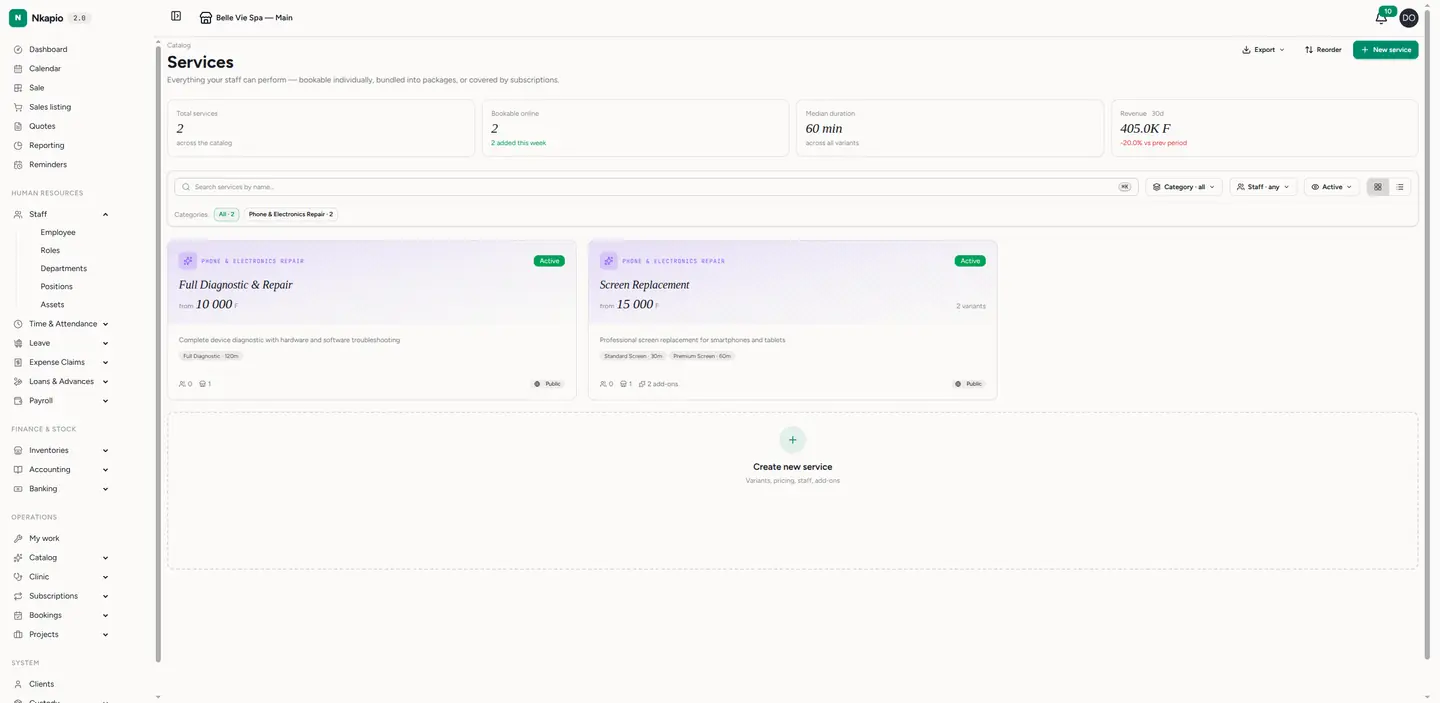
In the sidebar, expand Catalog and open Services. The list shows every service with its category, duration and price, and lets you search, reorder and edit each one.
Step 2 — Create a service
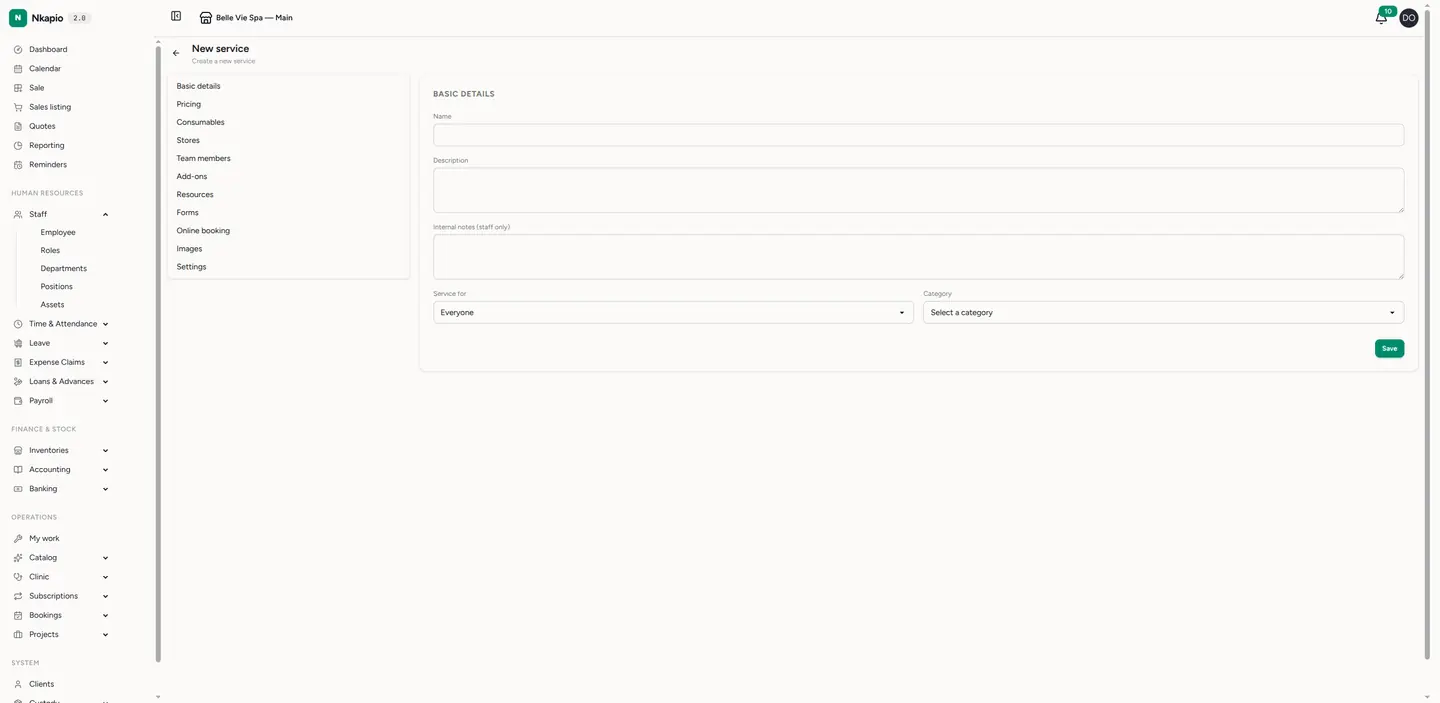
Click the new-service action. The form is split into tabs so you can work through it in order. Start with Basic details — name, description and category — and save. Saving unlocks the tabs that attach related data (team, stores, consumables, add-ons, images).
- Pricing — set the price and duration. Add several pricing options (for example Standard vs Premium), or switch to progressive pricing when the final price depends on a diagnosis or estimate.
- Team members — choose which staff can perform the service and, if needed, give any of them a custom price or duration.
- Resources — mark the service as requiring a resource and pick which ones it uses, so the calendar never double-books the same room or chair.
- Forms — link intake or consent forms so the right questions are asked at booking, at intake, during delivery or as follow-up.
- Online booking — flip on Enable online booking to expose the service on your public pages.
- Settings — timing buffers, prep time, age restrictions and, where the feature is enabled, deposit rules.
Step 3 — Organize with categories
Open Categories (under Catalog) to group services the way clients browse them. Categories are more than tidy labels: they structure your POS tabs and your public booking pages, so a thoughtful grouping makes both faster to use.
Tip: a service can be bookable online, sellable at the counter, or both — control this per service, and leave online booking off for anything you only sell in person.
How services feed the rest of Nkapio
Once a service exists it becomes available everywhere it's relevant:
- Bookings & calendar — staff and resource assignments decide who and what can be scheduled, so the calendar only offers valid slots.
- Point of sale — active services show up at the counter, filed under their category tab.
- Online booking — services with online booking enabled appear on your public pages and shareable links.
Tips & FAQ
- Keep drafts out of the way. A service is only offered while it's Active. Turn Active off in Settings to hide something you're still building without deleting it.
- Duplicate instead of retyping. For a close variant, duplicate an existing service and adjust — it copies most settings and starts inactive so you can review before going live.
- Is there a limit on services? Some plans cap how many services you can create. If you hit the limit, the form will tell you; upgrade or archive unused services to make room.
- Nothing shows online? Check that the service is Active and has Enable online booking turned on.