Banking is where you see and manage your money across every cash box and bank account. Nkapio consolidates them into one cash position, records every movement (sales, expenses, transfers, adjustments), and gives each account a full statement with a running balance.
Open it under Banking in the sidebar (/banking).
Seeing balances and account numbers requires the account-balance permission — without it you can still open Banking but the figures are hidden. Adding accounts requires the banking create permission, so the New Account button only shows if you have it.
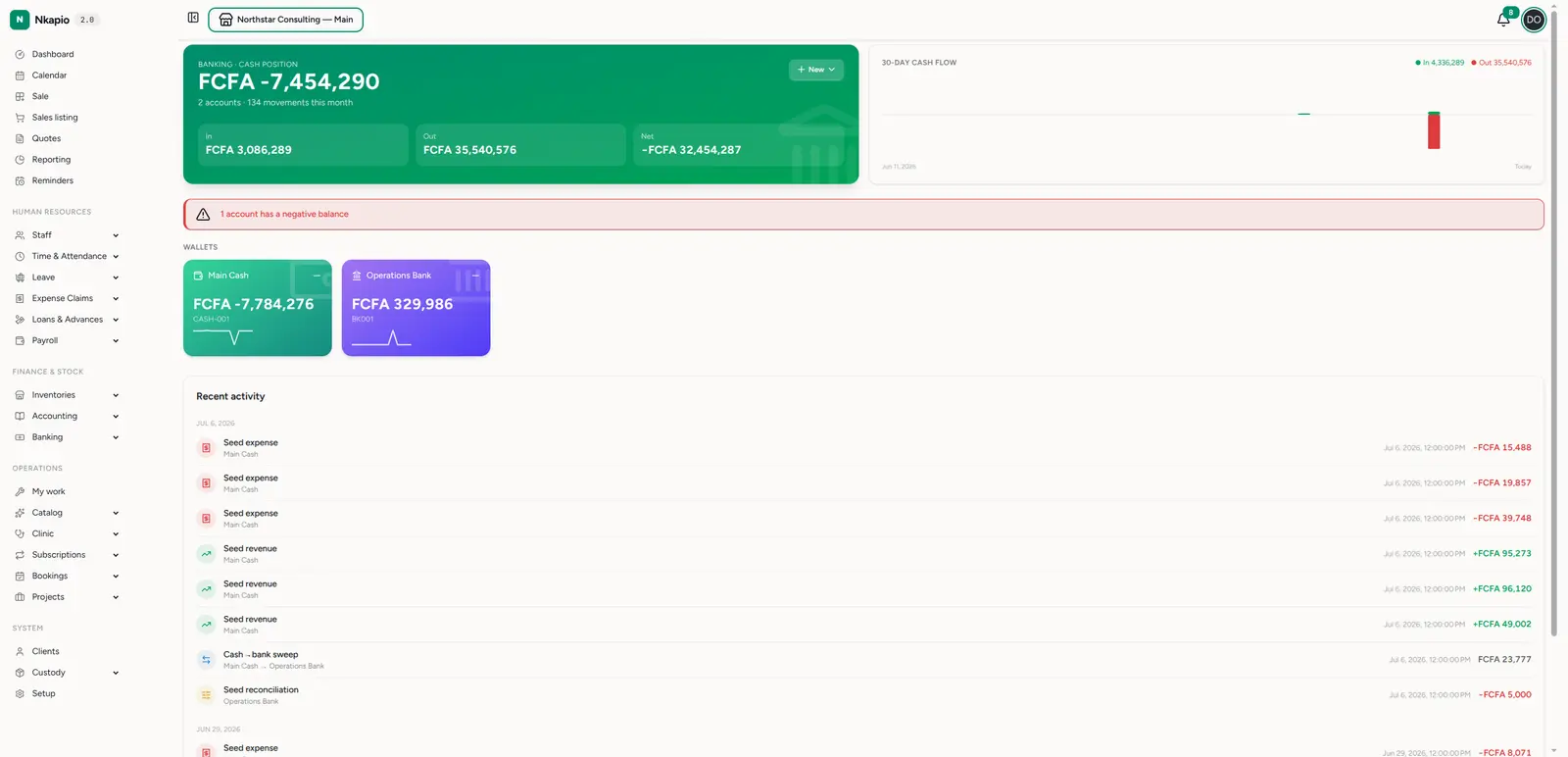
The banking overview
The overview opens on your cash position — the combined balance across all accounts, with In, Out and Net for the month and a 30-day cash-flow chart. Below, each account appears as a wallet card with its own balance, and a recent activity feed lists the latest movements. If an account goes negative, a banner flags it so you can act.
The accounts list
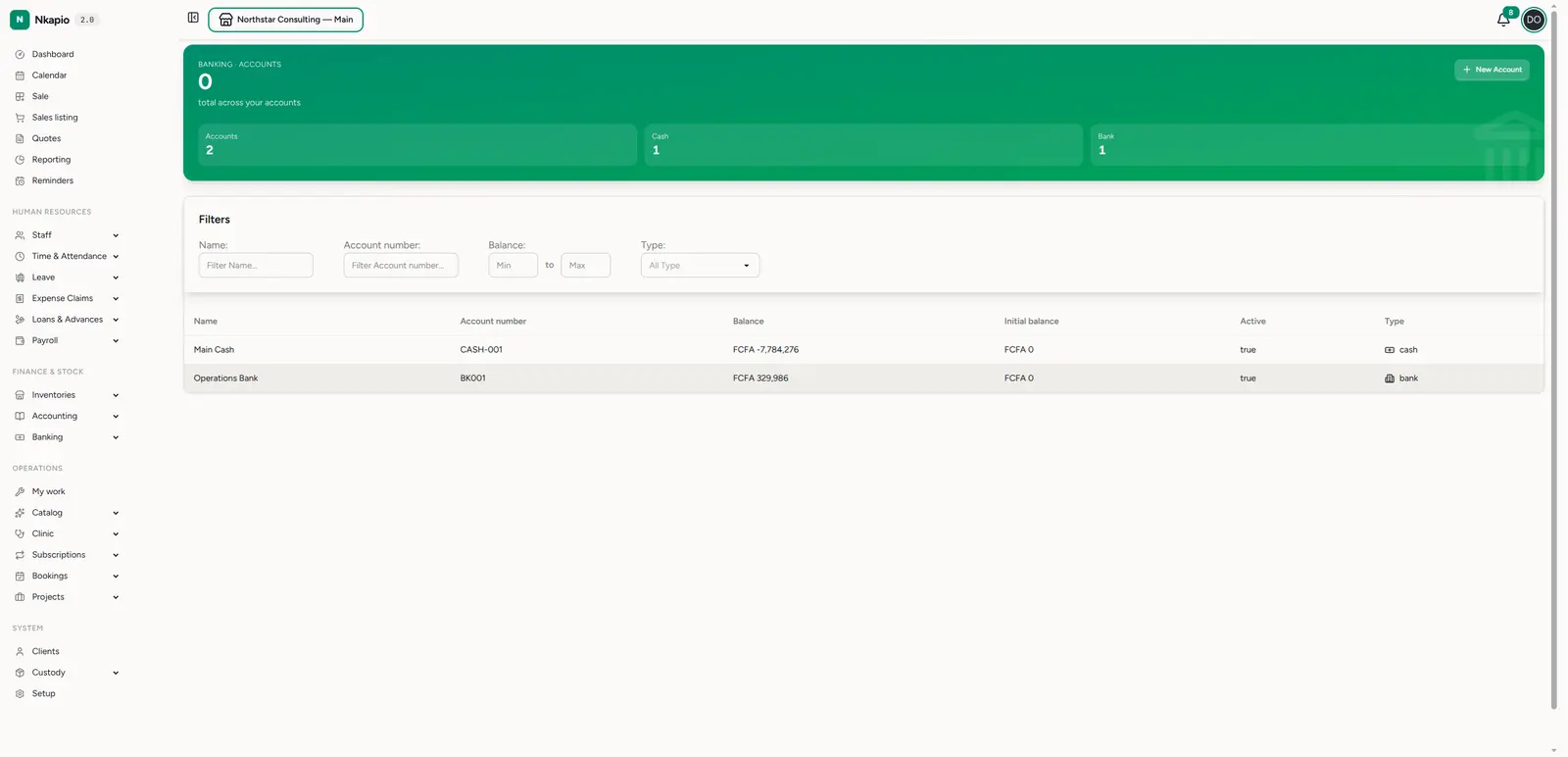
Banking → Accounts (/banking/accounts) lists every account with its name,
account number, current balance, initial balance and type (cash or bank). Click
New Account to add one, or click an account to open its statement. Each store
gets its own account, and you only see accounts for the stores you're assigned to.
An account statement
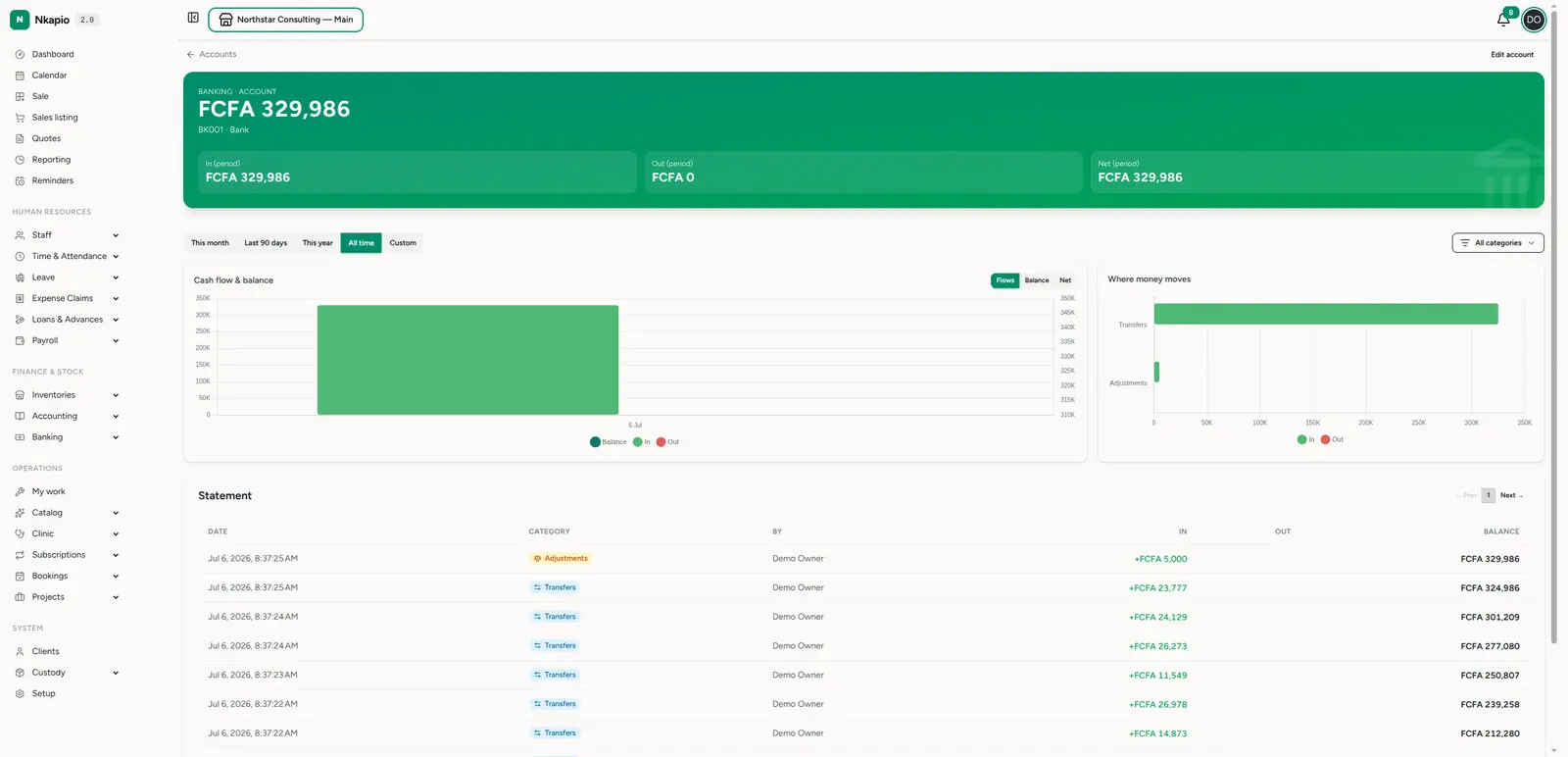
Open an account for its statement. The header shows the balance and the In / Out / Net for the selected period; pick a range (this month, last 90 days, this year, all time, or custom). Two charts — cash flow & balance and where money moves — visualise the account, and the statement table lists every entry with a running balance you can trace line by line. Most entries link straight back to the document that moved the money — the payment's invoice, or the expense, transfer, revenue or adjustment behind the line.
Adding an account
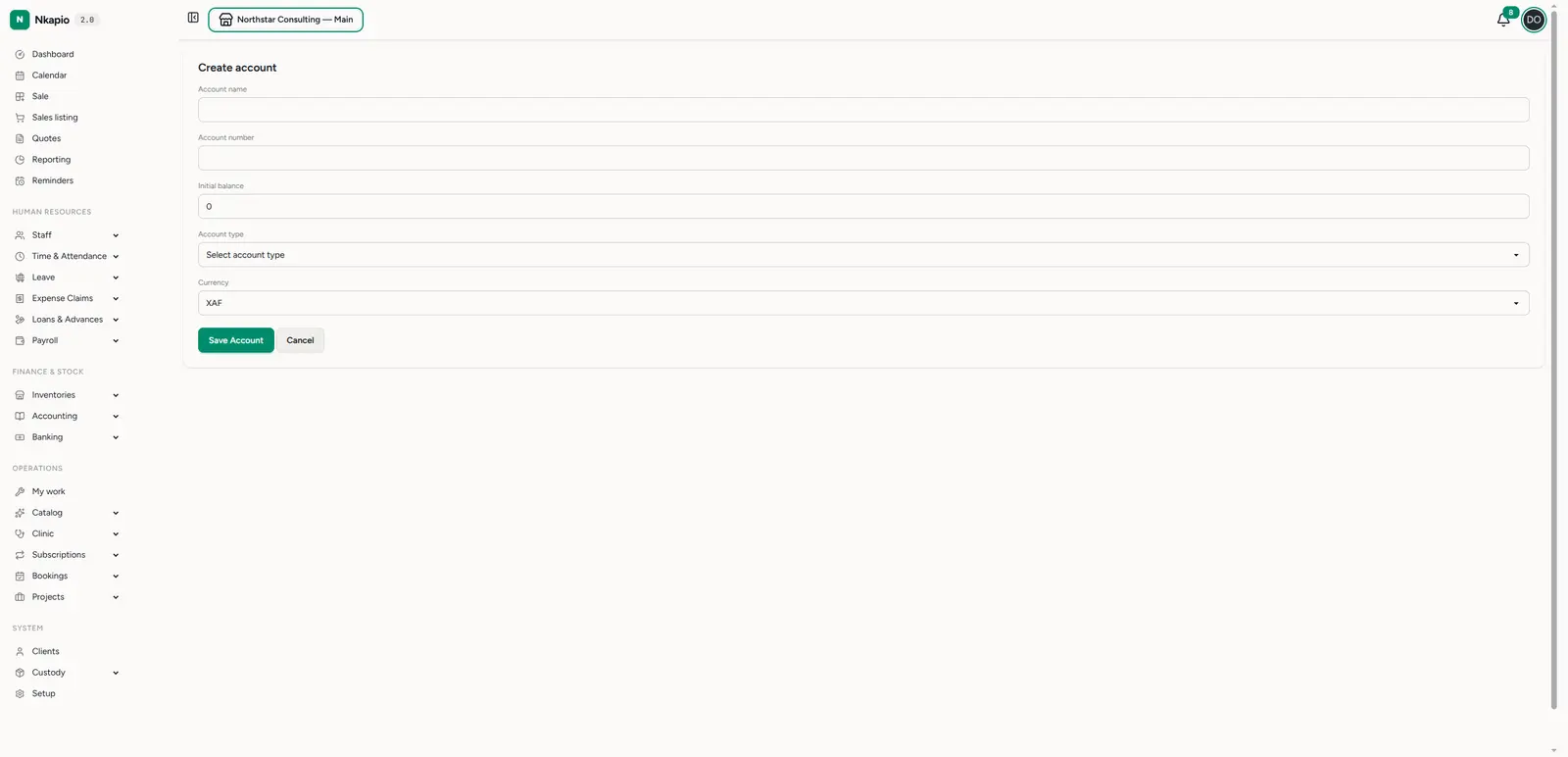
Click New Account to add a cash box or bank account. Give it a name, an optional account number, choose its type (cash or bank) and currency, and set an initial balance if it already holds money. The currency is fixed once the account is created; the name, number and type stay editable afterwards.
Tips
- Model reality — one account per real cash box and bank account keeps balances meaningful and reconciliation easy.
- Balances move on their own — every payment, expense, transfer, revenue and adjustment posts to its account automatically. You never type a balance by hand; the only figure you set is the initial balance when you create the account.
- Initial vs running balance — the initial balance is the account's starting point, not a statement line. The running balance is anchored to the current balance and walked backwards row by row, so it always reconciles even though the opening amount never appears as its own entry.
- Watch the negative-balance banner — it usually means a movement was recorded against the wrong account.
- Reconcile regularly — compare each account's statement to your real bank statement; the running balance makes discrepancies easy to spot.
- Removing an account archives it — deleting keeps its history rather than erasing it, so past statements stay intact.