Every PDF Nkapio produces — invoices, quotes, receipts, payslips, loan agreements, booking summaries and more — is generated from a template you control, and every one carries a document number drawn from a sequence you define. Two Setup pages govern this: PDF Templates decides how documents look, and Numbering decides how they are labelled. Set both once and they flow through everything the business issues from then on. These are administrative pages, so you'll normally set them up as the owner or an administrator, alongside your other company settings.
PDF templates
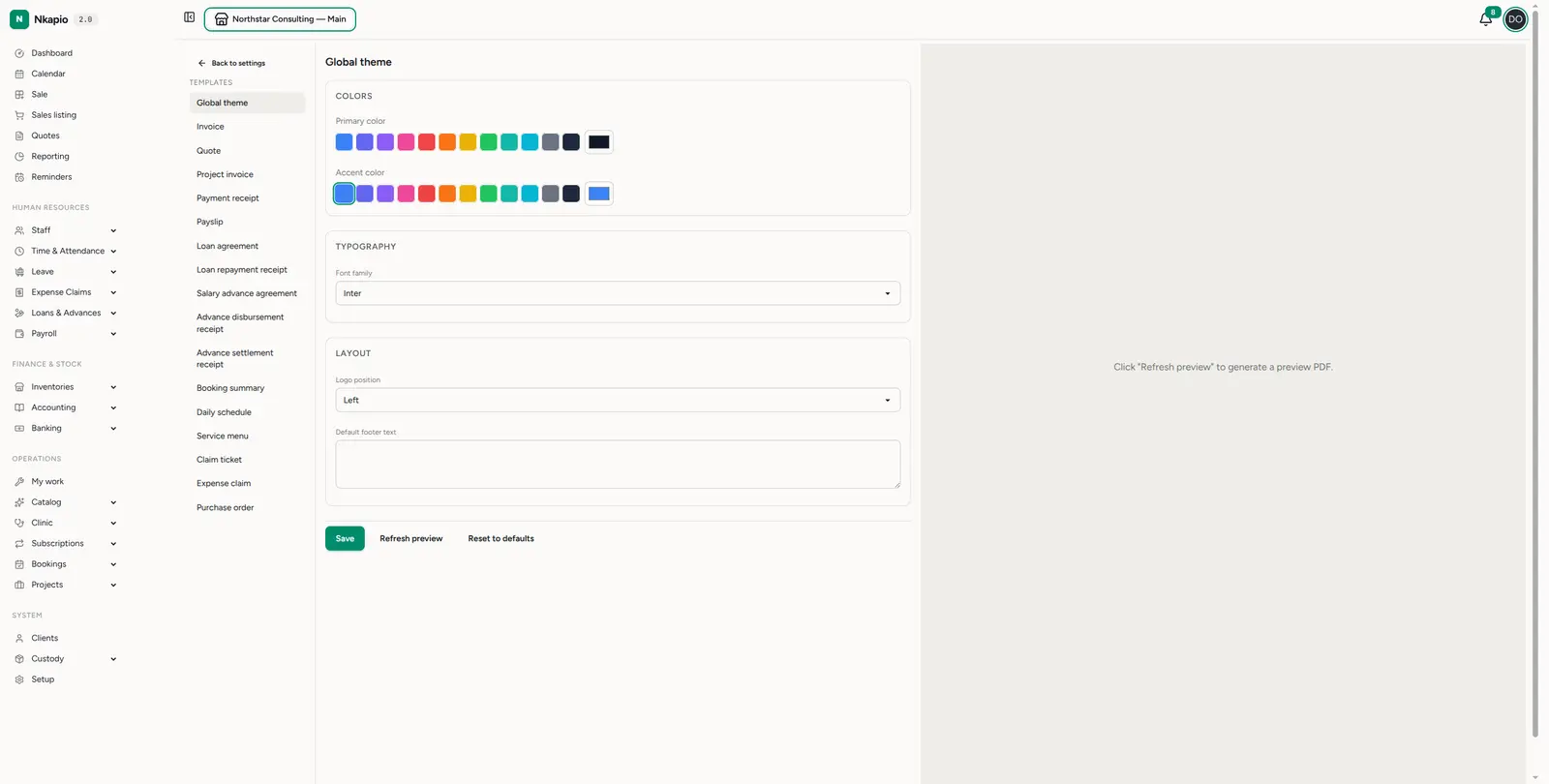
Setup → PDF Templates (/settings/templates) opens the template studio. The
left rail lists every document type; start with Global theme, which sets the
colours (primary and accent), typography (font family) and layout
(logo position, default footer text) shared by all documents. Because the theme
cascades, tuning it once is usually enough — individual templates only need
attention when a specific document calls for it.
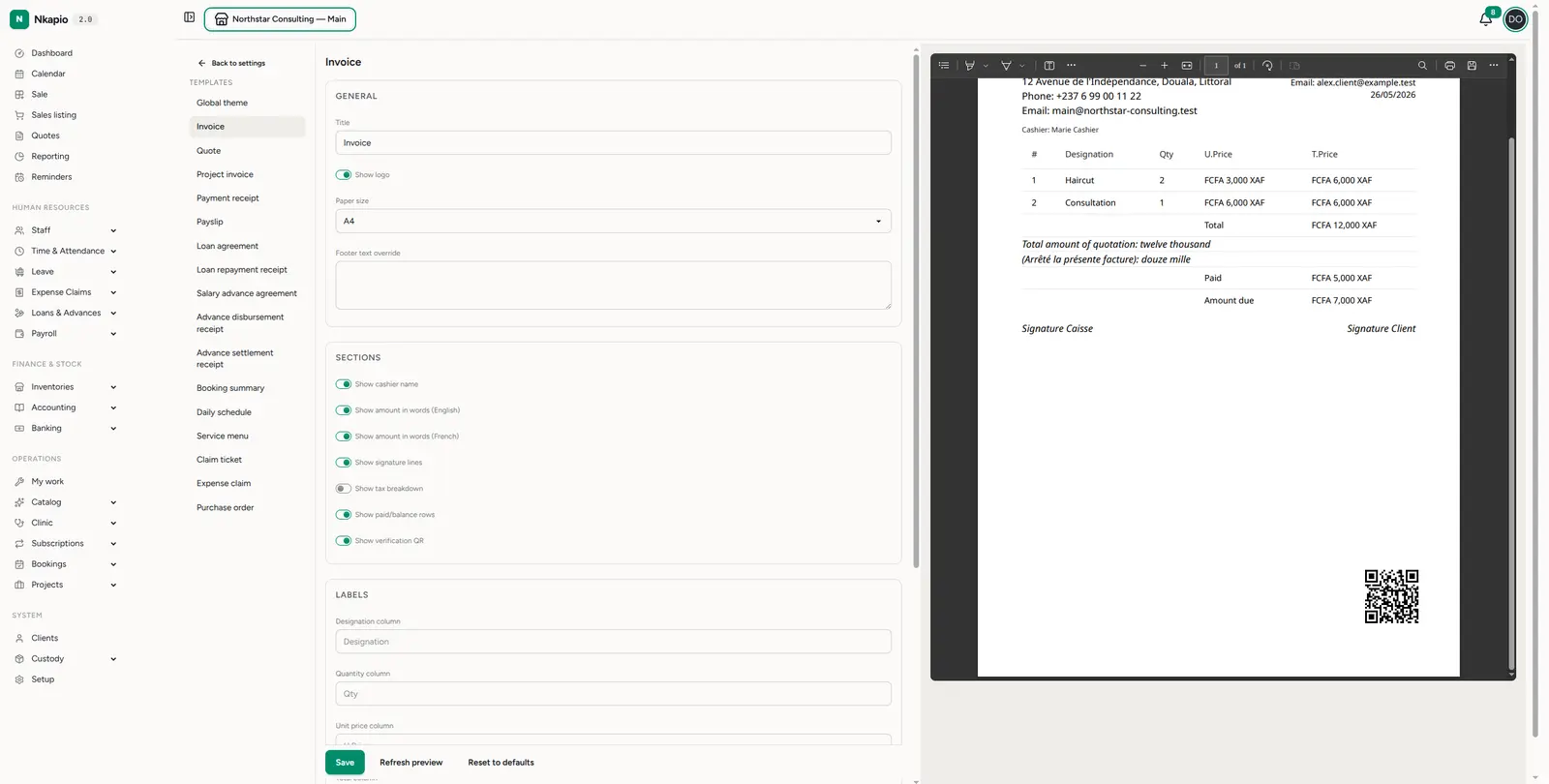
Pick any specific document — Invoice, for example — to fine-tune it. An invoice groups its options into General (title, show logo, paper size, footer override), Sections you can toggle on or off (cashier name, amount in words in English/French, signature lines, tax breakdown, paid/balance rows, verification QR), Labels for the line-item columns (designation, quantity, unit price, total), and Content blocks (payment instructions, terms and conditions). Other document types expose the knobs that make sense for them. Click Refresh preview to render a live PDF on the right — it uses your real company name, logo and active store, with only the document body as sample data — then Save. Reset to defaults returns the current template to its factory settings if an experiment goes too far.
Numbering
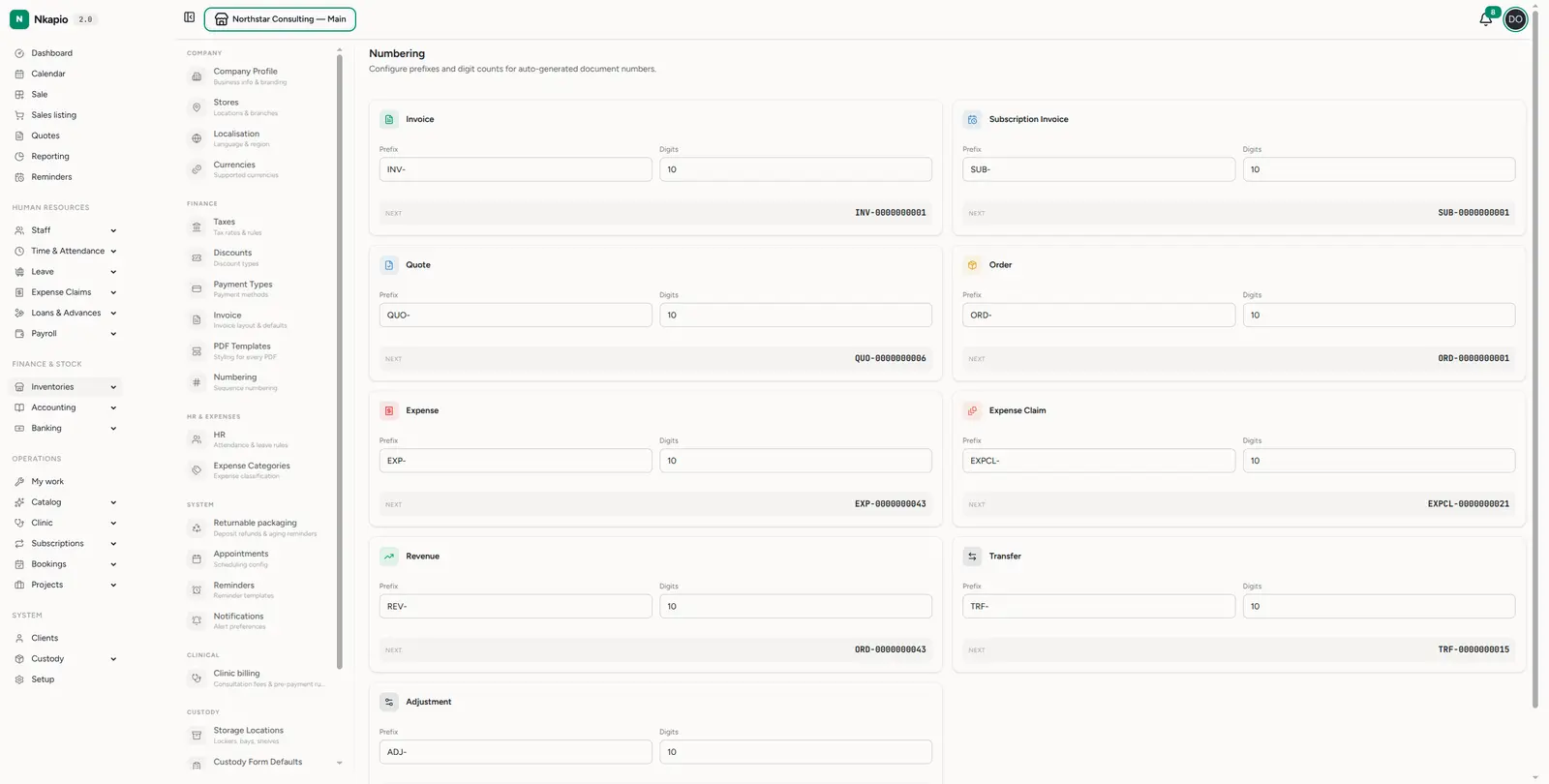
Setup → Numbering (/settings/numbering) controls how document numbers are
generated. Each document type — invoice, subscription invoice, quote, order,
expense, expense claim, revenue, transfer and adjustment — has a prefix
(e.g. INV-) and a digit count between 1 and 10. Numbers are built as the
prefix followed by a zero-padded counter, and the Next line previews exactly
what the next document of that type will receive (e.g. INV-0000000001).
The counter is not a fixed dial you set — Nkapio derives the next number by
looking at the highest existing number that shares the same prefix and the
same total length, then adding one. A brand-new prefix therefore starts at 1.
This keeps each document type on its own clean, sequential run, which matters for
book-keeping and audit: gap-free, predictable numbering makes documents easy to
reconcile and to justify to an accountant or tax authority.
Tips
- Set the global theme first — colours and logo cascade to every document, so you rarely need to touch individual templates.
- Keep prefixes short and meaningful —
INV-,QUO-,REV-read cleanly on printed documents and in search. - Don't shrink digit counts below your volume — 10 digits comfortably covers years of documents; too few and the series runs out of room.
- Decide numbering before you go live — settle prefixes and digit counts up front so a single, unbroken sequence runs from your very first document.
Common questions
- Does changing a prefix renumber my existing documents? No. Numbers are stamped when a document is created and stored with it, so anything already issued keeps its number. Changes only affect documents created afterwards.
- What happens if I change the prefix or digit count later? Nkapio treats
numbers with a different prefix or a different total length as a separate
series, so the counter effectively restarts at
1for the new format while the old documents keep their old numbers. Change these settings sparingly, and ideally at a natural break such as the start of a financial year. - Who can edit these pages? They sit under Setup with the rest of your company configuration, so access follows your settings permissions — typically the owner or an administrator.