The reports landing is your hub for every board in Nkapio. From here you jump straight to sales, revenue, HR and any other overview your business has enabled — each one a focused board for a single part of the operation. It's the page leadership, owners and managers open when they want to see how the business is doing without digging through individual screens.
Rather than one giant dashboard, Nkapio groups reports into sections by area — Finances, Sales, Products, Inventory, Appointments, Clients, Subscriptions, Projects, HR and, for clinics, Clinical. Each section is a card that lists the individual reports inside it, so you can head straight to the numbers you need.
Step 1 — Open the reports landing
Click Reports in the sidebar. You see every available section grouped by area, with a count of how many reports each one holds. The data behind every report is pulled live, so what you open is always current.
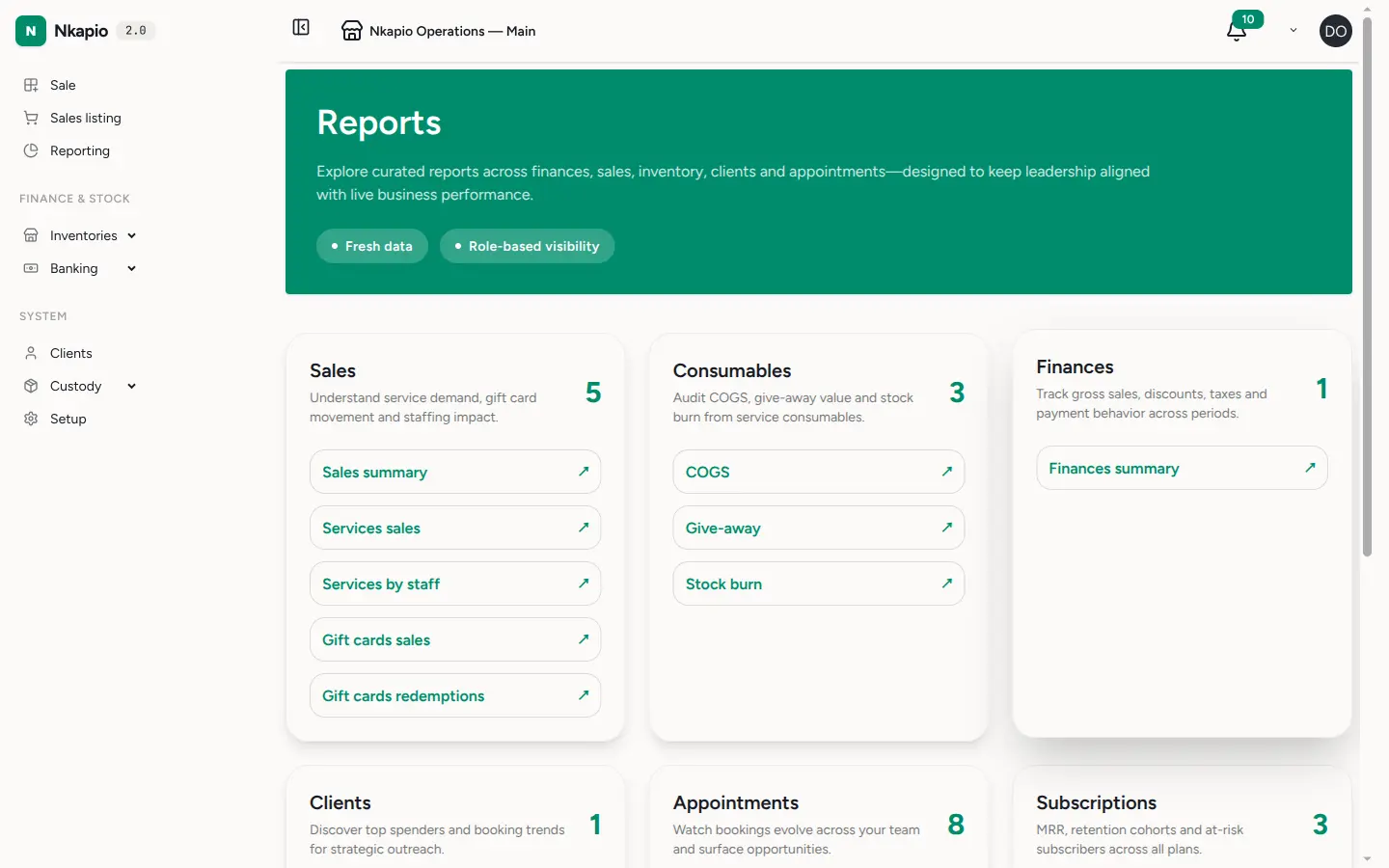
How the hub is organised
Two things decide what you see on this page, and both must line up:
- The feature that owns the data. Every section only appears when the module that produces its data is switched on. Sales and Finances ride on the sales feature; Appointments, Clients and service-consumable reports ride on bookings; Products, Purchasing and Inventory ride on inventory; HR rides on the HR module; Clinical rides on diagnostics. A tenant never sees a section it can't populate — a product distributor with bookings off, for example, sees only Finances and Sales.
- Your permission to see it. On top of the feature, each report checks the permission bundle tied to its data — sales reports need invoice/payment access, HR reports need HR access, clinical reports need clinical-report access. This is the "role-based visibility" the hub advertises: two people in the same business can open Reports and see different sections depending on their role.
Step 2 — Open a board
Click a report to open it — for example the HR overview, which brings together headcount, timesheet hours, pending approvals and attendance in one view. Each report opens with a date-range picker (defaulting to the last 90 days) so you can narrow the numbers to the period you care about.
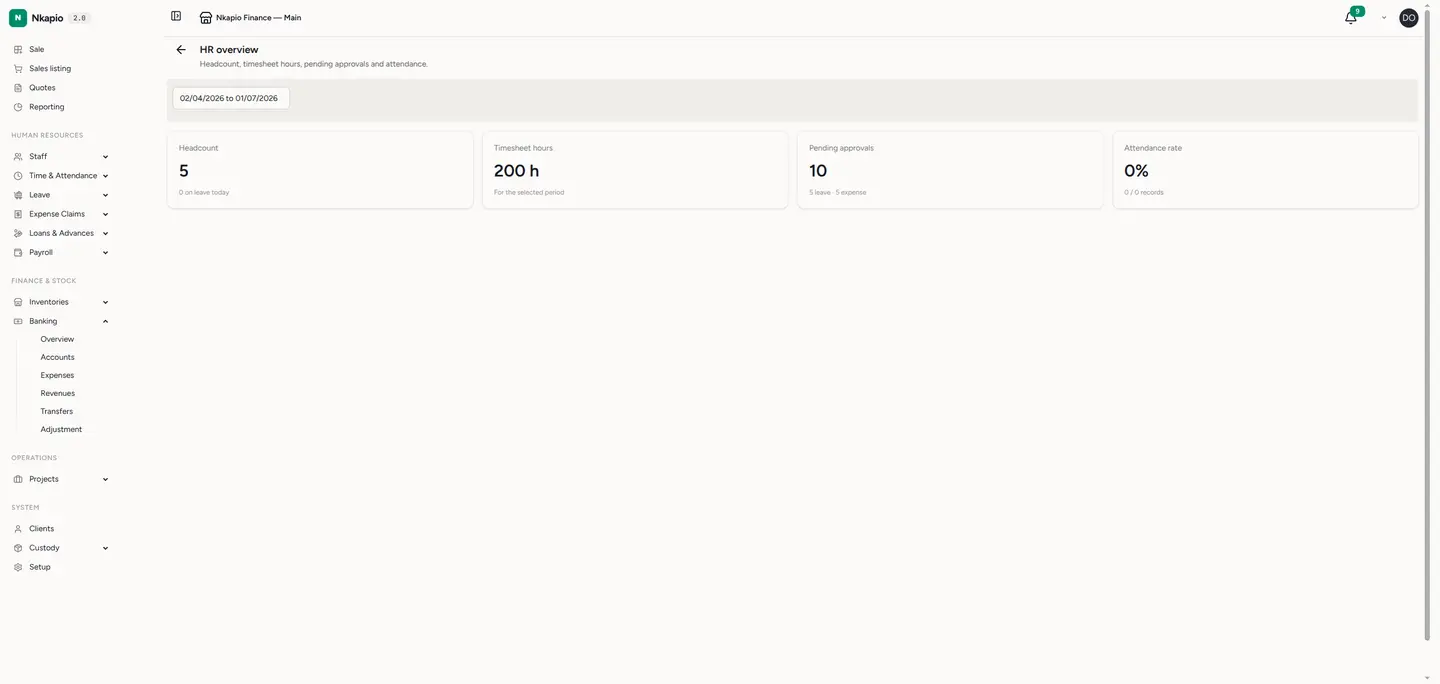
Tip: the sections you see depend on which modules your plan has enabled — turn on a module in settings and its section appears here automatically, as long as your role has permission to view it.
Before you start
- If a whole section is missing, it's almost always one of two things: the feature that owns its data is switched off for your plan, or your role doesn't hold the permission for it. Check settings for the module first, then your role's permissions.
- A section only shows up once it has at least one report you're allowed to open — empty sections are hidden rather than shown greyed out.
FAQ
Why do I see fewer sections than a colleague? Report visibility is role-based. Your colleague likely holds a permission bundle (for example HR or clinical reports) that your role doesn't.
I enabled a module but its section still isn't here. Enabling the feature makes the section eligible; your role still needs the matching permission. Ask an owner to grant it, then reopen Reports.
Is the data live? Yes. Every report reads current data each time you open it, and you can re-scope any report with its date-range picker.