Payment types are the tender methods your clients use to settle an invoice — cash, mobile money, card, cheque, bank transfer. They are a configurable list you manage in Settings, and every method you keep here becomes a button your team can pick when recording a payment. Defining them clearly lets you record each payment against the right method and see exactly where your money comes in.
Anyone on your team can see the list, but adding, renaming, and removing methods requires the payment-types permission, so this is normally handled by an owner or manager during setup and rarely touched again.
Step 1 — Open the payment types list
Open Settings and click Payment types. Each method shows an icon and its name; the icon is chosen automatically from the name (cash, card, mobile money, cheque, bank transfer all get their own). Nkapio seeds a starter set for every business — Cash, Mobile Money, and Cheque — so you can start taking payments right away and add your own on top.
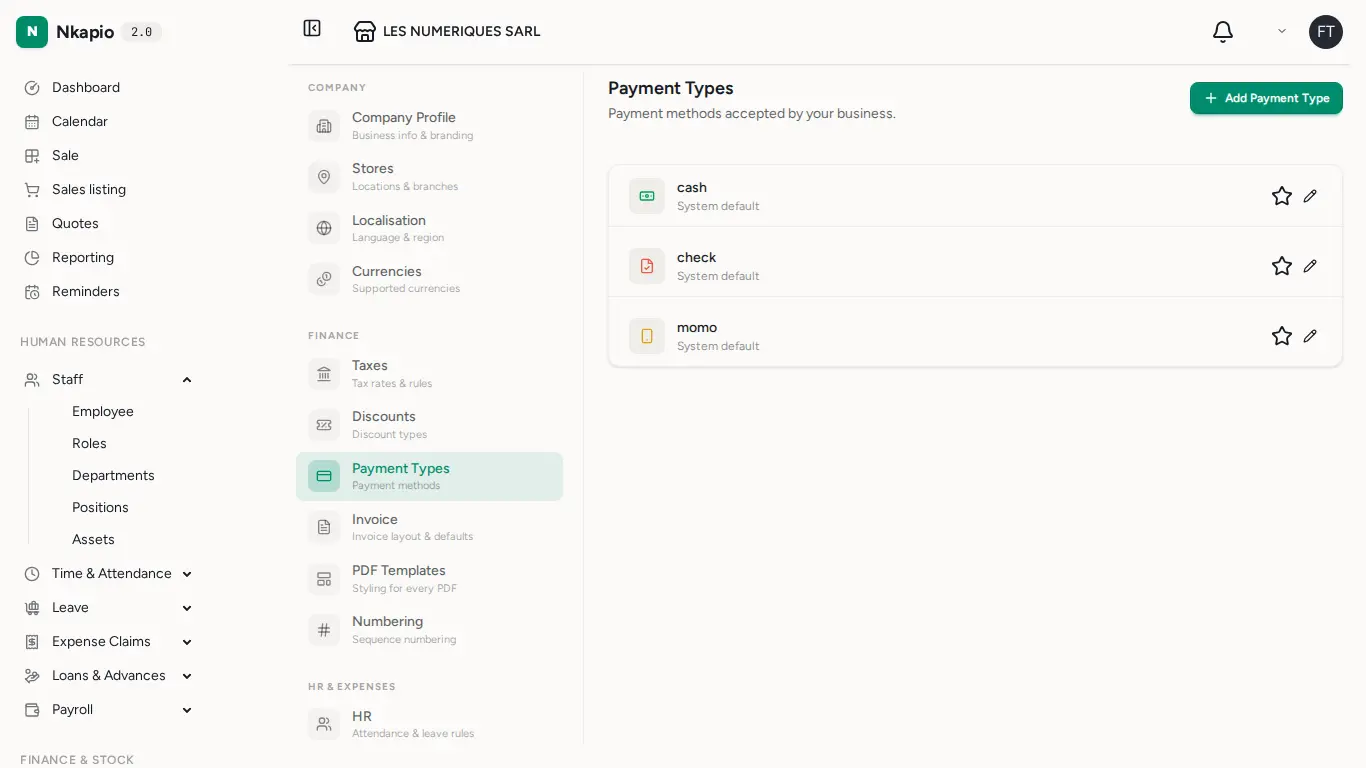
Methods that ship with Nkapio are labelled System default. You can rename them and set one as your preferred method, but they can't be deleted — they are the safe baseline every business needs.
Step 2 — Add a payment type
Click Add Payment Type, give it a clear, specific name — for example "MTN Mobile Money", "Orange Money", or "Bank Transfer" — and save. The name is the only field: keep it recognisable, because it's exactly what your team sees at checkout and what appears on payment records and revenue reports.
Once saved, the new method is immediately selectable when you record a payment, with no further setup.
Step 3 — Set a default, edit, or remove
On each row you have three quick actions:
- Star — marks that method as your default so your most-used tender stands out at a glance. Only one method can be the default at a time; starring a new one clears the previous.
- Pencil — rename a method. The new name flows through to future payments.
- Trash — remove a method you no longer accept. Only methods you added can be deleted; system defaults stay put.
How payment types appear at checkout
The checkout and record-payment screens don't use a fixed list — they read your payment types live. Every method you keep here shows up as a selectable button when your team takes a payment, and anything you remove disappears from that choice. That's why a short, accurate list keeps day-to-day payment capture fast and your end-of-day reconciliation clean.
Tips
Keep your list short and specific. Separate methods (rather than one generic "Other") make your revenue reports far easier to reconcile at the end of the day, because each payment is already tagged with how it came in.
FAQ
Can I deactivate a method instead of deleting it? There's no on/off switch — a method is either in the list or not. To stop offering one, delete it. Methods that came with Nkapio can't be deleted, but you can rename them to match how you work.
Why can't I delete a certain method? Methods labelled System default are protected and can't be removed. You can still rename them or set a different method as your default.
Do I need special access to change these? Everyone can see the list, but creating, renaming, and deleting methods needs the payment-types permission — usually held by owners and managers.