Taxes and currencies are two small settings pages that shape how money appears everywhere else in Nkapio. Set them up once and every invoice, quote and sale afterwards calculates the right total, in the right currency, without anyone having to do the maths by hand. Both pages live under Settings, and both are permission-controlled — usually an owner or a manager keeps them in order, while everyday staff simply benefit from the results on each sale.
Taxes
A tax in Nkapio is a named rate — for example VAT at 19.25% — that you keep in one place and reuse across your catalogue. Each product and service carries the tax that applies to it, so when a line is added to an invoice or quote, Nkapio already knows how much tax to add on top of the price. You can hold as many rates as you need: a standard rate, a reduced rate, and a zero rate for exempt items all sit side by side.
Step 1 — Open the taxes list
Click Taxes in settings. Each tax shows its name, its percentage and whether it is your default. One rate can be marked as the default with the star — that is the rate Nkapio reaches for first. A rate labelled System default is the built-in one and cannot be deleted, only edited.
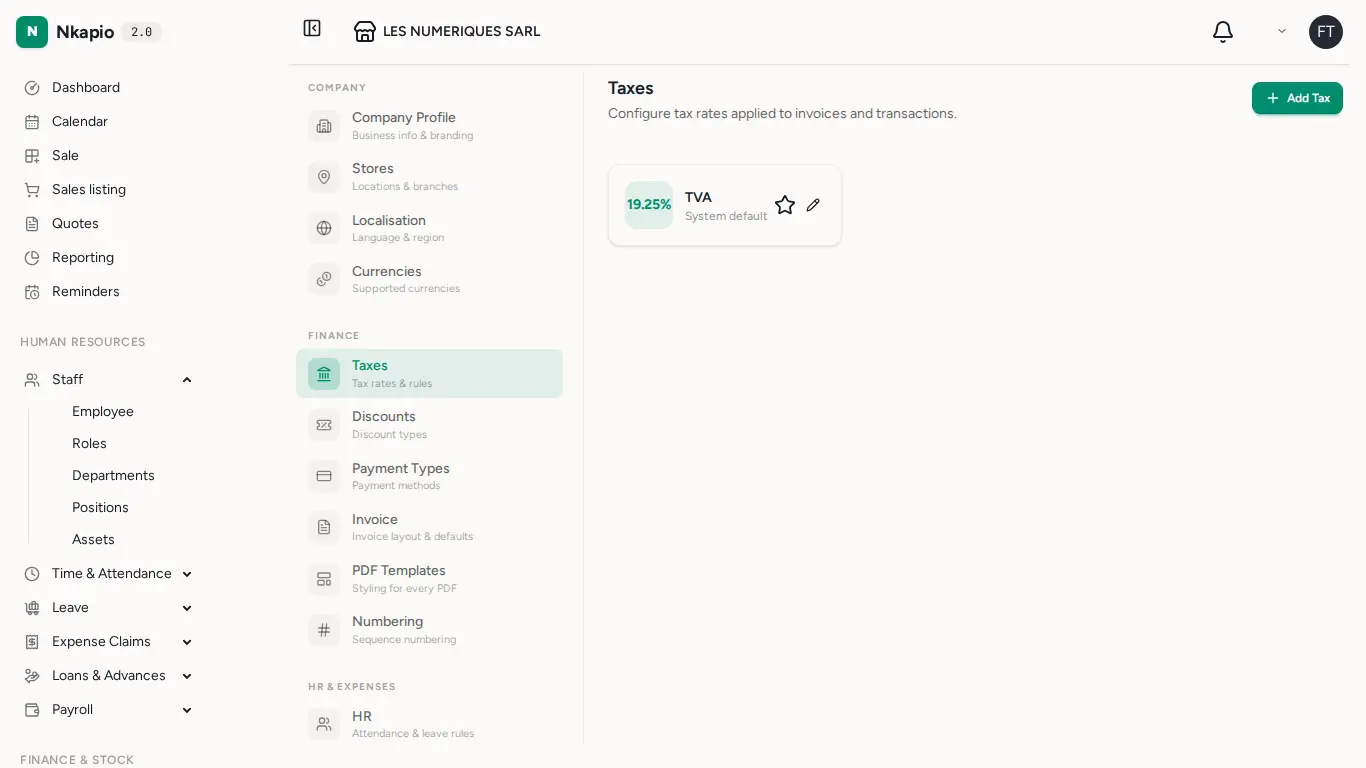
Step 2 — Add a tax rate
Click Add Tax. Give it a clear name (VAT, Sales Tax, GST), enter the percentage, and save. The form shows a live example on 10,000 so you can see the tax amount and the resulting total before you commit. Tax is calculated on top of the line price, so a 19.25% rate on 10,000 adds 1,925 for a total of 11,925. Once saved, the rate is available to attach to products and services and appears on every invoice and quote that uses them.
To change which rate is used by default, click the star on the tax you want. Only one tax can be the default at a time.
Currencies
Nkapio ships with a global catalogue of currencies, each with an exchange rate maintained by the platform — you don't set or update rates yourself. On the Currencies page you simply switch on the currencies your business accepts, and pick one as the default. Rates are shown per XAF for reference and are read-only.
The default is your reporting currency: it is the currency amounts are shown in across the app. XAF is always enabled and acts as the anchor, so it can't be switched off. Exactly one currency is the default at any time — choosing a new one automatically clears the old.
Tip: your primary business currency also appears in Business settings. Set it before your first sale so every total reads the way your customers expect.
Tips & FAQ
- Do I have to add tax to every sale? No. Tax follows the product or service on the line. Items with no tax attached simply carry none.
- Can I delete a tax I no longer use? You can remove rates you added; the system default rate stays and can only be edited.
- What happens if I change my default currency? New amounts display in the new currency going forward. Nkapio does not re-convert past records — history keeps the figures as they were recorded.
- Why can't I switch off a currency? A currency can't be disabled while it is the default or while accounts still hold balances in it. Move the default elsewhere first.
- Who can change these? Only users with the tax and currency permissions. If you can't edit a rate or toggle a currency, ask an owner or manager.