Nkapio workspaces are opened for you by our team — you request access once, and we set up your company, your first store and your owner account. There is no self-service sign-up form to fill in: the goal is that your workspace is ready and correctly configured before you ever log in. You do two things — request access, then sign in — and we take care of everything in between.
Step 1 — Request your workspace
On nkapio.app, click Voir une demo (See a demo). Tell us your business name, sector and phone number — we reply on WhatsApp the same day. This short conversation lets us understand what you sell and how you work, so the workspace we prepare already fits your line of business.
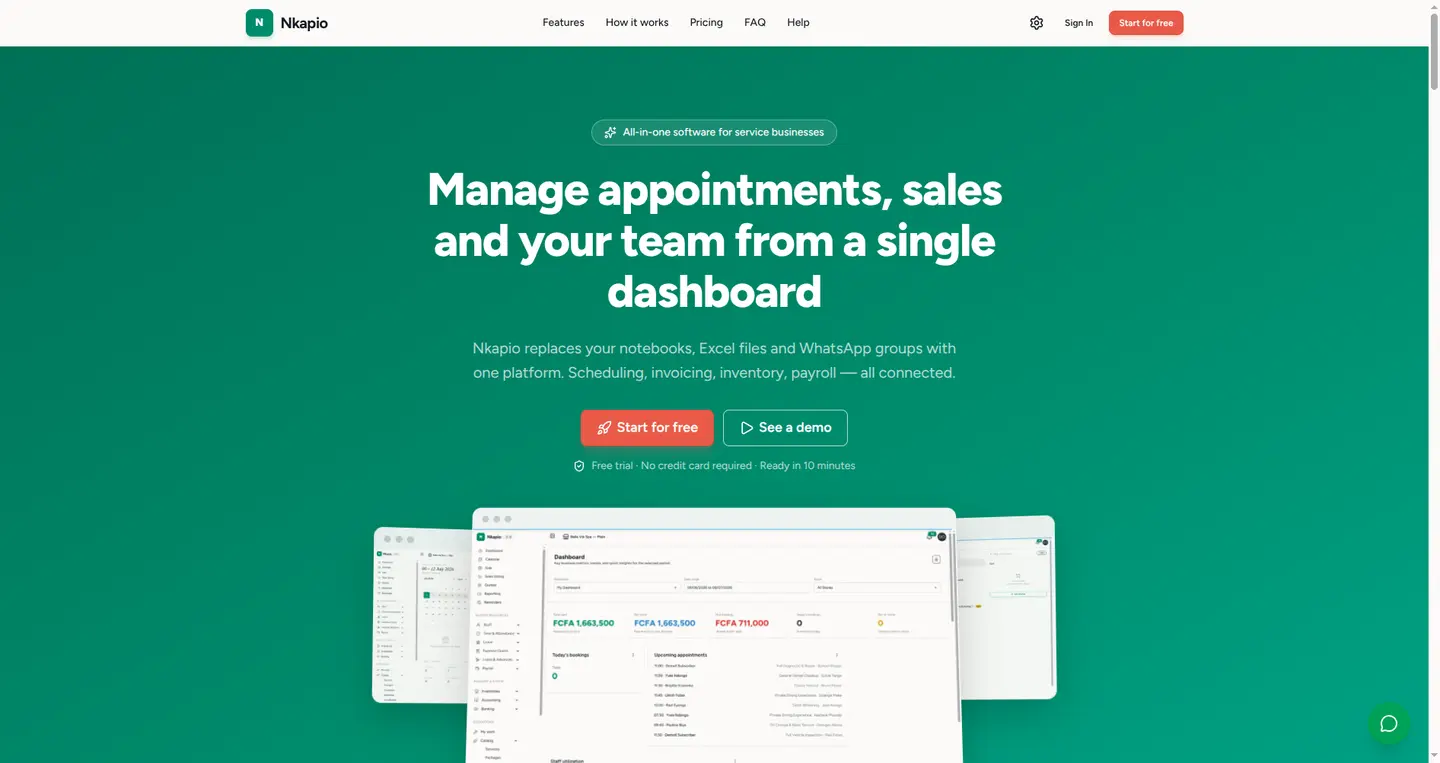
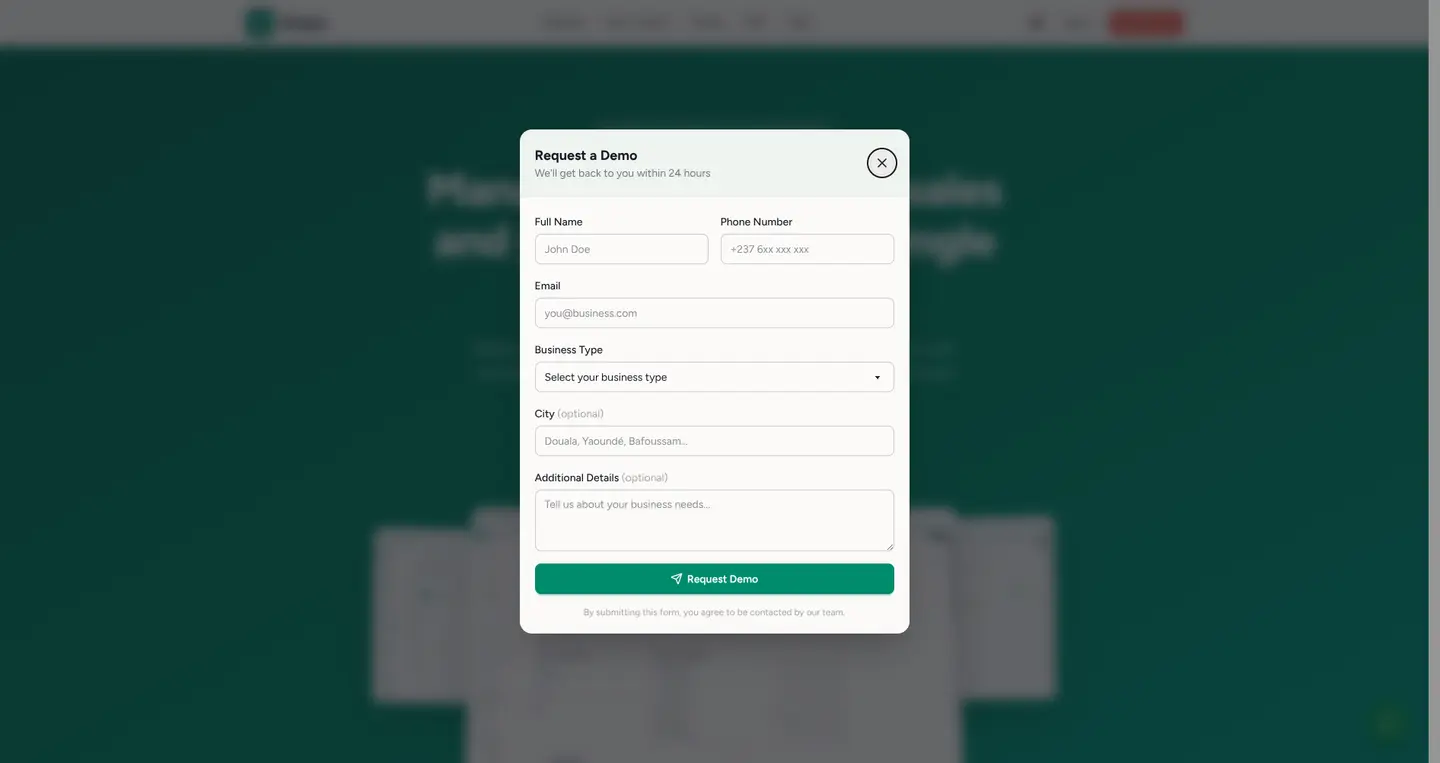
Once you confirm, our team provisions three things for you: your company (your private, isolated workspace), your first store (the location you operate from), and your owner account (the login with full access). Every company on Nkapio lives in its own separate space — your clients, sales and stock are never mixed with any other business.
Step 2 — Sign in
Once your workspace is ready you receive your credentials by email. Open the sign-in page and enter three things:
- Email — the address your owner account was created with.
- Password — the one provided to you (you can change it later).
- Workspace — your company's short name, e.g.
belle-vie-spa. This is what tells Nkapio which company to open.
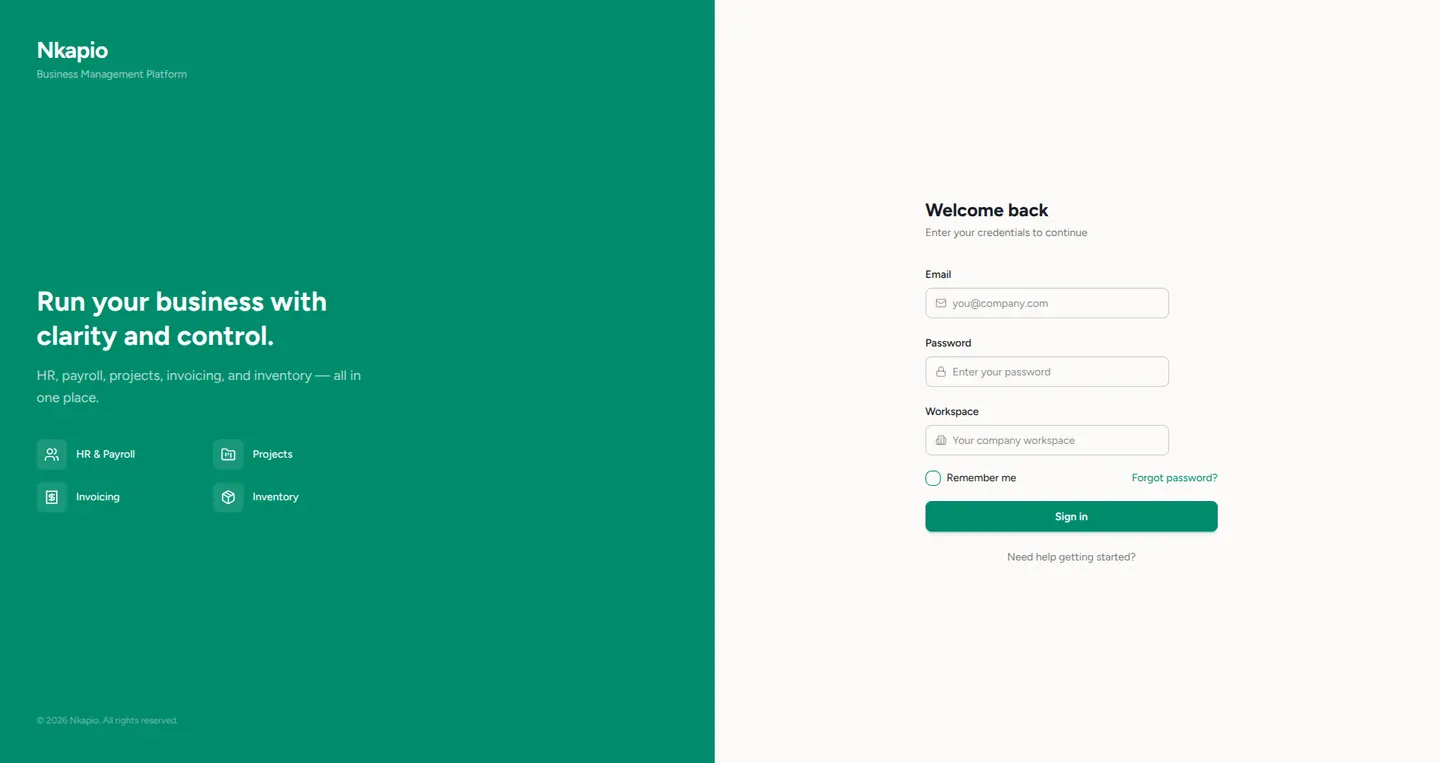
Tick Remember me on a device that is yours so you don't have to sign in every time. On a shared or public computer, leave it unchecked.
Step 3 — Meet your dashboard
You land on your workspace. The sidebar on the left lists every module — Calendar, Sale, Clients, Inventories, Staff — and Insights gives you a live view of your revenue, bookings and stock.
Tip: bookmark your workspace URL — it is yours alone, and your data is fully isolated from every other company on Nkapio.
Add the rest of your team
Your owner account is only the first user. You don't request extra logins from us — you create them yourself from inside the app, under Staff, and decide what each person can see and do. See Add staff & schedules and Roles & permissions.
Change the language
Nkapio is available in English and French. Once you are signed in, open the user menu in the top bar and pick English or Français — the whole interface switches instantly, and your choice is remembered for next time.
Common questions
- I can't sign in / I forgot my password. On the sign-in page, click Forgot password?, enter your email and workspace, and we'll email you a link to set a new password. Double-check that the workspace name matches exactly the one we sent you.
- Can I sign up on my own? No — workspaces are opened by our team so that your company and first store are set up correctly from day one. Request a demo and we'll take it from there.
- Where does my data live? In your company's own isolated space. Nothing is shared with other businesses on Nkapio.