A work schedule is the reusable weekly pattern an employee is measured against — which days they work, when each day starts and how long it runs, how much break it includes, and how much late-clock-in grace they get before it counts. You define the pattern once as a template, then assign staff to it for a period of time. The same schedule that governs attendance also tells the calendar when each person is available to be booked, so it's worth setting up carefully. Both screens live under Human Resources → Time & Attendance, and managing them needs HR permission.
The schedule template
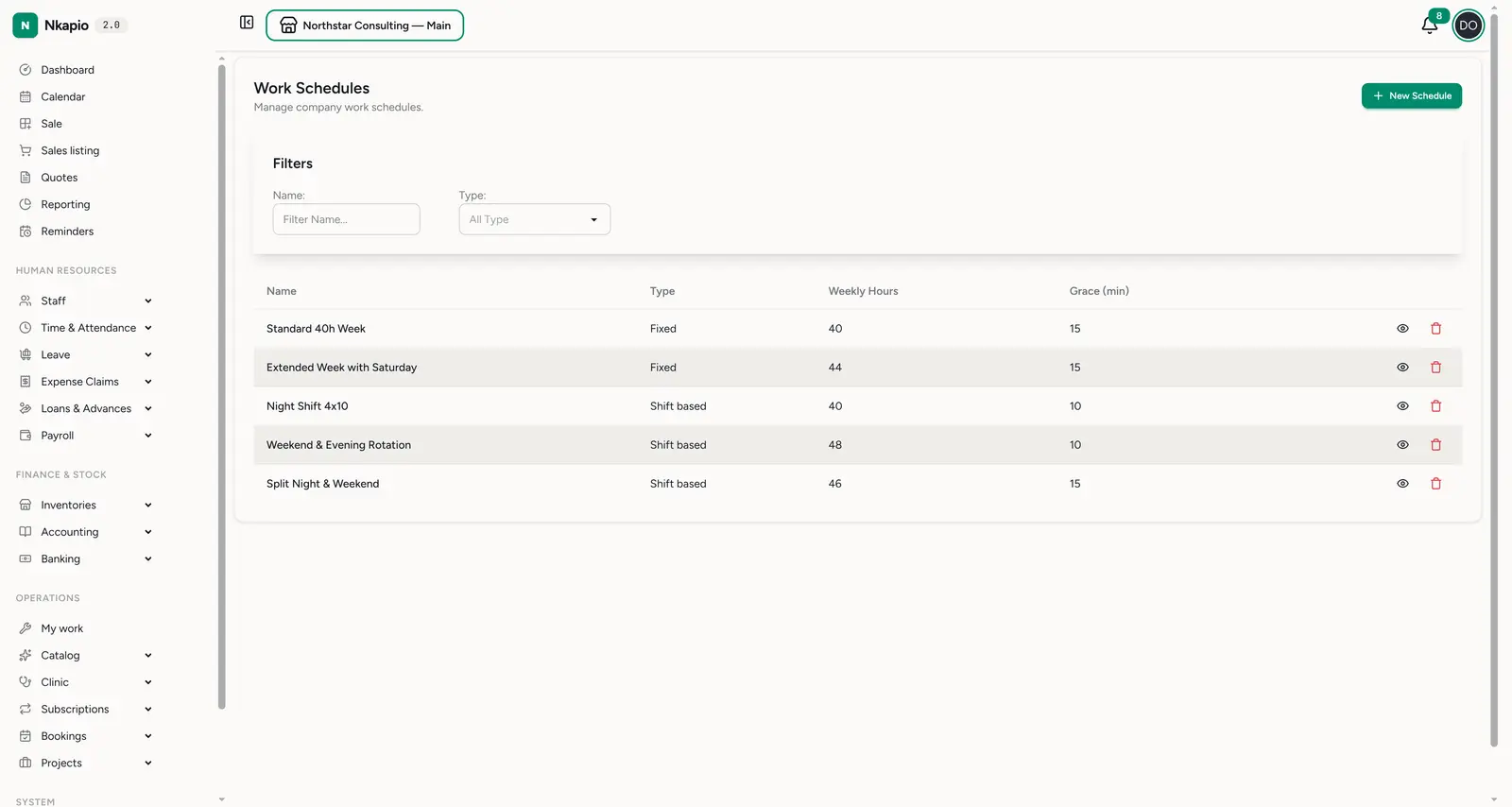
Time & Attendance → Work Schedules (/staff/work_schedules) manages your
company's schedule templates. Each template carries a few header fields and a
day-by-day breakdown:
- Name and an optional description — something recognisable like Standard 40h Week or Night Shift 4x10.
- Schedule type — Fixed or Shift based, so you can tell steady office hours apart from rotating shift patterns.
- Weekly hours — the contracted total the week is expected to add up to.
- Grace period (minutes) — how long after the scheduled start a clock-in is still on time before lateness is recorded.
- Break included in duration — whether the break time already sits inside each day's duration, or is added on top of it.
Filter the list by name or type, and use New Schedule to add one.
Days configuration
Under the header fields you build the weekly pattern one row per working day. For each day you pick the day of the week, a start time, a duration in minutes, and a break in minutes. Start times are offered in 15-minute steps, and a day's duration can be anything from one minute up to a full 24 hours — long enough to describe an overnight shift that runs past midnight.
Add a row for every day the pattern works, and leave out the days it doesn't: any weekday you don't list is treated as an off-day. So a Monday-to-Friday schedule simply has five rows and no weekend entries — there's no separate "day off" toggle to set.
Assigning a schedule to an employee
A template is inert until someone is put on it. Time & Attendance → Employee
Schedules (/staff/employee_schedules) is where each person is linked to a
template over a date range. Every assignment has a from date and an optional
to date — leave the end open and it shows as Ongoing. Use New Assignment
to place someone on a schedule from a start date.
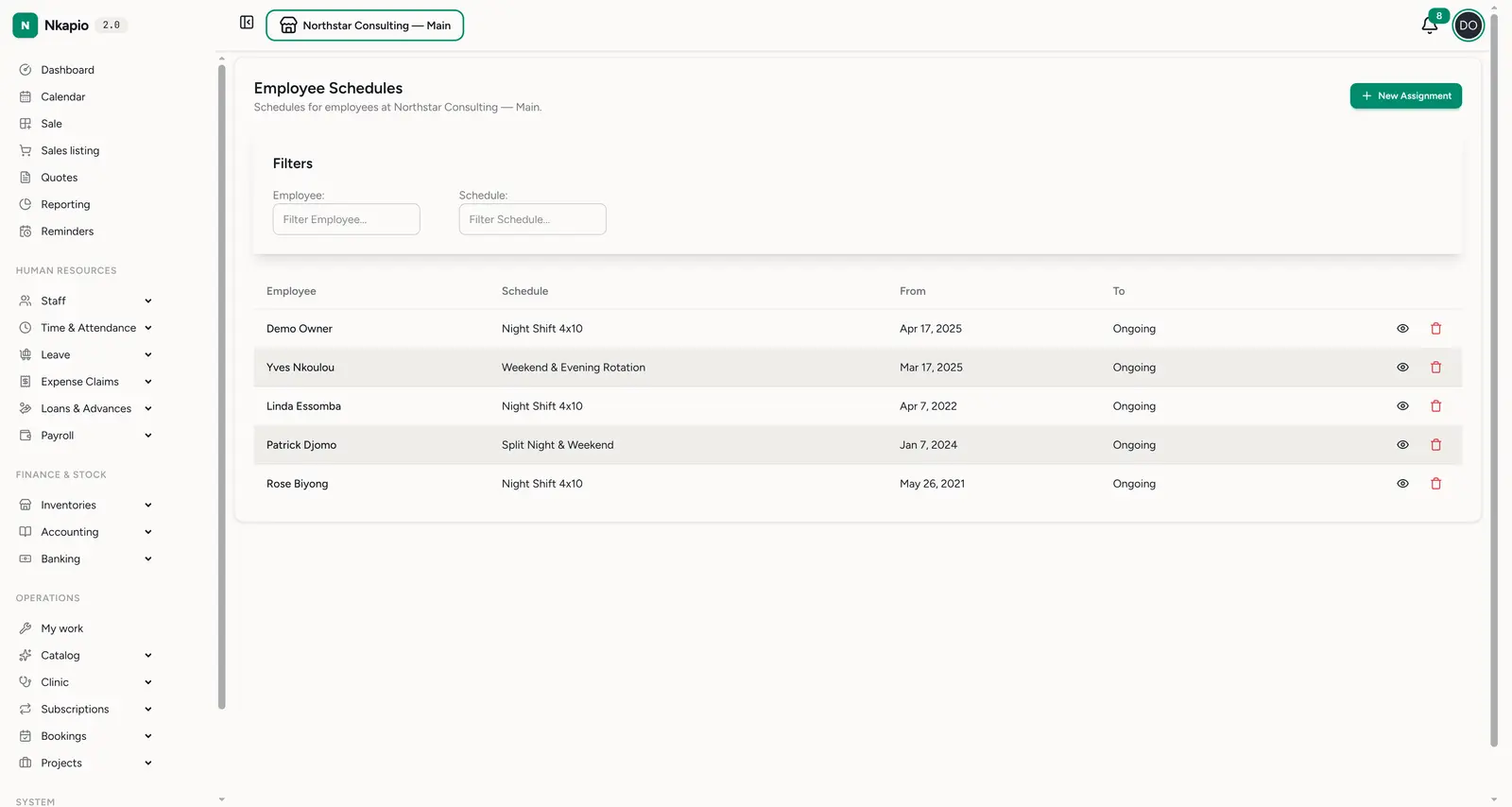
Because attendance is judged against whichever schedule was in effect on each given day, an employee can have only one active schedule at a time. If you try to add an assignment whose dates overlap an existing active one for the same person, the system blocks it and asks you to fix the dates. When someone genuinely changes pattern, close off the current assignment with a to date and add a new one that starts the next day — that way you keep a clean history of who worked which pattern when, instead of overwriting the past.
How it feeds the calendar
The calendar reads each person's active schedule to work out their bookable hours. For any day, it finds the assignment that covers that date, looks up the matching day in the template's weekly pattern, and turns the start time and duration into a working window — the hours during which appointments can be placed. A day with no matching row, or a date no active assignment covers, comes back as off, and no bookable hours are shown. This is why an employee with no schedule (or one that ends before today) appears fully unavailable on the calendar.
Editing matters here too. When you create or change an assignment, the system re-checks that person's upcoming confirmed and pending bookings against the new hours in the background, so appointments that would now fall outside their working window are surfaced rather than silently broken.
Before you start
- HR permission is required to view or manage schedules and assignments.
- Staff appear on a store's calendar only when they're assigned to that store — the schedule sets when they can be booked, but store assignment sets where.
- Uncovered days are off — only the weekdays you add as rows count as working days; everything else is treated as time off.
Tips
- Match the grace period to reality — too tight and everyone's flagged late; too loose and lateness goes unnoticed.
- Assign from a real start date — attendance is measured against the schedule in effect on each day, so backdating matters.
- Reassign, don't rewrite — when someone changes pattern, end the old assignment and add a new one, rather than editing the template, so both the history and everyone else on that template stay intact.
- Editing the template touches everyone on it — a template is shared, so changing its hours changes them for every employee currently assigned to it.
Frequently asked
- Can one employee be on two schedules at once? No — only one active schedule per period. Overlapping dates are rejected; end one before the next begins.
- What happens on days I didn't add? They're treated as off, both for attendance and on the calendar.
- Will editing hours break existing appointments? They aren't deleted, but upcoming bookings that no longer fit the new hours are re-checked and flagged so you can act on them.