Selling on credit — or taking a deposit now and collecting the rest later — is normal business. Recording a payment is how you tell Nkapio that money has actually come in against an invoice. It credits the account behind the till, lowers the invoice balance, and flips the invoice to paid the moment nothing is left owing. Anyone with permission to add payments — front desk, cashier or owner — can do it, and Nkapio keeps the running balance of every invoice until it reaches zero.
Step 1 — Find the unpaid invoice
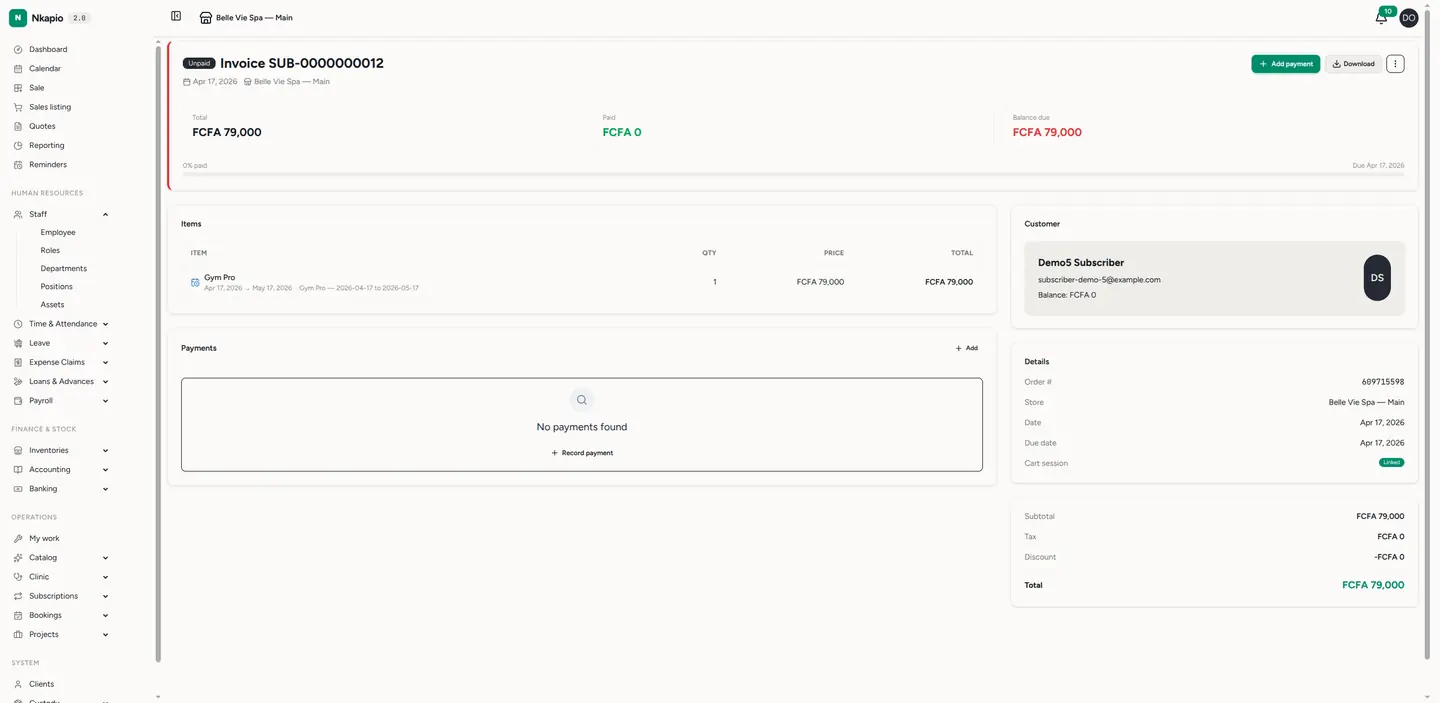
Open Sales listing and filter by status, or check the Outstanding tile on the dashboard. Open the invoice — its header shows the total, the amount already paid and the balance still due, along with a progress bar so you can see at a glance how much of the invoice has been settled.
Step 2 — Record the payment
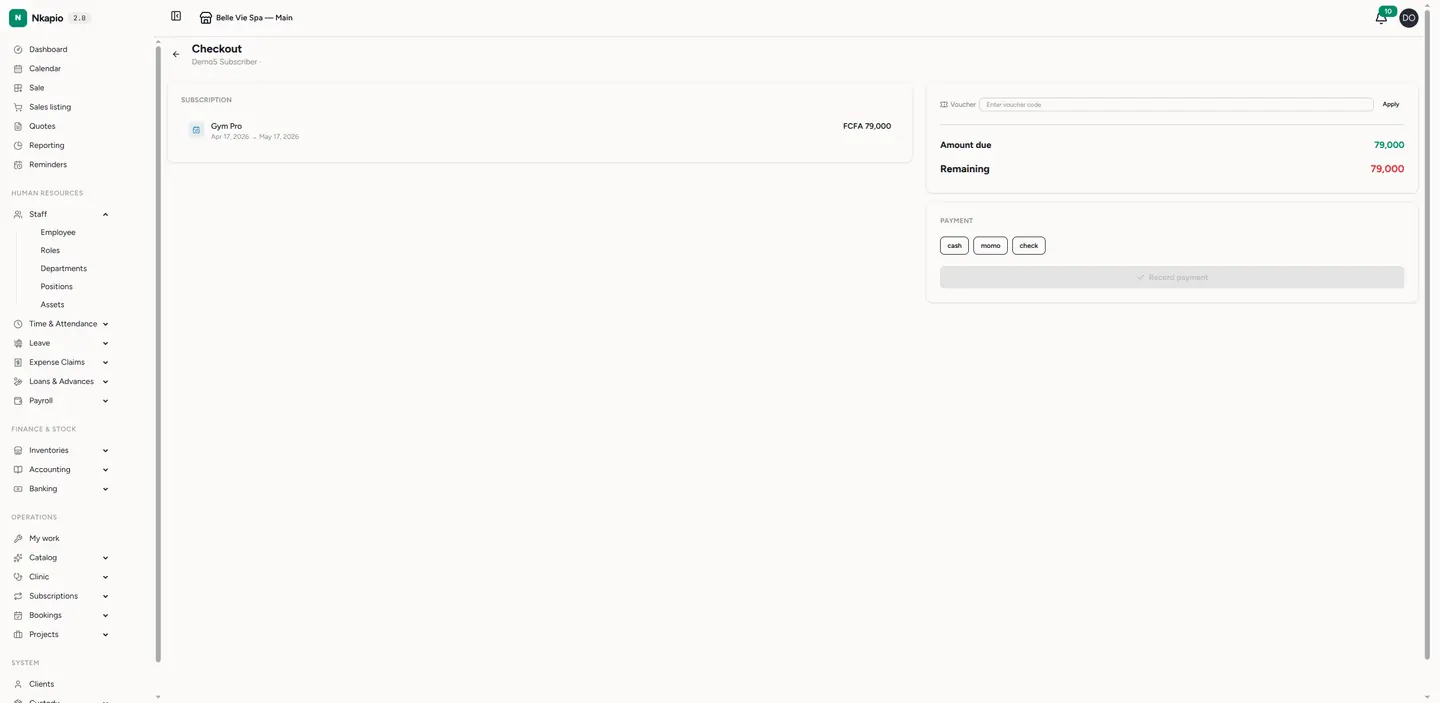
Click the payment action to reach the checkout. Pick a method — cash, momo (mobile money) or check are set up by default, and any others your business has configured appear here too. Type the amount (it defaults to the full remaining balance, but you can lower it for a partial payment), click Add, then Record payment.
Need to split a single sale across methods? Add one line per method — say part in cash and part on mobile money — and each is listed before you commit. If the customer hands over more than the balance, Nkapio shows the change to return; if they pay less, it shows the shortfall.
Step 3 — Watch the balance close
Each payment is logged with its date, method, amount and the person who took it. Nkapio credits the store's cash or bank account for the amount received, recalculates the balance, and flips the invoice to paid the moment that balance reaches zero. Every payment has its own printable receipt, and the invoice keeps the full payment history so you always know what was paid, when, and how.
Tip: a client paying part now and the rest next week? Record two payments — the invoice shows the running balance in between, and closes itself once the second payment clears it.
How settlement works
- Which account is credited — a payment adds money to the cash or bank account attached to the store. That balance and the linked cashflow update automatically, so your books stay in step with the till. See banking & cash accounts.
- Partial, full or split — pay any amount, in any mix of methods. When a checkout covers several charges at once (a booking deposit, products, a subscription period), Nkapio allocates the money across them for you.
- Deposits vs payments — a booking deposit is a prepayment against its own invoice; a later payment settles whatever is still owing. Both flow through this same checkout.
Before you start
- Permission — you need the right to add payments. Team members without it can view an invoice but won't see the payment controls.
- Payment types must exist — cash, momo and check are seeded by default; add or rename methods (including a gift-card method) under payment types.
- The store needs an account — payments credit the store's configured account, so make sure one is set before you take money.
- Walk-ins pay in full — a sale with no client attached must be paid completely before it can be recorded; assign a client to allow a balance to carry over.
- Deposits must be fully covered — the deposit amount has to be paid in full to confirm the linked bookings.
FAQ: The customer overpaid — what happens? Nkapio flags the change to return so you can hand it back in cash. To take less than the total due, your invoice settings must allow short payments; otherwise Nkapio blocks the save until the balance is met.