The Employees directory is the master list of everyone who works in your business. Each person has one record, and that record is the single source of truth the rest of Nkapio reads from: it holds their personal details, their employment and pay information, the stores they belong to, the roles that decide what they can do, and the schedule that says when they're available. Keep the record accurate and scheduling, payroll and permissions all stay consistent — because they all point back to the same place.
The directory is typically looked after by an owner, manager or HR lead. Opening, creating and editing records are permission-controlled, so the buttons you see depend on your role: you'll only get New Employee if you can create staff, and Edit if you can update them.
Open it under Staff → Employees (/staff/users).
Step 1 — Browse the directory
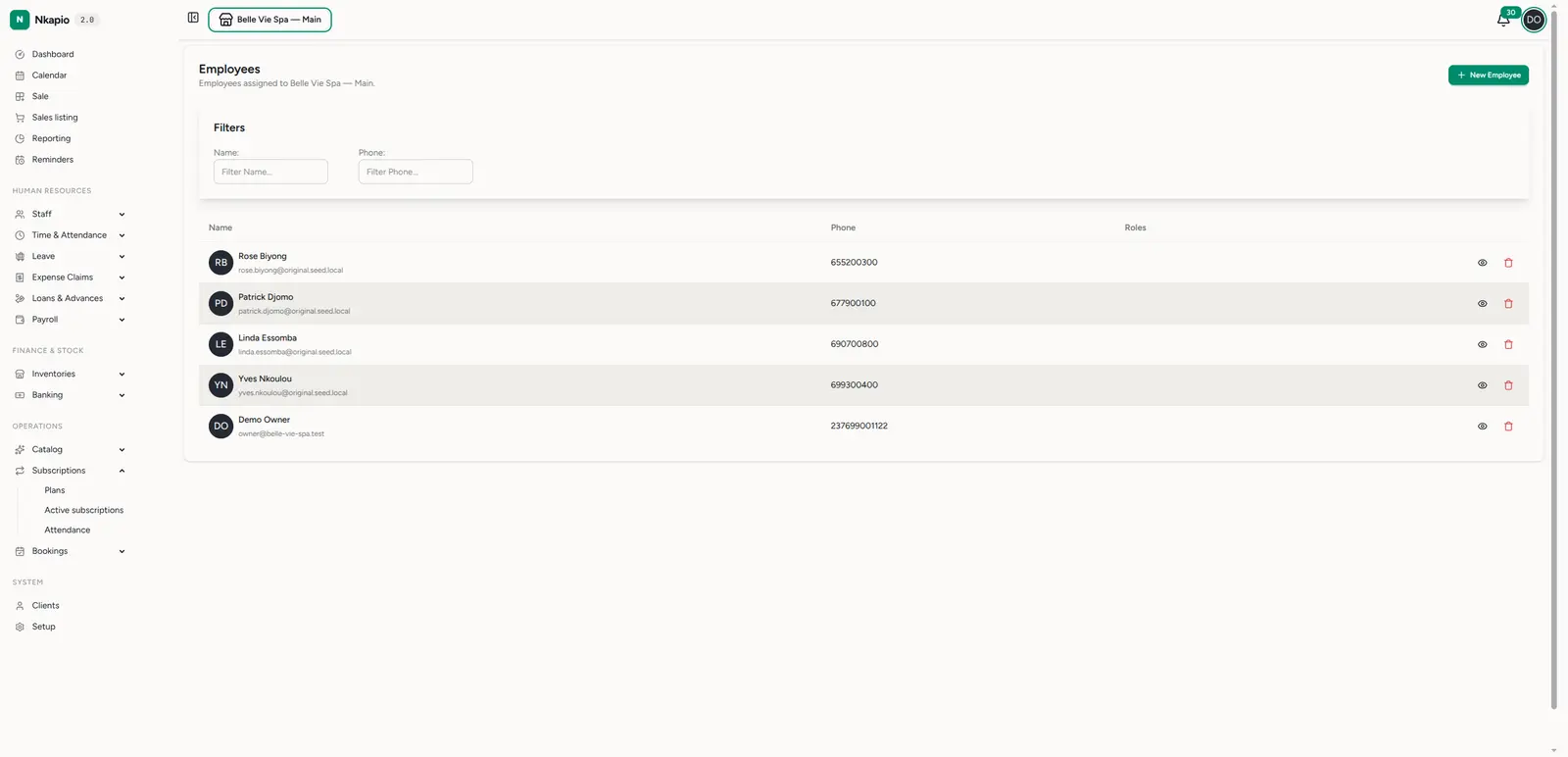
The list shows every employee assigned to the store you're currently working in — someone who only belongs to another store won't appear here until they're assigned to this one. Each row shows the person's photo, name and login email, their phone number, and the roles they hold as badges. The newest employees sit at the top.
Use the Name and Phone filters at the top of the columns to find someone quickly, or sort by name. From each row you can open the full record (the eye icon) or, if you have permission, remove the person (the trash icon). Click New Employee in the top right to add someone.
Your plan includes a limited number of staff seats. When you reach that limit the New Employee button lets you know, so if you're blocked from adding someone it usually means the seat allowance is full rather than a permission problem.
Step 2 — Open an employee's record
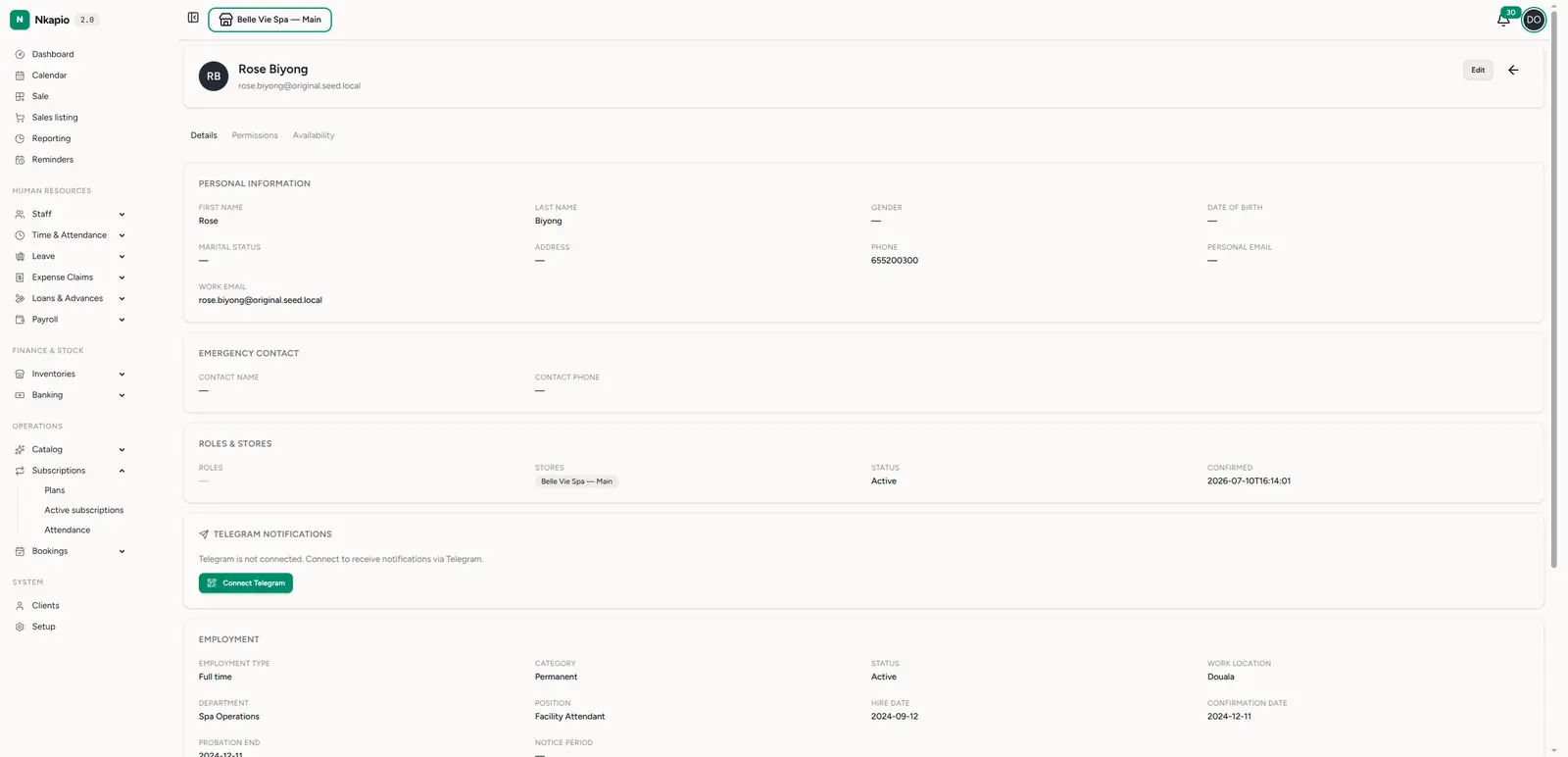
Click any employee to open their record. The header shows their photo, name and email, with an Edit button (if you can update staff) and a link back to the directory. Below that, the record is organised into three tabs.
Details — the full profile, grouped into cards:
- Personal information — first and last name, gender, date of birth, marital status, address, phone, and both personal and work email.
- Emergency contact — a name and phone number to reach in an emergency.
- Roles & stores — the roles the person holds, the stores they belong to, their status (Active or Inactive), and whether they've confirmed their account. This is the card that ties access and visibility together: roles drive what they can do, stores drive what they can see.
- Telegram notifications — whether the person has connected Telegram to receive alerts, with a QR code and link to connect if they haven't.
- Employment — employment type, category, status, work location, department, position, hire date, confirmation date, probation end and notice period.
- Compensation and Banking details — base salary, pay frequency and effective date, plus bank account, tax ID and social security information used when running payroll.
If no employment information has been entered yet, the Details tab simply says so — you can add it at any time with Edit.
Permissions — a searchable table of exactly what this person can do in Nkapio, grouped by module. These permissions come from the roles assigned on the Details tab; to change them, change the person's roles (or adjust what a role grants) rather than editing this list directly. See Roles and permissions.
Availability — a month-by-month calendar showing which days the person works and for how long, their days off, and any approved or requested leave, plus a summary of scheduled days and leave balances for the year. This view is read from the work schedule assigned to the employee — it doesn't set the schedule. If it says "No work schedule assigned," assign one first. See Work schedules.
Click Edit to update anything on the record.
Step 3 — Add or edit an employee
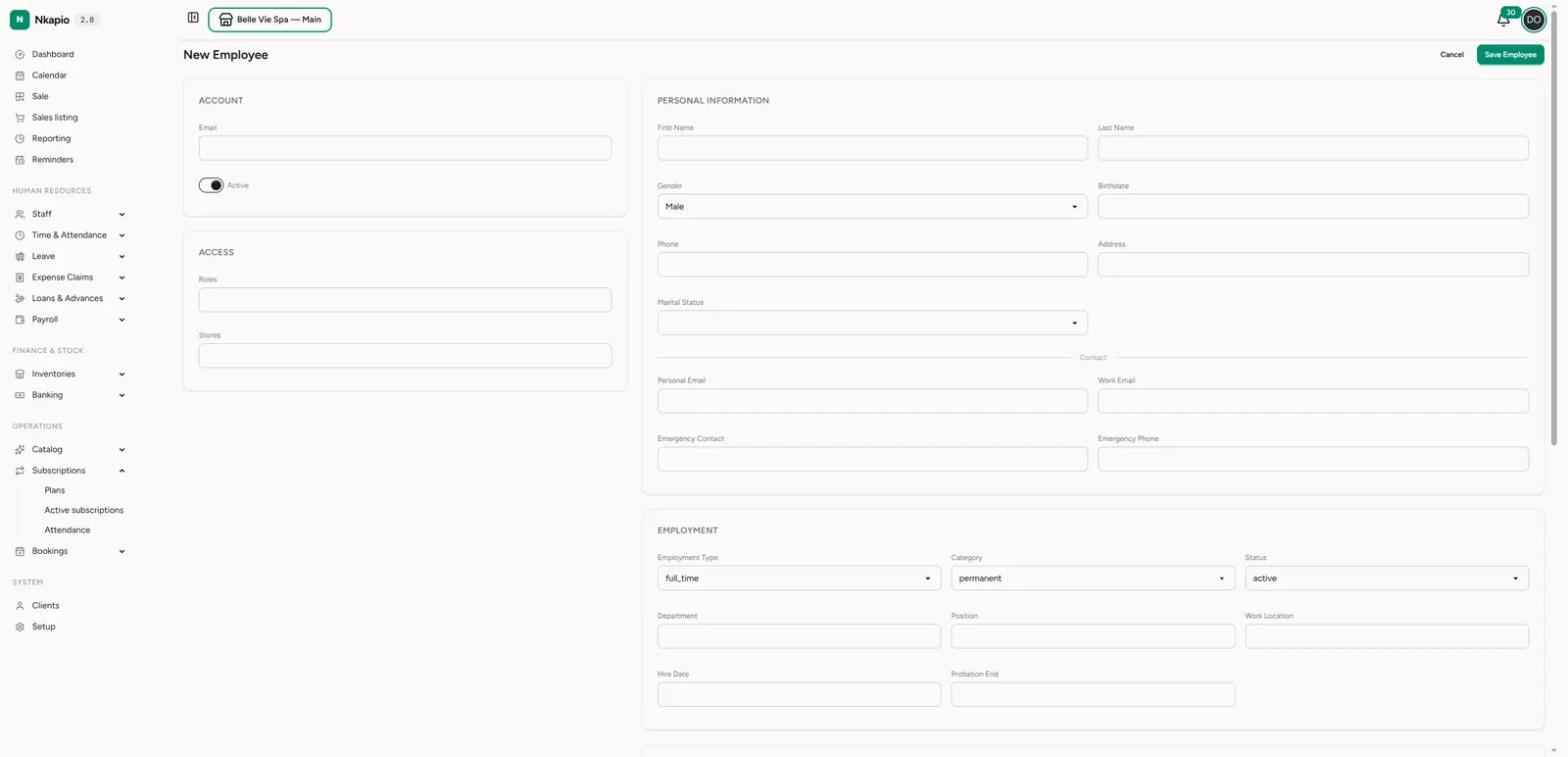
Whether you click New Employee or Edit on an existing record, you fill in the same sections:
- Account — the login email and the Active toggle.
- Access — the roles and stores the person belongs to.
- Personal information — name, gender, birthdate, phone, address, marital status, and contact emails plus emergency contact.
- Employment, Compensation and Banking & Tax — the fields that feed reporting and payroll. (A Commission section also appears if commission tracking is enabled for your business.)
Click Save Employee when you're done. For the full first-day walkthrough of creating a brand-new team member and getting them signed in, see Onboard new employees.
Activate, deactivate, or remove
The Active toggle controls whether the person can use Nkapio without deleting anything they've done. Turn it off when someone leaves or goes on extended absence: their record, history and past work stay intact, but the account is switched off. Turn it back on and they're ready to go again — this is almost always what you want instead of deleting. The trash icon in the directory removes a person from the list entirely and should be reserved for records created in error, not for staff who have simply left.
Tips
- Assign the right store(s). An employee only appears in a store's directory when they're assigned to it, and store assignment also drives which data they can see. Someone who works across several locations should belong to all of them.
- Set roles with least privilege in mind. Roles decide access — give each person the roles they need and no more. Check the Permissions tab to confirm what a set of roles actually grants.
- Fill in employment details. Department, position, hire date and pay information feed HR reporting and payroll, so a partial record means partial reports.
- Keep availability current. The calendar and bookings respect the assigned work schedule, so an up-to-date schedule keeps the availability view accurate and prevents over-booking.
FAQ
Why can't I see a colleague in the list? The directory is scoped to the store you're working in. They're most likely assigned to a different store — switch stores, or add this store to their record.
I deactivated someone by mistake. Did I lose their data? No. Deactivating only switches the account off; the record and all history remain. Edit the person and turn Active back on.
How do I change what someone can do? Change their roles on the Details tab. The Permissions tab is a read-only reflection of what those roles grant.
Why is the Availability tab empty or showing everyone as off? No work schedule has been assigned to that employee yet. Assign one — see Work schedules.